mirror of
https://github.com/tabler/tabler.git
synced 2025-12-22 18:04:26 +04:00
Compare commits
1 Commits
precommit-
...
dev-orders
| Author | SHA1 | Date | |
|---|---|---|---|

|
1583d3ecc0 |
@@ -1,63 +0,0 @@
|
||||
#!/usr/bin/env node
|
||||
|
||||
'use strict'
|
||||
|
||||
import { readFileSync, writeFileSync } from 'node:fs';
|
||||
import { join, dirname } from 'node:path';
|
||||
import { fileURLToPath } from 'node:url'
|
||||
import { sync } from 'glob';
|
||||
import * as prettier from "prettier";
|
||||
|
||||
const __dirname = dirname(fileURLToPath(import.meta.url))
|
||||
|
||||
const docs = sync(join(__dirname, '..', 'docs', '**', '*.mdx'))
|
||||
|
||||
async function formatHTML(htmlString) {
|
||||
try {
|
||||
const formattedHtml = await prettier.format(htmlString, {
|
||||
parser: "html",
|
||||
printWidth: 100,
|
||||
});
|
||||
return formattedHtml;
|
||||
} catch (error) {
|
||||
console.error("Error formatting HTML:", error);
|
||||
return htmlString; // Return original in case of an error
|
||||
}
|
||||
}
|
||||
|
||||
async function replaceAsync(str, regex, asyncFn) {
|
||||
const matches = [...str.matchAll(regex)];
|
||||
|
||||
const replacements = await Promise.all(
|
||||
matches.map(async (match) => asyncFn(...match))
|
||||
);
|
||||
|
||||
let result = str;
|
||||
matches.forEach((match, i) => {
|
||||
result = result.replace(match[0], replacements[i]);
|
||||
});
|
||||
|
||||
return result;
|
||||
}
|
||||
|
||||
for (const file of docs) {
|
||||
const oldContent = readFileSync(file, 'utf8')
|
||||
|
||||
// get codeblocks from markdown
|
||||
const content = await replaceAsync(oldContent, /(```([a-z0-9]+).*?\n)(.*?)(```)/gs, async (m, m1, m2, m3, m4) => {
|
||||
if (m2 === 'html') {
|
||||
m3 = await formatHTML(m3);
|
||||
|
||||
// remove empty lines
|
||||
m3 = m3.replace(/^\s*[\r\n]/gm, '');
|
||||
|
||||
return m1 + m3.trim() + "\n" + m4;
|
||||
}
|
||||
return m.trim();
|
||||
})
|
||||
|
||||
if (content !== oldContent) {
|
||||
writeFileSync(file, content, 'utf8')
|
||||
console.log(`Reformatted ${file}`)
|
||||
}
|
||||
}
|
||||
@@ -1,5 +0,0 @@
|
||||
---
|
||||
"@tabler/core": minor
|
||||
---
|
||||
|
||||
Add gradient background utilities
|
||||
@@ -1,5 +0,0 @@
|
||||
---
|
||||
"@tabler/core": patch
|
||||
---
|
||||
|
||||
Rollback accordion component structure
|
||||
5
.changeset/dry-rice-march.md
Normal file
5
.changeset/dry-rice-march.md
Normal file
@@ -0,0 +1,5 @@
|
||||
---
|
||||
"@tabler/core": patch
|
||||
---
|
||||
|
||||
Fix overflow of `label` in a `floating-input`
|
||||
5
.changeset/famous-items-tap.md
Normal file
5
.changeset/famous-items-tap.md
Normal file
@@ -0,0 +1,5 @@
|
||||
---
|
||||
"@tabler/core": patch
|
||||
---
|
||||
|
||||
Enable `scrollSpy` in `countup` module
|
||||
@@ -1,5 +0,0 @@
|
||||
---
|
||||
"@tabler/core": patch
|
||||
---
|
||||
|
||||
Add Bootstrap components to Tabler JS
|
||||
5
.changeset/grumpy-flowers-act.md
Normal file
5
.changeset/grumpy-flowers-act.md
Normal file
@@ -0,0 +1,5 @@
|
||||
---
|
||||
"@tabler/core": patch
|
||||
---
|
||||
|
||||
Add segmented control component
|
||||
@@ -1,4 +0,0 @@
|
||||
---
|
||||
---
|
||||
|
||||
Replace HTML `alt` attribute to `aria-title` used on SVG element
|
||||
5
.changeset/large-walls-wave.md
Normal file
5
.changeset/large-walls-wave.md
Normal file
@@ -0,0 +1,5 @@
|
||||
---
|
||||
"preview": patch
|
||||
---
|
||||
|
||||
Fix timeline card layout and profile header styles
|
||||
@@ -1,4 +0,0 @@
|
||||
---
|
||||
---
|
||||
|
||||
Update modal examples
|
||||
4
.changeset/metal-carrots-battle.md
Normal file
4
.changeset/metal-carrots-battle.md
Normal file
@@ -0,0 +1,4 @@
|
||||
---
|
||||
---
|
||||
|
||||
Refactor bundlewatch workflow to use Turbo
|
||||
5
.changeset/nice-jeans-tie.md
Normal file
5
.changeset/nice-jeans-tie.md
Normal file
@@ -0,0 +1,5 @@
|
||||
---
|
||||
"@tabler/core": patch
|
||||
---
|
||||
|
||||
Fix size of `apexcharts` tooltip marker
|
||||
@@ -1,5 +0,0 @@
|
||||
---
|
||||
"@tabler/core": patch
|
||||
---
|
||||
|
||||
Apply border radius to `tom-select` on focus
|
||||
@@ -1,5 +0,0 @@
|
||||
---
|
||||
"preview": patch
|
||||
---
|
||||
|
||||
Add missing `tw` entry in `flags.json`
|
||||
@@ -1,5 +0,0 @@
|
||||
---
|
||||
"@tabler/core": patch
|
||||
---
|
||||
|
||||
Minor spelling and grammar improvements to emails docs
|
||||
5
.changeset/red-pens-punch.md
Normal file
5
.changeset/red-pens-punch.md
Normal file
@@ -0,0 +1,5 @@
|
||||
---
|
||||
"@tabler/core": patch
|
||||
---
|
||||
|
||||
Fix negative margins in `.navbar-bordered` variant
|
||||
5
.changeset/short-rocks-battle.md
Normal file
5
.changeset/short-rocks-battle.md
Normal file
@@ -0,0 +1,5 @@
|
||||
---
|
||||
"@tabler/core": minor
|
||||
---
|
||||
|
||||
Refactored the project into a monorepo, removed Gulp, and introduced a new, more efficient build process.
|
||||
5
.changeset/short-wombats-rhyme.md
Normal file
5
.changeset/short-wombats-rhyme.md
Normal file
@@ -0,0 +1,5 @@
|
||||
---
|
||||
"@tabler/core": patch
|
||||
---
|
||||
|
||||
Use the full license agreement for illustrations in docs
|
||||
5
.changeset/silly-lobsters-move.md
Normal file
5
.changeset/silly-lobsters-move.md
Normal file
@@ -0,0 +1,5 @@
|
||||
---
|
||||
|
||||
---
|
||||
|
||||
Improve documentation for buttons
|
||||
5
.changeset/smart-fans-pump.md
Normal file
5
.changeset/smart-fans-pump.md
Normal file
@@ -0,0 +1,5 @@
|
||||
---
|
||||
"@tabler/core": patch
|
||||
---
|
||||
|
||||
Fix vertical alignment in single page and error layouts
|
||||
@@ -1,5 +0,0 @@
|
||||
---
|
||||
"@tabler/core": patch
|
||||
---
|
||||
|
||||
Fix `autosize` and `input mask` plugins to use window scope
|
||||
5
.changeset/stale-pianos-crash.md
Normal file
5
.changeset/stale-pianos-crash.md
Normal file
@@ -0,0 +1,5 @@
|
||||
---
|
||||
"@tabler/core": "minor"
|
||||
---
|
||||
|
||||
Add documentation for segmented control component
|
||||
5
.changeset/ten-houses-punch.md
Normal file
5
.changeset/ten-houses-punch.md
Normal file
@@ -0,0 +1,5 @@
|
||||
---
|
||||
"@tabler/core": patch
|
||||
---
|
||||
|
||||
Fix `.avatar-upload` double borders
|
||||
4
.changeset/thin-clouds-glow.md
Normal file
4
.changeset/thin-clouds-glow.md
Normal file
@@ -0,0 +1,4 @@
|
||||
---
|
||||
---
|
||||
|
||||
Update `robots.txt` handling and improve sitemap URL generation
|
||||
@@ -1,5 +0,0 @@
|
||||
---
|
||||
"@tabler/core": patch
|
||||
---
|
||||
|
||||
Improve README
|
||||
67
.github/workflows/argos.yml
vendored
67
.github/workflows/argos.yml
vendored
@@ -1,67 +0,0 @@
|
||||
name: Argos Tests
|
||||
|
||||
on:
|
||||
push:
|
||||
branches:
|
||||
- dev
|
||||
pull_request:
|
||||
paths:
|
||||
- 'preview/**/*.js'
|
||||
- 'preview/**/*.html'
|
||||
- 'preview/**/*.scss'
|
||||
- 'core/**/*.js'
|
||||
- 'core/**/*.scss'
|
||||
|
||||
env:
|
||||
NODE: 20
|
||||
|
||||
permissions:
|
||||
contents: read
|
||||
|
||||
jobs:
|
||||
test:
|
||||
timeout-minutes: 60
|
||||
runs-on: ubuntu-latest
|
||||
# if: github.event.pull_request.draft == false
|
||||
if: false
|
||||
steps:
|
||||
- name: Clone repository
|
||||
uses: actions/checkout@v4
|
||||
|
||||
- name: Cache turbo build setup
|
||||
uses: actions/cache@v4
|
||||
with:
|
||||
path: .turbo
|
||||
key: ${{ runner.os }}-turbo-${{ github.sha }}
|
||||
restore-keys: |
|
||||
${{ runner.os }}-turbo-
|
||||
|
||||
- name: Set up Node.js
|
||||
uses: actions/setup-node@v4
|
||||
with:
|
||||
node-version: "${{ env.NODE }}"
|
||||
|
||||
- name: Install PNPM
|
||||
uses: pnpm/action-setup@v4
|
||||
|
||||
- name: Get installed Playwright version
|
||||
id: playwright-version
|
||||
run: echo "PLAYWRIGHT_VERSION=$(node -e "console.log(require('./package.json').devDependencies['@playwright/test'])")" >> $GITHUB_ENV
|
||||
|
||||
- name: Cache playwright binaries
|
||||
uses: actions/cache@v4
|
||||
id: playwright-cache
|
||||
with:
|
||||
path: |
|
||||
~/.cache/ms-playwright
|
||||
key: ${{ runner.os }}-playwright-${{ env.PLAYWRIGHT_VERSION }}
|
||||
|
||||
- name: Install pnpm dependencies
|
||||
run: pnpm install
|
||||
|
||||
- name: Install Playwright Browsers
|
||||
run: pnpm exec playwright install --with-deps
|
||||
if: steps.playwright-cache.outputs.cache-hit != 'true'
|
||||
|
||||
- name: Run Playwright tests
|
||||
run: pnpm run playwright
|
||||
3
.github/workflows/bundlewatch.yml
vendored
3
.github/workflows/bundlewatch.yml
vendored
@@ -44,6 +44,9 @@ jobs:
|
||||
- name: Install pnpm dependencies
|
||||
run: pnpm install --no-frozen-lockfile
|
||||
|
||||
- name: Build
|
||||
run: pnpm run build
|
||||
|
||||
- name: Run bundlewatch
|
||||
run: pnpm run bundlewatch
|
||||
env:
|
||||
|
||||
@@ -1,16 +0,0 @@
|
||||
#!/bin/sh
|
||||
|
||||
if git diff --quiet --cached package.json; then
|
||||
if git diff --quiet --cached pnpm-lock.yaml; then
|
||||
echo "pnpm-lock.yaml not changed, nothing to do."
|
||||
else
|
||||
echo "pnpm-lock.yaml changed, restore..."
|
||||
git restore --staged pnpm-lock.yaml
|
||||
git checkout pnpm-lock.yaml
|
||||
echo "Restored pnpm-lock.yaml."
|
||||
fi
|
||||
else
|
||||
echo "package.json changed, pnpm-lock.yaml change"
|
||||
fi
|
||||
|
||||
exit 0
|
||||
@@ -16,7 +16,8 @@
|
||||
- be14607: Add new color picker component using `coloris.js` library
|
||||
- d046570: Update Tabler Icons to version 2.23 with 18 new icons added
|
||||
- 5488c50: New page with payment providers: `payment-providers.html`
|
||||
- 5488c50: Add support for new payment providers: 2c2p, Adyen, Affirm, Alipay Plus, Allegro Pay, Amazon Pay, Apple Pay, Autopay, Binance USD, Bkash, Cash App, Chime, EasyPaisa, Ethereum, Google Pay, HubSpot, iDeal, Litecoin, Mercado Pago, MetaMask, MoneyGram, OpenSea, Payconiq, Payka, Payline, PayPo, Paysafe, Poli, Revolut Pay, Samsung Pay, Shop Pay, Solana, Spingo, Stax, Tether, True USD, Venmo, WeChat Pay, Wise, Zelle
|
||||
- 5488c50: Add support for new payment providers: 2c2p, Adyen, Affirm, Alipay Plus, Allegro Pay, Amazon Pay, Apple Pay, Autopay, Binance USD, Bkash, Cash App, Chime, EasyPaisa, Ethereum, Google Pay, HubSpot, iDeal, Litecoin, Mercado Pago,
|
||||
MetaMask, MoneyGram, OpenSea, Payconiq, Payka, Payline, PayPo, Paysafe, Poli, Revolut Pay, Samsung Pay, Shop Pay, Solana, Spingo, Stax, Tether, True USD, Venmo, WeChat Pay, Wise, Zelle
|
||||
|
||||
### Patch Changes
|
||||
|
||||
|
||||
211
README.md
211
README.md
@@ -1,5 +1,5 @@
|
||||
<p align="center">
|
||||
<a href="https://github.com/tabler/tabler"><img src="https://raw.githubusercontent.com/tabler/tabler/refs/heads/dev/preview/static/logo.svg" alt="A premium and open source dashboard template with a responsive and high-quality UI." width="300"></a><br><br>
|
||||
<a href="https://github.com/tabler/tabler"><img src="https://raw.githubusercontent.com/tabler/tabler/dev/src/static/logo.svg" alt="A premium and open source dashboard template with a responsive and high-quality UI." width="300"></a><br><br>
|
||||
A premium and open source dashboard template with a responsive and high-quality UI.
|
||||
</p>
|
||||
|
||||
@@ -15,7 +15,7 @@ A premium and open source dashboard template with a responsive and high-quality
|
||||
|
||||
## Sponsors
|
||||
|
||||
**If you want to support our project and help us grow it, you can [become a sponsor on GitHub](https://github.com/sponsors/codecalm) or just [donate on PayPal](https://paypal.me/codecalm) :)**
|
||||
**If you want to support our project and help me grow it, you can [become a sponsor on GitHub](https://github.com/sponsors/codecalm) or just [donate on PayPal](https://paypal.me/codecalm) :)**
|
||||
|
||||
<p align="center">
|
||||
<a href="https://github.com/sponsors/codecalm">
|
||||
@@ -23,24 +23,8 @@ A premium and open source dashboard template with a responsive and high-quality
|
||||
</a>
|
||||
</p>
|
||||
|
||||
<p align="center">
|
||||
<a href="https://github.com/sponsors/codecalm" target="_blank">
|
||||
<img src="https://raw.githubusercontent.com/tabler/tabler/dev/preview/static/sponsor-banner-homepage.svg" alt="Sponsor Banner">
|
||||
</a>
|
||||
</p>
|
||||
|
||||
## Testing
|
||||
|
||||
<p align="center">Visual testing with:</p>
|
||||
|
||||
<p align="center">
|
||||
<a href="https://argos-ci.com/" target="_blank">
|
||||
<picture>
|
||||
<img src="https://github.com/user-attachments/assets/7d231a26-eff5-4fc5-8392-b2a679a7c572" alt="Argos-CI" height="164" />
|
||||
</picture>
|
||||
</a>
|
||||
</p>
|
||||
|
||||
<p align="center">Browser testing via:</p>
|
||||
|
||||
<p align="center">
|
||||
@@ -48,7 +32,7 @@ A premium and open source dashboard template with a responsive and high-quality
|
||||
<picture>
|
||||
<source media="(prefers-color-scheme: dark)" srcset="https://github.com/user-attachments/assets/14dd2a0a-bafe-436e-a6cb-29636278c781">
|
||||
<source media="(prefers-color-scheme: light)" srcset="https://github.com/user-attachments/assets/d3dede5a-d702-47c3-bb66-4d887948ed83">
|
||||
<img src="https://github.com/user-attachments/assets/d3dede5a-d702-47c3-bb66-4d887948ed83" alt="labmdatest" width="296">
|
||||
<img src="https://github.com/user-attachments/assets/d3dede5a-d702-47c3-bb66-4d887948ed83" alt="Tabler Icons preview" width="296">
|
||||
</picture>
|
||||
</a>
|
||||
</p>
|
||||
@@ -57,11 +41,8 @@ A premium and open source dashboard template with a responsive and high-quality
|
||||
|
||||
Tabler is fully responsive and compatible with all modern browsers. Thanks to its modern and user-friendly design you can create a fully functional interface that users will love! Choose the layouts and components you need and customize them to make your design consistent and eye-catching. Every component has been created with attention to detail to make your interface beautiful! <a href="https://preview.tabler.io">Show me a demo</a>
|
||||
|
||||
<p align="center">
|
||||
<a href="https://preview.tabler.io" target="_blank">
|
||||
<img src="https://raw.githubusercontent.com/tabler/tabler/dev/preview/static/tabler-preview.png" alt="Tabler Preview">
|
||||
</a>
|
||||
</p>
|
||||
<a href="https://preview.tabler.io" target="_blank"><img src="https://raw.githubusercontent.com/tabler/tabler/dev/src/static/tabler-preview.png" alt="Tabler preview"></a>
|
||||
|
||||
|
||||
## 🚀 Features
|
||||
|
||||
@@ -72,30 +53,110 @@ We've created this admin panel for everyone who wants to create templates based
|
||||
* **HTML5 & CSS3:** We use only modern web technologies, such as HTML5 and CSS3. Our theme includes some subtle CSS3 animations, which will help you attract attention.
|
||||
* **Clean Code:** We followed Bootstrap’s guidelines carefully to make your integration as easy as possible. All code is handwritten and W3C valid.
|
||||
* **Demo pages**: Tabler features over 20 individual pages using various components, which gives you the freedom to choose and combine. All components can vary in color and styling that you can easily modify using Sass. Sky is the limit!
|
||||
* **Single Page Application versions:** [Tabler React](https://github.com/tabler/tabler-react) has React components for Tabler.
|
||||
|
||||
## 📖 Documentation
|
||||
|
||||
The documentation is available at https://tabler.io/docs/
|
||||
Documentation is available as a part of Tabler preview: https://tabler.io/docs/
|
||||
|
||||
To run the documentation site locally, follow instructions in the [Documentation README](https://github.com/tabler/tabler/blob/dev/site/README.md).
|
||||
|
||||
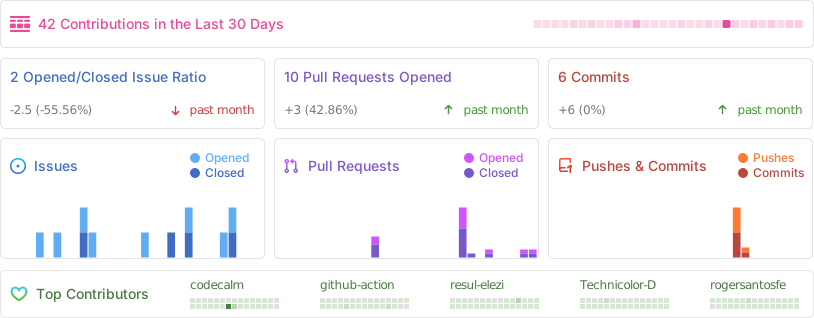
## 🪴 Project Activity
|
||||
|
||||
<p align="center">
|
||||
<img src="https://repobeats.axiom.co/api/embed/61d1db34446967b0848af68198a392067e0f5870.svg" alt="Repobeats analytics image" />
|
||||
</p>
|
||||
|
||||
|
||||
## 💕 Sponsor Tabler
|
||||
|
||||
<a href="https://github.com/sponsors/codecalm" target="_blank"><img src="/src/static/sponsor-banner-readme.png?raw=true" alt="Sponsor Tabler" /></a>
|
||||
|
||||
|
||||
### Sponsors
|
||||
|
||||
Support this project by becoming a sponsor. Your logo will show up in this README with a link to your website. [Become a sponsor!](https://opencollective.com/tabler#sponsor)
|
||||
|
||||
<a href="https://opencollective.com/tabler/tiers/sponsor/0/website" target="_blank"><img src="https://opencollective.com/tabler/tiers/sponsor/0/avatar.svg" /></a>
|
||||
<a href="https://opencollective.com/tabler/tiers/sponsor/1/website" target="_blank"><img src="https://opencollective.com/tabler/tiers/sponsor/1/avatar.svg" /></a>
|
||||
<a href="https://opencollective.com/tabler/tiers/sponsor/2/website" target="_blank"><img src="https://opencollective.com/tabler/tiers/sponsor/2/avatar.svg" /></a>
|
||||
<a href="https://opencollective.com/tabler/tiers/sponsor/3/website" target="_blank"><img src="https://opencollective.com/tabler/tiers/sponsor/3/avatar.svg" /></a>
|
||||
<a href="https://opencollective.com/tabler/tiers/sponsor/4/website" target="_blank"><img src="https://opencollective.com/tabler/tiers/sponsor/4/avatar.svg" /></a>
|
||||
<a href="https://opencollective.com/tabler/tiers/sponsor/5/website" target="_blank"><img src="https://opencollective.com/tabler/tiers/sponsor/5/avatar.svg" /></a>
|
||||
<a href="https://opencollective.com/tabler/tiers/sponsor/6/website" target="_blank"><img src="https://opencollective.com/tabler/tiers/sponsor/6/avatar.svg" /></a>
|
||||
<a href="https://opencollective.com/tabler/tiers/sponsor/7/website" target="_blank"><img src="https://opencollective.com/tabler/tiers/sponsor/7/avatar.svg" /></a>
|
||||
<a href="https://opencollective.com/tabler/tiers/sponsor/8/website" target="_blank"><img src="https://opencollective.com/tabler/tiers/sponsor/8/avatar.svg" /></a>
|
||||
<a href="https://opencollective.com/tabler/tiers/sponsor/9/website" target="_blank"><img src="https://opencollective.com/tabler/tiers/sponsor/9/avatar.svg" /></a>
|
||||
|
||||
## 📦 Setup environment
|
||||
|
||||
To use our build system and run our documentation locally, you'll need a copy of Tabler's source files. Follow the steps below:
|
||||
|
||||
1. [Install Node.js](https://nodejs.org/download/), which we use to manage our dependencies.
|
||||
2. Navigate to the root `/tabler` directory and run `pnpm install` to install our local dependencies listed in `package.json`.
|
||||
|
||||
**OSX users**:
|
||||
|
||||
```pnpm install```
|
||||
|
||||
and then
|
||||
|
||||
```npm run start```
|
||||
|
||||
|
||||
**Windows users**:
|
||||
|
||||
[Install Git](https://git-scm.com/download/win) in `C:\Program Files\git\bin` directory and run `npm config set script-shell "C:\\Program Files\\git\\bin\\bash.exe"` to change the default shell.
|
||||
|
||||
Once you complete the setup, you'll be able to run the various commands provided from the command line.
|
||||
|
||||
|
||||
## Build locally
|
||||
|
||||
You need to have `pnpm` installed.
|
||||
|
||||
1. From the root `/tabler` directory, run installation in the command line: `pnpm install`
|
||||
2. Then execute `pnpm run start` to start up the application stack.
|
||||
3. Open [http://localhost:3000](http://localhost:3000) in your browser, and voilà.
|
||||
4. Any change in the `/src` directory will build the application and refresh the page.
|
||||
|
||||
**Note**:
|
||||
Run `pnpm run build` for reforms a one off build application without refresh.
|
||||
Open [http://localhost:3001](http://localhost:3001) to configure the Web server.
|
||||
|
||||
## Installation
|
||||
|
||||
### Package Managers
|
||||
|
||||
Tabler is distributed via npm. You can install it with this or your preferred JavaScript package manager:
|
||||
Tabler is distributed via npm.
|
||||
|
||||
```sh
|
||||
npm install --save @tabler/core
|
||||
```
|
||||
|
||||
## Running with Docker
|
||||
|
||||
**Plain Docker**
|
||||
|
||||
If you don't want to install node/npm and the dependencies on your local environment, you can use the provided Dockerfile to build a docker image.
|
||||
This Dockerfile is provided as an example to spin-up a container running Tabler.
|
||||
|
||||
Example of how to use this image:
|
||||
|
||||
1. Build the tabler image : `docker build -t tabler .`
|
||||
2. Run the tabler image while mounting the `src` directory as well as the `_config.yml` file into the container.
|
||||
|
||||
Don't forget to expose the port 3000 so you can browse the website locally.
|
||||
You can also expose the port 3001 to have access to BrowserSync
|
||||
|
||||
```sh
|
||||
docker run -p 3000:3000 -p 3001:3001 -v $(pwd)/src:/app/src -v $(pwd)/_config.yml:/app/_config.yml tabler
|
||||
```
|
||||
|
||||
Now open your browser to [http://localhost:3000](http://localhost:3000). Edit anything in the `src/` folder and watch your browser refresh the page after it has been rebuilt.
|
||||
|
||||
**Docker Compose**
|
||||
|
||||
You can also use the docker compose config from this repo. Use `docker compose build && docker compose up` or `docker compose up --build` to build and start the container. Edit anything in the `src/` folder the same way as with plain docker and access the same URLs and ports in your browser.
|
||||
|
||||
### CDN support
|
||||
|
||||
All files included in `@tabler/core` npm package are also available over a CDN.
|
||||
All files included in `@tabler/core` npm package are available over a CDN.
|
||||
|
||||
#### Javascript
|
||||
|
||||
@@ -109,84 +170,24 @@ All files included in `@tabler/core` npm package are also available over a CDN.
|
||||
<link rel="stylesheet" href="https://cdn.jsdelivr.net/npm/@tabler/core@latest/dist/css/tabler.min.css">
|
||||
```
|
||||
|
||||
## Building locally
|
||||
## Feature requests
|
||||
|
||||
To build a copy of Tabler locally, you have two options. You can either set up your device directly with the development tools required to build Tabler, or if you would prefer not to install all the development dependencies directly onto your device, you can use a Dockerfile that Tabler provides to build a docker image. Instructions follow below.
|
||||
https://tabler.canny.io/feature-requests
|
||||
|
||||
### First steps: Downloading the Tabler source files
|
||||
|
||||
With either method, the first thing you'll want to do is download a copy of the Tabler source files to your device.
|
||||
|
||||
#### From the Tabler GitHub releases page
|
||||
|
||||
If you don't want to edit the source code once you've downloaded it, and aren't interested in merging future project updates into your copy, you can just download the source files straight from the [Tabler releases on GitHub](https://github.com/tabler/tabler/releases) and extract the contents to a directory called `tabler`.
|
||||
|
||||
#### Cloning with Git
|
||||
|
||||
If you **do** wish to edit the source code after downloading it, for example to contribute changes back to the Tabler project, you'll want to do this by cloning it with Git:
|
||||
1. If you don't have Git installed on your device, download and install it. You can find instructions at [https://git-scm.com/downloads](https://git-scm.com/downloads).
|
||||
2. (Optional) **Windows users:** you could optionally install Git in the `C:\Program Files\git\bin` directory and run `npm config set script-shell "C:\\Program Files\\git\\bin\\bash.exe"` to change the default shell.
|
||||
3. Clone the Tabler project into a folder on your device. Instructions can be found at [cloning a repository](https://docs.github.com/en/repositories/creating-and-managing-repositories/cloning-a-repository).
|
||||
|
||||
### Installing and running development tools directly
|
||||
|
||||
1. [Install Node.js](https://nodejs.org/download/), which we use to manage our dependencies.
|
||||
2. [Install pnpm](https://pnpm.io/installation) (We recommend either by [Using Corepack](https://pnpm.io/installation#using-corepack) or by [Using npm](https://pnpm.io/installation#using-npm))
|
||||
3. From the root `/tabler` directory where you downloaded the Tabler source files, run installation on the command line:
|
||||
```sh
|
||||
pnpm install
|
||||
```
|
||||
4. Then execute the following to start up the application stack:
|
||||
```sh
|
||||
pnpm run start
|
||||
```
|
||||
5. Open [http://localhost:3000](http://localhost:3000) in your browser, and voilà.
|
||||
Any change in the `/src` directory will rebuild the application and refresh the page.
|
||||
|
||||
**Note**:
|
||||
If you wish to perform a one-off build without auto-refresh on any changes, you can run:
|
||||
```sh
|
||||
pnpm run build
|
||||
```
|
||||
You can open [http://localhost:3001](http://localhost:3001) to configure the Web server.
|
||||
|
||||
|
||||
### Installing and running development tools with Docker
|
||||
|
||||
**Plain Docker**
|
||||
|
||||
Here is an example of how to use this image:
|
||||
|
||||
1. From the root `/tabler` directory where you downloaded the Tabler source files, build the tabler image:
|
||||
```sh
|
||||
docker build -t tabler .
|
||||
```
|
||||
2. Run the tabler image. The following command mounts the `src` directory into the container, exposes port 3000 to browse the website locally, and exposes port 3001 to automatically sync changes:
|
||||
```sh
|
||||
docker run -p 3000:3000 -p 3001:3001 -v $(pwd)/src:/app/src tabler
|
||||
```
|
||||
3. Open your browser to [http://localhost:3000](http://localhost:3000). Edit anything in the `src/` folder and watch your browser refresh the page after it has been rebuilt.
|
||||
|
||||
**Docker Compose**
|
||||
|
||||
You can also use the docker compose config from this repo. From the root `/tabler` directory where you downloaded the Tabler source files, use `docker compose build && docker compose up` or `docker compose up --build` to build and start the container. Edit anything in the `src/` folder the same way as with plain docker and access the same URLs and ports in your browser.
|
||||
|
||||
## Bugs and feature requests
|
||||
|
||||
Found a bug or have a feature request? [Please open a new issue](https://github.com/tabler/tabler/issues/new).
|
||||
|
||||
|
||||
## 🤓 Creators
|
||||
|
||||
**Paweł Kuna**
|
||||
|
||||
- <https://x.com/codecalm>
|
||||
- <https://twitter.com/codecalm>
|
||||
- <https://github.com/codecalm>
|
||||
- <https://codecalm.net>
|
||||
|
||||
**Bartłomiej Gawęda**
|
||||
|
||||
- <https://x.com/B_Gaweda>
|
||||
- <https://github.com/BG-Software-BG>
|
||||
|
||||
## 👨🚀 Contributors
|
||||
|
||||
@@ -194,11 +195,25 @@ This project exists thanks to all the people who contribute.
|
||||
|
||||
<img src="https://opencollective.com/tabler/contributors.svg?width=890&button=false" />
|
||||
|
||||
## Social media
|
||||
## 🌸 Backers
|
||||
|
||||
Stay up to date by joining our community on <a href="https://x.com/tabler_io" >X</a> and <a href="https://www.facebook.com/tabler.io">Facebook</a>
|
||||
Thank you to all our backers! 🙏 [Become a backer](https://opencollective.com/tabler#backer)
|
||||
|
||||
<a href="https://opencollective.com/tabler#backers" target="_blank"><img src="https://opencollective.com/tabler/tiers/backer.svg?width=890&button=false" /></a>
|
||||
|
||||
## License
|
||||
|
||||
See the [LICENSE](https://github.com/tabler/tabler/blob/master/LICENSE) file.
|
||||
|
||||
## Contributors ✨
|
||||
|
||||
Thanks goes to these wonderful people ([emoji key](https://allcontributors.org/docs/en/emoji-key)):
|
||||
|
||||
<!-- ALL-CONTRIBUTORS-LIST:START - Do not remove or modify this section -->
|
||||
<!-- prettier-ignore-start -->
|
||||
<!-- markdownlint-disable -->
|
||||
<!-- markdownlint-restore -->
|
||||
<!-- prettier-ignore-end -->
|
||||
<!-- ALL-CONTRIBUTORS-LIST:END -->
|
||||
|
||||
This project follows the [all-contributors](https://github.com/all-contributors/all-contributors) specification. Contributions of any kind welcome!
|
||||
|
||||
38
build/reformat-mdx.mjs
Normal file
38
build/reformat-mdx.mjs
Normal file
@@ -0,0 +1,38 @@
|
||||
#!/usr/bin/env node
|
||||
|
||||
'use strict'
|
||||
|
||||
import { readFileSync, writeFileSync } from 'node:fs';
|
||||
import { join, dirname } from 'node:path';
|
||||
import { fileURLToPath } from 'node:url'
|
||||
import { sync } from 'glob';
|
||||
import beautify from 'js-beautify';
|
||||
|
||||
const __dirname = dirname(fileURLToPath(import.meta.url))
|
||||
|
||||
const docs = sync(join(__dirname, '..', 'docs', '**', '*.mdx'))
|
||||
|
||||
docs.forEach((file, i) => {
|
||||
const oldContent = readFileSync(file, 'utf8')
|
||||
|
||||
// get codeblocks from markdown
|
||||
const content = oldContent.replace(/(```([a-z0-9]+).*?\n)(.*?)(```)/gs, (m, m1, m2, m3, m4) => {
|
||||
if (m2 === 'html') {
|
||||
// m3 = beautify.default.html(m3, {
|
||||
// "indent_size": 2,
|
||||
// "indent_char": " ",
|
||||
// }).trim();
|
||||
|
||||
// remove empty lines
|
||||
m3 = m3.replace(/^\s*[\r\n]/gm, '');
|
||||
|
||||
return m1 + m3 + "\n" + m4;
|
||||
}
|
||||
return m
|
||||
})
|
||||
|
||||
if (content !== oldContent) {
|
||||
writeFileSync(file, content, 'utf8')
|
||||
console.log(`Reformatted ${file}`)
|
||||
}
|
||||
})
|
||||
@@ -1,39 +0,0 @@
|
||||
# @tabler/core
|
||||
|
||||
## 1.1.1
|
||||
|
||||
### Patch Changes
|
||||
|
||||
- f29c911: Fix Documentation structure
|
||||
|
||||
## 1.1.0
|
||||
|
||||
### Minor Changes
|
||||
|
||||
- a2640e2: Add Playwright configuration and visual regression tests
|
||||
- d3ae77c: Enable `scrollSpy` in `countup` module
|
||||
- bd3d959: Refactor SCSS files to replace divide function with calc
|
||||
- cb278c7: Add Segmented Control component
|
||||
- b47725d: Add new text features page with mentions: user, color and app.
|
||||
- b4b4d1a: Add Scroll Spy page
|
||||
- 9cd5327: Update border radius variables for consistency across components
|
||||
- 4376968: Add Signature Pad feature and signatures page
|
||||
- f95f250: Update color utility classes and replace background colors in pricing table
|
||||
- eaa7f81: Refactored the project into a monorepo, removed Gulp, and introduced a new, more efficient build process.
|
||||
- ea14462: Add documentation for segmented control component
|
||||
- 1edaff4: Add new payment provider (Troy)
|
||||
- edbaa1e: Add selectable table functionality with active background color
|
||||
- 378fba8: Refactor badge styles, remove Bootstrap styles
|
||||
- f3c409f: Refactor alert component styles and markup, remove Bootstrap styles
|
||||
- c240b5a: Refactor accordion component styles and markup, remove Bootstrap styles
|
||||
|
||||
### Patch Changes
|
||||
|
||||
- 687267d: Fix overflow of `label` in a `floating-input`
|
||||
- 06b1dec: Fix size of `apexcharts` tooltip marker
|
||||
- afd0700: Fix apexcharts heatmap example in docs
|
||||
- 78383ef: Fix negative margins in `.navbar-bordered` variant
|
||||
- 11f4487: Use the full license agreement for illustrations in docs
|
||||
- b28ce9f: Fix vertical alignment in single page and error layouts
|
||||
- 24b944c: Fix `.avatar-upload` double borders
|
||||
- ca4ba14: Fixes navbar styles with new hover effects and color variables
|
||||
@@ -1,8 +0,0 @@
|
||||
---
|
||||
title: Tabler Emails
|
||||
seoTitle: Tabler Emails - premium email templates
|
||||
order: 4
|
||||
description: Customizable email templates for over 90 clients and devices.
|
||||
summary: Tabler Emails is a set of 80 eye-catching, customizable HTML templates. They are compatible with over 90 email clients and devices.
|
||||
seoDescription: Tabler Emails is a collection of 80 premium, customizable HTML templates. They are compatible with over 90 email clients and devices.
|
||||
---
|
||||
@@ -1,29 +0,0 @@
|
||||
---
|
||||
title: Compiled templates
|
||||
order: 2
|
||||
seoTitle: Tabler Emails - How to use the compiled HTML email templates
|
||||
description: Learn how to use the compiled HTML email templates from the Tabler Emails package.
|
||||
summary: The compiled HTML files from the Tabler Emails package are ready to use in your email marketing campaigns. This guide explains how to use them effectively.
|
||||
seoDescription: The compiled HTML files from the Tabler Emails package are ready to use in your email marketing campaigns. This guide explains how to use them effectively.
|
||||
---
|
||||
|
||||
## Compiled version of the template
|
||||
|
||||
If you only want to change content (text or images) of the email template, you can just use the compiled HTML files - `compiled.html`. They are ready to use, and you need only a basic knowledge of HTML to modify them.
|
||||
|
||||
## How to modify the compiled HTML files
|
||||
|
||||
1. Open the `compiled.html` file in your favorite code editor.
|
||||
2. Find the content you want to change inside the `<body>` element.
|
||||
3. Modify the content as needed:
|
||||
* Change the text, which is mostly placed inside the `<p>` or `<h1>` tags.
|
||||
* Change the images by replacing the `src` attribute of the `<img>` tag.
|
||||
* Change the links by replacing the `href` attribute of the `<a>` tag.
|
||||
* Remove the HTML elements you don't need, but only if you're sure that they are not necessary for the email template to work correctly.
|
||||
4. If you changed the images, make sure to replace them in the `assets/` folder.
|
||||
5. Remove all the images you don't use from `assets/` to reduce the size of the email template.
|
||||
|
||||
## How to use the compiled HTML files
|
||||
|
||||
After changing the templates as needed, you can use them in your email campaigns.
|
||||
The `compiled.html` file with the `assets/` folder should be sent to your email marketing tool, like Mailchimp, SendGrid, or any other.
|
||||
@@ -1,63 +0,0 @@
|
||||
---
|
||||
title: Contents
|
||||
order: 1
|
||||
seoTitle: Tabler Emails - Content of the package
|
||||
description: Content of the Tabler Emails package.
|
||||
summary: The Tabler Emails package contains files which can be used by everyone, even without great knowledge of HTML.
|
||||
seoDescription: todo
|
||||
---
|
||||
|
||||
## Folder structure
|
||||
|
||||
Once you unzip the downloaded file, you will see the following structure:
|
||||
|
||||
```
|
||||
tabler-emails/
|
||||
├── emails/
|
||||
| ├── absence/
|
||||
| | ├── assets/
|
||||
| | ├── compiled.html
|
||||
| | ├── compiled-dark.html
|
||||
| | ├── source.html
|
||||
| | ├── source-dark.html
|
||||
| | ├── screenshot.jpg
|
||||
| | ├── screenshot-dark.jpg
|
||||
| | ├── screenshot-mobile.jpg
|
||||
| | └── screenshot-mobile-dark.jpg
|
||||
| ├── access-token/
|
||||
| ├── account-deleted/
|
||||
| ├── .../
|
||||
| ├── welcome/
|
||||
| └── whishlist/
|
||||
├── images/
|
||||
| ├── chart-donuts/
|
||||
| ├── icons/
|
||||
| ├── illustrations/
|
||||
| └── overlays/
|
||||
├── license.txt
|
||||
└── readme.html
|
||||
```
|
||||
|
||||
## Understanding the file structure in Tabler Emails
|
||||
|
||||
The **Tabler Emails** package is organized into a clear and efficient folder structure to streamline the use of its assets. Below is a breakdown of its key directories:
|
||||
|
||||
### 1. Email Templates: `emails/`
|
||||
This folder contains <EmailsCount /> email subfolders, each with a specific template. Each email folder contains the following files:
|
||||
* Compiled HTML files for light and dark themes. Read more about their usage in the [Compiled HTML](/docs/emails/compiled-html) section.
|
||||
* Source HTML files for light and dark themes. Find more information in the [Source HTML](/docs/emails/source-html) section.
|
||||
* Screenshot images for desktop and mobile views.
|
||||
* Assets folder with images used in the email template and the CSS file with styles.
|
||||
|
||||
### 2. Images: `images/`
|
||||
It contains 4 subfolders with images used across the different email templates:
|
||||
* `chart-donuts/`: Images of donut charts with different fills.
|
||||
* `icons/`: [Tabler Icons](/icons) used in the email templates, in PNG version.
|
||||
* `illustrations/`: PNG versions of [Tabler Illustrations](/illustrations) for light and dark themes.
|
||||
* `overlays/`: Overlay images used in the email templates.
|
||||
|
||||
### 3. License: `license.txt`
|
||||
This file contains the license information for the Tabler Emails package.
|
||||
|
||||
### 4. Readme: `readme.html`
|
||||
This file with the main information about the Tabler Emails package. It contains a brief description of the package and instructions on how to use it.
|
||||
@@ -1,9 +0,0 @@
|
||||
---
|
||||
title: Introduction
|
||||
seoTitle: Introduction to Tabler Emails
|
||||
description: Base information about Tabler Emails package.
|
||||
summary: Tabler Emails is a set of 80 eye-catching, customizable HTML templates. They are compatible with over 90 email clients and devices.
|
||||
seoDescription: Tabler Emails is a collection of 80 premium, customizable HTML templates. They are compatible with over 90 email clients and devices.
|
||||
---
|
||||
|
||||
|
||||
@@ -1,26 +0,0 @@
|
||||
---
|
||||
title: Source templates
|
||||
order: 3
|
||||
seoTitle: Tabler Emails - How to use the source HTML email templates
|
||||
description: Learn how to use the source HTML email templates from the Tabler Emails package.
|
||||
summary: The source HTML files from the Tabler Emails package need a bit more work than the compiled ones. Learn how to use them.
|
||||
seoDescription: The source HTML files from the Tabler Emails package need a bit more work than the compiled ones. Learn how to use them.
|
||||
---
|
||||
|
||||
## Source version of the template
|
||||
|
||||
If you want to make more advanced changes to the email template, you can use the source HTML files - `source.html` combined with the `theme.css` file. They are ready to use, but you need a basic knowledge of HTML and CSS to modify them.
|
||||
|
||||
## How to modify the source HTML files
|
||||
|
||||
1. Open the `source.html` file in your favorite code editor.
|
||||
2. Open the `theme.css` file from the `assets/`* directory in the same editor.
|
||||
3. Change all the content and styles as needed.
|
||||
4. Use a selected tool to inline the CSS styles into the HTML file. There are a lot of options, such as:
|
||||
* Online tools like [Juice](https://automattic.github.io/juice/) or [Mailchimp CSS Inliner Tool](https://templates.mailchimp.com/resources/inline-css/).
|
||||
* NPM tools like [juice](https://www.npmjs.com/package/juice) or [inline-css](https://www.npmjs.com/package/inline-css).
|
||||
5. Save the output HTML file.
|
||||
|
||||
## How to use the source HTML files
|
||||
|
||||
To use the modified HTML template send the output file with the `assets/` folder to your email marketing tool.
|
||||
File diff suppressed because it is too large
Load Diff
@@ -1,459 +0,0 @@
|
||||
---
|
||||
title: Carousel
|
||||
summary: A carousel is used to display multiple pieces of visual content without taking up too much space. Carousels eliminate the need to scroll down the page to see all content and are a popular method of displaying marketing information.
|
||||
bootstrapLink: components/carousel/
|
||||
description: Display visual content with carousels.
|
||||
---
|
||||
|
||||
## Default markup
|
||||
|
||||
Use a carousel to make your website design more visually appealing for users. In the default carousel design, respective elements slide automatically and users can go to the next slide by clicking an arrow.
|
||||
|
||||
```html example centered columns={2} height="35rem"
|
||||
<div id="carousel-sample" class="carousel slide" data-bs-ride="carousel">
|
||||
<div class="carousel-indicators">
|
||||
<button
|
||||
type="button"
|
||||
data-bs-target="#carousel-sample"
|
||||
data-bs-slide-to="0"
|
||||
class="active"
|
||||
></button>
|
||||
<button type="button" data-bs-target="#carousel-sample" data-bs-slide-to="1"></button>
|
||||
<button type="button" data-bs-target="#carousel-sample" data-bs-slide-to="2"></button>
|
||||
<button type="button" data-bs-target="#carousel-sample" data-bs-slide-to="3"></button>
|
||||
<button type="button" data-bs-target="#carousel-sample" data-bs-slide-to="4"></button>
|
||||
</div>
|
||||
<div class="carousel-inner">
|
||||
<div class="carousel-item active">
|
||||
<img
|
||||
class="d-block w-100"
|
||||
alt=""
|
||||
src="/samples/photos/city-lights-reflected-in-the-water-at-night.jpg"
|
||||
/>
|
||||
</div>
|
||||
<div class="carousel-item">
|
||||
<img
|
||||
class="d-block w-100"
|
||||
alt=""
|
||||
src="/samples/photos/color-palette-guide-sample-colors-catalog-.jpg"
|
||||
/>
|
||||
</div>
|
||||
<div class="carousel-item">
|
||||
<img
|
||||
class="d-block w-100"
|
||||
alt=""
|
||||
src="/samples/photos/finances-us-dollars-and-bitcoins-currency-money.jpg"
|
||||
/>
|
||||
</div>
|
||||
<div class="carousel-item">
|
||||
<img
|
||||
class="d-block w-100"
|
||||
alt=""
|
||||
src="/samples/photos/tropical-palm-leaves-floral-pattern-background.jpg"
|
||||
/>
|
||||
</div>
|
||||
<div class="carousel-item">
|
||||
<img class="d-block w-100" alt="" src="/samples/photos/young-woman-working-in-a-cafe.jpg" />
|
||||
</div>
|
||||
</div>
|
||||
<a
|
||||
class="carousel-control-prev"
|
||||
data-bs-target="#carousel-sample"
|
||||
role="button"
|
||||
data-bs-slide="prev"
|
||||
>
|
||||
<span class="carousel-control-prev-icon" aria-hidden="true"></span>
|
||||
<span class="visually-hidden">Previous</span>
|
||||
</a>
|
||||
<a
|
||||
class="carousel-control-next"
|
||||
data-bs-target="#carousel-sample"
|
||||
role="button"
|
||||
data-bs-slide="next"
|
||||
>
|
||||
<span class="carousel-control-next-icon" aria-hidden="true"></span>
|
||||
<span class="visually-hidden">Next</span>
|
||||
</a>
|
||||
</div>
|
||||
```
|
||||
|
||||
## Dots indicators
|
||||
|
||||
You can replace the standard indicators with dots. Just add the `carousel-indicators-dot` class to your carousel:
|
||||
|
||||
```html example centered columns={2} height="35rem"
|
||||
<div id="carousel-indicators-dot" class="carousel slide carousel-fade" data-bs-ride="carousel">
|
||||
<div class="carousel-indicators carousel-indicators-dot">
|
||||
<button
|
||||
type="button"
|
||||
data-bs-target="#carousel-indicators-dot"
|
||||
data-bs-slide-to="0"
|
||||
class="active"
|
||||
></button>
|
||||
<button type="button" data-bs-target="#carousel-indicators-dot" data-bs-slide-to="1"></button>
|
||||
<button type="button" data-bs-target="#carousel-indicators-dot" data-bs-slide-to="2"></button>
|
||||
<button type="button" data-bs-target="#carousel-indicators-dot" data-bs-slide-to="3"></button>
|
||||
<button type="button" data-bs-target="#carousel-indicators-dot" data-bs-slide-to="4"></button>
|
||||
</div>
|
||||
<div class="carousel-inner">
|
||||
<div class="carousel-item active">
|
||||
<img
|
||||
class="d-block w-100"
|
||||
alt=""
|
||||
src="/samples/photos/stylish-workspace-with-macbook-pro.jpg"
|
||||
/>
|
||||
</div>
|
||||
<div class="carousel-item">
|
||||
<img
|
||||
class="d-block w-100"
|
||||
alt=""
|
||||
src="/samples/photos/coffee-on-a-table-with-other-items.jpg"
|
||||
/>
|
||||
</div>
|
||||
<div class="carousel-item">
|
||||
<img class="d-block w-100" alt="" src="/samples/photos/book-on-the-grass.jpg" />
|
||||
</div>
|
||||
<div class="carousel-item">
|
||||
<img
|
||||
class="d-block w-100"
|
||||
alt=""
|
||||
src="/samples/photos/a-woman-works-at-a-desk-with-a-laptop-and-a-cup-of-coffee.jpg"
|
||||
/>
|
||||
</div>
|
||||
<div class="carousel-item">
|
||||
<img
|
||||
class="d-block w-100"
|
||||
alt=""
|
||||
src="/samples/photos/people-by-a-banquet-table-full-with-food.jpg"
|
||||
/>
|
||||
</div>
|
||||
</div>
|
||||
</div>
|
||||
```
|
||||
|
||||
## Thumb indicators
|
||||
|
||||
The syntax is similar for thumbnails. Add class `carousel-indicators-thumb` and add `background-image` to element `[data-bs-target]`. Default thumbnails have an aspect ratio of 1:1. To change this use `ratio` utils.
|
||||
|
||||
```html example centered columns={2} height="35rem"
|
||||
<div id="carousel-indicators-thumb" class="carousel slide carousel-fade" data-bs-ride="carousel">
|
||||
<div class="carousel-indicators carousel-indicators-thumb">
|
||||
<button
|
||||
type="button"
|
||||
data-bs-target="#carousel-indicators-thumb"
|
||||
data-bs-slide-to="0"
|
||||
class="ratio ratio-4x3 active"
|
||||
style="background-image: url(/samples/photos/group-of-people-sightseeing-in-the-city.jpg)"
|
||||
></button>
|
||||
<button
|
||||
type="button"
|
||||
data-bs-target="#carousel-indicators-thumb"
|
||||
data-bs-slide-to="1"
|
||||
class="ratio ratio-4x3"
|
||||
style="background-image: url(/samples/photos/young-woman-working-in-a-cafe.jpg)"
|
||||
></button>
|
||||
<button
|
||||
type="button"
|
||||
data-bs-target="#carousel-indicators-thumb"
|
||||
data-bs-slide-to="2"
|
||||
class="ratio ratio-4x3"
|
||||
style="
|
||||
background-image: url(/samples/photos/soft-photo-of-woman-on-the-bed-with-the-book-and-cup-of-coffee-in-hands.jpg);
|
||||
"
|
||||
></button>
|
||||
<button
|
||||
type="button"
|
||||
data-bs-target="#carousel-indicators-thumb"
|
||||
data-bs-slide-to="3"
|
||||
class="ratio ratio-4x3"
|
||||
style="background-image: url(/samples/photos/stylish-workplace-with-computer-at-home.jpg)"
|
||||
></button>
|
||||
<button
|
||||
type="button"
|
||||
data-bs-target="#carousel-indicators-thumb"
|
||||
data-bs-slide-to="4"
|
||||
class="ratio ratio-4x3"
|
||||
style="background-image: url(/samples/photos/stylish-workspace-with-macbook-pro.jpg)"
|
||||
></button>
|
||||
</div>
|
||||
<div class="carousel-inner">
|
||||
<div class="carousel-item active">
|
||||
<img
|
||||
class="d-block w-100"
|
||||
alt=""
|
||||
src="/samples/photos/group-of-people-sightseeing-in-the-city.jpg"
|
||||
/>
|
||||
</div>
|
||||
<div class="carousel-item">
|
||||
<img class="d-block w-100" alt="" src="/samples/photos/young-woman-working-in-a-cafe.jpg" />
|
||||
</div>
|
||||
<div class="carousel-item">
|
||||
<img
|
||||
class="d-block w-100"
|
||||
alt=""
|
||||
src="/samples/photos/soft-photo-of-woman-on-the-bed-with-the-book-and-cup-of-coffee-in-hands.jpg"
|
||||
/>
|
||||
</div>
|
||||
<div class="carousel-item">
|
||||
<img
|
||||
class="d-block w-100"
|
||||
alt=""
|
||||
src="/samples/photos/stylish-workplace-with-computer-at-home.jpg"
|
||||
/>
|
||||
</div>
|
||||
<div class="carousel-item">
|
||||
<img
|
||||
class="d-block w-100"
|
||||
alt=""
|
||||
src="/samples/photos/stylish-workspace-with-macbook-pro.jpg"
|
||||
/>
|
||||
</div>
|
||||
</div>
|
||||
</div>
|
||||
```
|
||||
|
||||
## Vertical indicators
|
||||
|
||||
To make the indicators go to the right side, add the `carousel-indicators-vertical` class. You can combine it with other classes that are responsible for dots or thumbnails.
|
||||
|
||||
```html example centered columns={2} height="35rem"
|
||||
<div
|
||||
id="carousel-indicators-dot-vertical"
|
||||
class="carousel slide carousel-fade"
|
||||
data-bs-ride="carousel"
|
||||
>
|
||||
<div class="carousel-indicators carousel-indicators-vertical carousel-indicators-dot">
|
||||
<button
|
||||
type="button"
|
||||
data-bs-target="#carousel-indicators-dot-vertical"
|
||||
data-bs-slide-to="0"
|
||||
class="active"
|
||||
></button>
|
||||
<button
|
||||
type="button"
|
||||
data-bs-target="#carousel-indicators-dot-vertical"
|
||||
data-bs-slide-to="1"
|
||||
></button>
|
||||
<button
|
||||
type="button"
|
||||
data-bs-target="#carousel-indicators-dot-vertical"
|
||||
data-bs-slide-to="2"
|
||||
></button>
|
||||
<button
|
||||
type="button"
|
||||
data-bs-target="#carousel-indicators-dot-vertical"
|
||||
data-bs-slide-to="3"
|
||||
></button>
|
||||
<button
|
||||
type="button"
|
||||
data-bs-target="#carousel-indicators-dot-vertical"
|
||||
data-bs-slide-to="4"
|
||||
></button>
|
||||
</div>
|
||||
<div class="carousel-inner">
|
||||
<div class="carousel-item active">
|
||||
<img class="d-block w-100" alt="" src="/samples/photos/man-looking-out-to-sea.jpg" />
|
||||
</div>
|
||||
<div class="carousel-item">
|
||||
<img class="d-block w-100" alt="" src="/samples/photos/making-magic-with-fairy-lights.jpg" />
|
||||
</div>
|
||||
<div class="carousel-item">
|
||||
<img
|
||||
class="d-block w-100"
|
||||
alt=""
|
||||
src="/samples/photos/finances-us-dollars-and-bitcoins-currency-money-5.jpg"
|
||||
/>
|
||||
</div>
|
||||
<div class="carousel-item">
|
||||
<img
|
||||
class="d-block w-100"
|
||||
alt=""
|
||||
src="/samples/photos/cup-of-coffee-on-table-in-cafe-2.jpg"
|
||||
/>
|
||||
</div>
|
||||
<div class="carousel-item">
|
||||
<img
|
||||
class="d-block w-100"
|
||||
alt=""
|
||||
src="/samples/photos/young-woman-sitting-on-the-sofa-and-working-on-her-laptop-2.jpg"
|
||||
/>
|
||||
</div>
|
||||
</div>
|
||||
</div>
|
||||
```
|
||||
|
||||
An example of adding thumbnails on the right side:
|
||||
|
||||
```html example centered columns={2} height="35rem"
|
||||
<div
|
||||
id="carousel-indicators-thumb-vertical"
|
||||
class="carousel slide carousel-fade"
|
||||
data-bs-ride="carousel"
|
||||
>
|
||||
<div class="carousel-indicators carousel-indicators-vertical carousel-indicators-thumb">
|
||||
<button
|
||||
type="button"
|
||||
data-bs-target="#carousel-indicators-thumb-vertical"
|
||||
data-bs-slide-to="0"
|
||||
class="ratio ratio-4x3 active"
|
||||
style="
|
||||
background-image: url(/samples/photos/finances-us-dollars-and-bitcoins-currency-money.jpg);
|
||||
"
|
||||
></button>
|
||||
<button
|
||||
type="button"
|
||||
data-bs-target="#carousel-indicators-thumb-vertical"
|
||||
data-bs-slide-to="1"
|
||||
class="ratio ratio-4x3"
|
||||
style="background-image: url(/samples/photos/businesswoman-working-at-her-laptop.jpg)"
|
||||
></button>
|
||||
<button
|
||||
type="button"
|
||||
data-bs-target="#carousel-indicators-thumb-vertical"
|
||||
data-bs-slide-to="2"
|
||||
class="ratio ratio-4x3"
|
||||
style="background-image: url(/samples/photos/color-palette-guide-sample-colors-catalog-.jpg)"
|
||||
></button>
|
||||
<button
|
||||
type="button"
|
||||
data-bs-target="#carousel-indicators-thumb-vertical"
|
||||
data-bs-slide-to="3"
|
||||
class="ratio ratio-4x3"
|
||||
style="
|
||||
background-image: url(/samples/photos/blue-sofa-with-pillows-in-a-designer-living-room-interior.jpg);
|
||||
"
|
||||
></button>
|
||||
<button
|
||||
type="button"
|
||||
data-bs-target="#carousel-indicators-thumb-vertical"
|
||||
data-bs-slide-to="4"
|
||||
class="ratio ratio-4x3"
|
||||
style="
|
||||
background-image: url(/samples/photos/beautiful-blonde-woman-on-a-wooden-pier-by-the-lake.jpg);
|
||||
"
|
||||
></button>
|
||||
</div>
|
||||
<div class="carousel-inner">
|
||||
<div class="carousel-item active">
|
||||
<img
|
||||
class="d-block w-100"
|
||||
alt=""
|
||||
src="/samples/photos/finances-us-dollars-and-bitcoins-currency-money.jpg"
|
||||
/>
|
||||
</div>
|
||||
<div class="carousel-item">
|
||||
<img
|
||||
class="d-block w-100"
|
||||
alt=""
|
||||
src="/samples/photos/businesswoman-working-at-her-laptop.jpg"
|
||||
/>
|
||||
</div>
|
||||
<div class="carousel-item">
|
||||
<img
|
||||
class="d-block w-100"
|
||||
alt=""
|
||||
src="/samples/photos/color-palette-guide-sample-colors-catalog-.jpg"
|
||||
/>
|
||||
</div>
|
||||
<div class="carousel-item">
|
||||
<img
|
||||
class="d-block w-100"
|
||||
alt=""
|
||||
src="/samples/photos/blue-sofa-with-pillows-in-a-designer-living-room-interior.jpg"
|
||||
/>
|
||||
</div>
|
||||
<div class="carousel-item">
|
||||
<img
|
||||
class="d-block w-100"
|
||||
alt=""
|
||||
src="/samples/photos/beautiful-blonde-woman-on-a-wooden-pier-by-the-lake.jpg"
|
||||
/>
|
||||
</div>
|
||||
</div>
|
||||
</div>
|
||||
```
|
||||
|
||||
## Carousel with captions
|
||||
|
||||
Add captions to your slides easily with the `.carousel-caption` element within any `.carousel-item`. To make the text more readable on the image you can add `carousel-caption-background` which will add a black overlay over the image.
|
||||
|
||||
```html example centered columns={2} height="35rem"
|
||||
<div id="carousel-captions" class="carousel slide" data-bs-ride="carousel">
|
||||
<div class="carousel-inner">
|
||||
<div class="carousel-item active">
|
||||
<img
|
||||
class="d-block w-100"
|
||||
alt=""
|
||||
src="/samples/photos/workplace-with-laptop-on-table-at-home-4.jpg"
|
||||
/>
|
||||
<div class="carousel-caption-background d-none d-md-block"></div>
|
||||
<div class="carousel-caption d-none d-md-block">
|
||||
<h3>Slide label</h3>
|
||||
<p>Nulla vitae elit libero, a pharetra augue mollis interdum.</p>
|
||||
</div>
|
||||
</div>
|
||||
<div class="carousel-item">
|
||||
<img
|
||||
class="d-block w-100"
|
||||
alt=""
|
||||
src="/samples/photos/people-watching-a-presentation-in-a-room.jpg"
|
||||
/>
|
||||
<div class="carousel-caption-background d-none d-md-block"></div>
|
||||
<div class="carousel-caption d-none d-md-block">
|
||||
<h3>Slide label</h3>
|
||||
<p>Nulla vitae elit libero, a pharetra augue mollis interdum.</p>
|
||||
</div>
|
||||
</div>
|
||||
<div class="carousel-item">
|
||||
<img
|
||||
class="d-block w-100"
|
||||
alt=""
|
||||
src="/samples/photos/people-by-a-banquet-table-full-with-food.jpg"
|
||||
/>
|
||||
<div class="carousel-caption-background d-none d-md-block"></div>
|
||||
<div class="carousel-caption d-none d-md-block">
|
||||
<h3>Slide label</h3>
|
||||
<p>Nulla vitae elit libero, a pharetra augue mollis interdum.</p>
|
||||
</div>
|
||||
</div>
|
||||
<div class="carousel-item">
|
||||
<img
|
||||
class="d-block w-100"
|
||||
alt=""
|
||||
src="/samples/photos/books-and-purple-flowers-on-a-wooden-stool-by-the-bed.jpg"
|
||||
/>
|
||||
<div class="carousel-caption-background d-none d-md-block"></div>
|
||||
<div class="carousel-caption d-none d-md-block">
|
||||
<h3>Slide label</h3>
|
||||
<p>Nulla vitae elit libero, a pharetra augue mollis interdum.</p>
|
||||
</div>
|
||||
</div>
|
||||
<div class="carousel-item">
|
||||
<img class="d-block w-100" alt="" src="/samples/photos/cup-of-coffee-and-an-open-book.jpg" />
|
||||
<div class="carousel-caption-background d-none d-md-block"></div>
|
||||
<div class="carousel-caption d-none d-md-block">
|
||||
<h3>Slide label</h3>
|
||||
<p>Nulla vitae elit libero, a pharetra augue mollis interdum.</p>
|
||||
</div>
|
||||
</div>
|
||||
</div>
|
||||
<a
|
||||
class="carousel-control-prev"
|
||||
data-bs-target="#carousel-captions"
|
||||
role="button"
|
||||
data-bs-slide="prev"
|
||||
>
|
||||
<span class="carousel-control-prev-icon" aria-hidden="true"></span>
|
||||
<span class="visually-hidden">Previous</span>
|
||||
</a>
|
||||
<a
|
||||
class="carousel-control-next"
|
||||
data-bs-target="#carousel-captions"
|
||||
role="button"
|
||||
data-bs-slide="next"
|
||||
>
|
||||
<span class="carousel-control-next-icon" aria-hidden="true"></span>
|
||||
<span class="visually-hidden">Next</span>
|
||||
</a>
|
||||
</div>
|
||||
```
|
||||
@@ -1,697 +0,0 @@
|
||||
---
|
||||
title: Charts
|
||||
libs: apexcharts
|
||||
summary: Tabler uses ApexCharts - a free and open-source modern charting library that helps developers to create beautiful and interactive visualizations for web pages.
|
||||
description: Interactive data visualizations with ApexCharts.
|
||||
---
|
||||
|
||||
To be able to use the charts in your application you will need to install the apexcharts dependency with `npm install apexcharts`.
|
||||
|
||||
See also the [ApexCharts](https://apexcharts.com/) documentation.
|
||||
|
||||
## Line Chart
|
||||
|
||||
Line charts are an essential tool for visualizing data trends over time. They are particularly useful for representing continuous data, such as stock prices, website traffic, or user activity. Below is an example of a line chart showcasing session duration, page views, and total visits:
|
||||
|
||||
```html example centered columns={2} height="25rem" libs="apexcharts"
|
||||
<div class="card">
|
||||
<div class="card-body">
|
||||
<div id="chart-demo-line" class="chart-lg"></div>
|
||||
</div>
|
||||
</div>
|
||||
<script>
|
||||
document.addEventListener("DOMContentLoaded", function () {
|
||||
window.ApexCharts &&
|
||||
new ApexCharts(document.getElementById("chart-demo-line"), {
|
||||
chart: {
|
||||
type: "line",
|
||||
fontFamily: "inherit",
|
||||
height: 240,
|
||||
parentHeightOffset: 0,
|
||||
toolbar: {
|
||||
show: false,
|
||||
},
|
||||
animations: {
|
||||
enabled: false,
|
||||
},
|
||||
},
|
||||
fill: {
|
||||
opacity: 1,
|
||||
},
|
||||
stroke: {
|
||||
width: 2,
|
||||
lineCap: "round",
|
||||
curve: "straight",
|
||||
},
|
||||
series: [
|
||||
{
|
||||
name: "Session Duration",
|
||||
data: [117, 92, 94, 98, 75, 110, 69, 80, 109, 113, 115, 95],
|
||||
},
|
||||
{
|
||||
name: "Page Views",
|
||||
data: [59, 80, 61, 66, 70, 84, 87, 64, 94, 56, 55, 67],
|
||||
},
|
||||
{
|
||||
name: "Total Visits",
|
||||
data: [53, 51, 52, 41, 46, 60, 45, 43, 30, 50, 58, 59],
|
||||
},
|
||||
],
|
||||
tooltip: {
|
||||
theme: "dark",
|
||||
},
|
||||
grid: {
|
||||
padding: {
|
||||
top: -20,
|
||||
right: 0,
|
||||
left: -4,
|
||||
bottom: -4,
|
||||
},
|
||||
strokeDashArray: 4,
|
||||
},
|
||||
xaxis: {
|
||||
labels: {
|
||||
padding: 0,
|
||||
},
|
||||
tooltip: {
|
||||
enabled: false,
|
||||
},
|
||||
type: "datetime",
|
||||
},
|
||||
yaxis: {
|
||||
labels: {
|
||||
padding: 4,
|
||||
},
|
||||
},
|
||||
labels: [
|
||||
"2020-06-21",
|
||||
"2020-06-22",
|
||||
"2020-06-23",
|
||||
"2020-06-24",
|
||||
"2020-06-25",
|
||||
"2020-06-26",
|
||||
"2020-06-27",
|
||||
"2020-06-28",
|
||||
"2020-06-29",
|
||||
"2020-06-30",
|
||||
"2020-07-01",
|
||||
"2020-07-02",
|
||||
],
|
||||
colors: [tabler.getColor("yellow"), tabler.getColor("green"), tabler.getColor("primary")],
|
||||
legend: {
|
||||
show: true,
|
||||
position: "bottom",
|
||||
offsetY: 12,
|
||||
markers: {
|
||||
width: 10,
|
||||
height: 10,
|
||||
radius: 100,
|
||||
},
|
||||
itemMargin: {
|
||||
horizontal: 8,
|
||||
vertical: 8,
|
||||
},
|
||||
},
|
||||
}).render();
|
||||
});
|
||||
</script>
|
||||
```
|
||||
|
||||
## Area Chart
|
||||
|
||||
Area charts are ideal for representing cumulative data over time. They add visual emphasis to trends by filling the space under the line, making it easier to compare values. Here's an example of an area chart with smooth transitions and data from two series:
|
||||
|
||||
```html example centered columns={2} height="25rem" libs="apexcharts"
|
||||
<div class="card">
|
||||
<div class="card-body">
|
||||
<div id="chart-demo-area" class="chart-lg"></div>
|
||||
</div>
|
||||
</div>
|
||||
<script>
|
||||
document.addEventListener("DOMContentLoaded", function () {
|
||||
window.ApexCharts &&
|
||||
new ApexCharts(document.getElementById("chart-demo-area"), {
|
||||
chart: {
|
||||
type: "area",
|
||||
fontFamily: "inherit",
|
||||
height: 240,
|
||||
parentHeightOffset: 0,
|
||||
toolbar: {
|
||||
show: false,
|
||||
},
|
||||
animations: {
|
||||
enabled: false,
|
||||
},
|
||||
},
|
||||
dataLabels: {
|
||||
enabled: false,
|
||||
},
|
||||
fill: {
|
||||
opacity: 0.16,
|
||||
type: "solid",
|
||||
},
|
||||
stroke: {
|
||||
width: 2,
|
||||
lineCap: "round",
|
||||
curve: "smooth",
|
||||
},
|
||||
series: [
|
||||
{
|
||||
name: "series1",
|
||||
data: [56, 40, 39, 47, 34, 48, 44],
|
||||
},
|
||||
{
|
||||
name: "series2",
|
||||
data: [45, 43, 30, 23, 38, 39, 54],
|
||||
},
|
||||
],
|
||||
tooltip: {
|
||||
theme: "dark",
|
||||
},
|
||||
grid: {
|
||||
padding: {
|
||||
top: -20,
|
||||
right: 0,
|
||||
left: -4,
|
||||
bottom: -4,
|
||||
},
|
||||
strokeDashArray: 4,
|
||||
},
|
||||
xaxis: {
|
||||
labels: {
|
||||
padding: 0,
|
||||
},
|
||||
tooltip: {
|
||||
enabled: false,
|
||||
},
|
||||
axisBorder: {
|
||||
show: false,
|
||||
},
|
||||
type: "datetime",
|
||||
},
|
||||
yaxis: {
|
||||
labels: {
|
||||
padding: 4,
|
||||
},
|
||||
},
|
||||
labels: [
|
||||
"2020-06-21",
|
||||
"2020-06-22",
|
||||
"2020-06-23",
|
||||
"2020-06-24",
|
||||
"2020-06-25",
|
||||
"2020-06-26",
|
||||
"2020-06-27",
|
||||
],
|
||||
colors: [tabler.getColor("primary"), tabler.getColor("purple")],
|
||||
legend: {
|
||||
show: true,
|
||||
position: "bottom",
|
||||
offsetY: 12,
|
||||
markers: {
|
||||
width: 10,
|
||||
height: 10,
|
||||
radius: 100,
|
||||
},
|
||||
itemMargin: {
|
||||
horizontal: 8,
|
||||
vertical: 8,
|
||||
},
|
||||
},
|
||||
}).render();
|
||||
});
|
||||
</script>
|
||||
```
|
||||
|
||||
## Bar Chart
|
||||
|
||||
Bar charts are highly effective for comparing data across different categories. They provide a clear and concise way to visualize differences in values, making them perfect for analyzing categorical data. Here's an example of a bar chart with stacked bars for enhanced readability:
|
||||
|
||||
```html example centered columns={2} height="25rem" libs="apexcharts"
|
||||
<div class="card">
|
||||
<div class="card-body">
|
||||
<div id="chart-demo-bar" class="chart-lg"></div>
|
||||
</div>
|
||||
</div>
|
||||
<script>
|
||||
document.addEventListener("DOMContentLoaded", function () {
|
||||
window.ApexCharts &&
|
||||
new ApexCharts(document.getElementById("chart-demo-bar"), {
|
||||
chart: {
|
||||
type: "bar",
|
||||
fontFamily: "inherit",
|
||||
height: 240,
|
||||
parentHeightOffset: 0,
|
||||
toolbar: {
|
||||
show: false,
|
||||
},
|
||||
animations: {
|
||||
enabled: false,
|
||||
},
|
||||
stacked: true,
|
||||
},
|
||||
plotOptions: {
|
||||
bar: {
|
||||
barHeight: "50%",
|
||||
horizontal: true,
|
||||
},
|
||||
},
|
||||
dataLabels: {
|
||||
enabled: false,
|
||||
},
|
||||
fill: {
|
||||
opacity: 1,
|
||||
},
|
||||
series: [
|
||||
{
|
||||
name: "Container for a Fanta",
|
||||
data: [44, 55, 41, 37, 22, 43, 21],
|
||||
},
|
||||
{
|
||||
name: "Strange sunglasses",
|
||||
data: [53, 32, 33, 52, 13, 43, 32],
|
||||
},
|
||||
{
|
||||
name: "Pen Pineapple Apple Pen",
|
||||
data: [12, 17, 11, 9, 15, 11, 20],
|
||||
},
|
||||
{
|
||||
name: "Binoculars",
|
||||
data: [9, 7, 5, 8, 6, 9, 4],
|
||||
},
|
||||
{
|
||||
name: "Magical notebook",
|
||||
data: [25, 12, 19, 32, 25, 24, 10],
|
||||
},
|
||||
],
|
||||
tooltip: {
|
||||
theme: "dark",
|
||||
},
|
||||
grid: {
|
||||
padding: {
|
||||
top: -20,
|
||||
right: 0,
|
||||
left: -4,
|
||||
bottom: -4,
|
||||
},
|
||||
strokeDashArray: 4,
|
||||
},
|
||||
xaxis: {
|
||||
labels: {
|
||||
padding: 0,
|
||||
formatter: function (val) {
|
||||
return val + "K";
|
||||
},
|
||||
},
|
||||
tooltip: {
|
||||
enabled: false,
|
||||
},
|
||||
axisBorder: {
|
||||
show: false,
|
||||
},
|
||||
categories: ["2008", "2009", "2010", "2011", "2012", "2013", "2014"],
|
||||
},
|
||||
yaxis: {
|
||||
labels: {
|
||||
padding: 4,
|
||||
},
|
||||
},
|
||||
colors: [
|
||||
tabler.getColor("purple"),
|
||||
tabler.getColor("green"),
|
||||
tabler.getColor("yellow"),
|
||||
tabler.getColor("red"),
|
||||
tabler.getColor("primary"),
|
||||
],
|
||||
legend: {
|
||||
show: true,
|
||||
position: "bottom",
|
||||
offsetY: 12,
|
||||
markers: {
|
||||
width: 10,
|
||||
height: 10,
|
||||
radius: 100,
|
||||
},
|
||||
itemMargin: {
|
||||
horizontal: 8,
|
||||
vertical: 8,
|
||||
},
|
||||
},
|
||||
}).render();
|
||||
});
|
||||
</script>
|
||||
```
|
||||
|
||||
## Pie Chart
|
||||
|
||||
Pie charts are a simple and effective way to visualize proportions and ratios. They are commonly used to represent data as percentages of a whole, making them ideal for displaying parts of a dataset. Below is an example of a pie chart showcasing distribution across categories:
|
||||
|
||||
```html example centered columns={2} height="25rem" libs="apexcharts"
|
||||
<div class="card">
|
||||
<div class="card-body">
|
||||
<div id="chart-demo-pie" class="chart-lg"></div>
|
||||
</div>
|
||||
</div>
|
||||
<script>
|
||||
document.addEventListener("DOMContentLoaded", function () {
|
||||
window.ApexCharts &&
|
||||
new ApexCharts(document.getElementById("chart-demo-pie"), {
|
||||
chart: {
|
||||
type: "donut",
|
||||
fontFamily: "inherit",
|
||||
height: 240,
|
||||
sparkline: {
|
||||
enabled: true,
|
||||
},
|
||||
animations: {
|
||||
enabled: false,
|
||||
},
|
||||
},
|
||||
fill: {
|
||||
opacity: 1,
|
||||
},
|
||||
series: [44, 55, 12, 2],
|
||||
labels: ["Direct", "Affilliate", "E-mail", "Other"],
|
||||
tooltip: {
|
||||
theme: "dark",
|
||||
},
|
||||
grid: {
|
||||
strokeDashArray: 4,
|
||||
},
|
||||
colors: [
|
||||
tabler.getColor("primary"),
|
||||
tabler.getColor("primary", 0.8),
|
||||
tabler.getColor("primary", 0.6),
|
||||
tabler.getColor("gray-300"),
|
||||
],
|
||||
legend: {
|
||||
show: true,
|
||||
position: "bottom",
|
||||
offsetY: 12,
|
||||
markers: {
|
||||
width: 10,
|
||||
height: 10,
|
||||
radius: 100,
|
||||
},
|
||||
itemMargin: {
|
||||
horizontal: 8,
|
||||
vertical: 8,
|
||||
},
|
||||
},
|
||||
}).render();
|
||||
});
|
||||
</script>
|
||||
```
|
||||
|
||||
## Heatmap Chart
|
||||
|
||||
Heatmaps provide a graphical representation of data where individual values are represented by color intensity. They are particularly useful for identifying patterns or anomalies within large datasets. Here's an example of a heatmap chart to visualize data distributions:
|
||||
|
||||
```html example centered columns={2} height="25rem" libs="apexcharts"
|
||||
<div class="card">
|
||||
<div class="card-body">
|
||||
<div id="chart-demo-heatmap" class="chart-lg"></div>
|
||||
</div>
|
||||
</div>
|
||||
<script>
|
||||
document.addEventListener("DOMContentLoaded", function () {
|
||||
window.ApexCharts &&
|
||||
new ApexCharts(document.getElementById("chart-demo-heatmap"), {
|
||||
chart: {
|
||||
type: "heatmap",
|
||||
fontFamily: "inherit",
|
||||
height: 240,
|
||||
animations: {
|
||||
enabled: false,
|
||||
},
|
||||
toolbar: {
|
||||
show: false,
|
||||
},
|
||||
},
|
||||
tooltip: {
|
||||
theme: "dark",
|
||||
},
|
||||
fill: {
|
||||
opacity: 1,
|
||||
},
|
||||
series: [
|
||||
{
|
||||
name: "New York",
|
||||
data: [
|
||||
{ x: "Monday", y: 22 },
|
||||
{ x: "Tuesday", y: 24 },
|
||||
{ x: "Wednesday", y: 19 },
|
||||
{ x: "Thursday", y: 23 },
|
||||
{ x: "Friday", y: 25 },
|
||||
{ x: "Saturday", y: 27 },
|
||||
{ x: "Sunday", y: 26 },
|
||||
],
|
||||
},
|
||||
{
|
||||
name: "Los Angeles",
|
||||
data: [
|
||||
{ x: "Monday", y: 28 },
|
||||
{ x: "Tuesday", y: 30 },
|
||||
{ x: "Wednesday", y: 27 },
|
||||
{ x: "Thursday", y: 29 },
|
||||
{ x: "Friday", y: 31 },
|
||||
{ x: "Saturday", y: 32 },
|
||||
{ x: "Sunday", y: 33 },
|
||||
],
|
||||
},
|
||||
{
|
||||
name: "Chicago",
|
||||
data: [
|
||||
{ x: "Monday", y: 18 },
|
||||
{ x: "Tuesday", y: 20 },
|
||||
{ x: "Wednesday", y: 17 },
|
||||
{ x: "Thursday", y: 19 },
|
||||
{ x: "Friday", y: 21 },
|
||||
{ x: "Saturday", y: 22 },
|
||||
{ x: "Sunday", y: 23 },
|
||||
],
|
||||
},
|
||||
{
|
||||
name: "Houston",
|
||||
data: [
|
||||
{ x: "Monday", y: 25 },
|
||||
{ x: "Tuesday", y: 27 },
|
||||
{ x: "Wednesday", y: 24 },
|
||||
{ x: "Thursday", y: 26 },
|
||||
{ x: "Friday", y: 28 },
|
||||
{ x: "Saturday", y: 29 },
|
||||
{ x: "Sunday", y: 30 },
|
||||
],
|
||||
},
|
||||
{
|
||||
name: "Phoenix",
|
||||
data: [
|
||||
{ x: "Monday", y: 33 },
|
||||
{ x: "Tuesday", y: 35 },
|
||||
{ x: "Wednesday", y: 32 },
|
||||
{ x: "Thursday", y: 34 },
|
||||
{ x: "Friday", y: 36 },
|
||||
{ x: "Saturday", y: 37 },
|
||||
{ x: "Sunday", y: 38 },
|
||||
],
|
||||
},
|
||||
{
|
||||
name: "Philadelphia",
|
||||
data: [
|
||||
{ x: "Monday", y: 20 },
|
||||
{ x: "Tuesday", y: 22 },
|
||||
{ x: "Wednesday", y: 19 },
|
||||
{ x: "Thursday", y: 21 },
|
||||
{ x: "Friday", y: 23 },
|
||||
{ x: "Saturday", y: 24 },
|
||||
{ x: "Sunday", y: 25 },
|
||||
],
|
||||
},
|
||||
],
|
||||
colors: [tabler.getColor("primary")],
|
||||
dataLabels: {
|
||||
enabled: false,
|
||||
},
|
||||
xaxis: {
|
||||
tooltip: {
|
||||
enabled: false,
|
||||
},
|
||||
},
|
||||
title: {
|
||||
text: "Average Temperature by Day and City",
|
||||
},
|
||||
}).render();
|
||||
});
|
||||
</script>
|
||||
```
|
||||
|
||||
## Advanced example
|
||||
|
||||
For more complex data visualizations, you can create advanced charts with multiple series and custom configurations. Below is an example of a social media referrals chart combining data from Facebook, Twitter, and Dribbble:
|
||||
|
||||
```html example centered columns={2} height="25rem" libs="apexcharts"
|
||||
<div class="card">
|
||||
<div class="card-body">
|
||||
<div id="chart-social-referrals" class="chart-lg"></div>
|
||||
</div>
|
||||
</div>
|
||||
<script>
|
||||
document.addEventListener("DOMContentLoaded", function () {
|
||||
window.ApexCharts &&
|
||||
new ApexCharts(document.getElementById("chart-social-referrals"), {
|
||||
chart: {
|
||||
type: "line",
|
||||
fontFamily: "inherit",
|
||||
height: 240,
|
||||
parentHeightOffset: 0,
|
||||
toolbar: {
|
||||
show: false,
|
||||
},
|
||||
animations: {
|
||||
enabled: false,
|
||||
},
|
||||
},
|
||||
fill: {
|
||||
opacity: 1,
|
||||
},
|
||||
stroke: {
|
||||
width: 2,
|
||||
lineCap: "round",
|
||||
curve: "smooth",
|
||||
},
|
||||
series: [
|
||||
{
|
||||
name: "Facebook",
|
||||
data: [
|
||||
13281, 8521, 15038, 9983, 15417, 8888, 7052, 14270, 5214, 9587, 5950, 16852, 17836,
|
||||
12217, 17406, 12262, 9147, 14961, 18292, 15230, 13435, 10649, 5140, 13680, 4508,
|
||||
13271, 13413, 5543, 18727, 18238, 18175, 6246, 5864, 17847, 9170, 6445, 12945, 8142,
|
||||
8980, 10422, 15535, 11569, 10114, 17621, 16138, 13046, 6652, 9906, 14100, 16495, 6749,
|
||||
],
|
||||
},
|
||||
{
|
||||
name: "Twitter",
|
||||
data: [
|
||||
3680, 1862, 3070, 2252, 5348, 3091, 3000, 3984, 5176, 5325, 2420, 5474, 3098, 1893,
|
||||
3748, 2879, 4197, 5186, 4213, 4334, 2807, 1594, 4863, 2030, 3752, 4856, 5341, 3954,
|
||||
3461, 3097, 3404, 4949, 2283, 3227, 3630, 2360, 3477, 4675, 1901, 2252, 3347, 2954,
|
||||
5029, 2079, 2830, 3292, 4578, 3401, 4104, 3749, 4457, 3734,
|
||||
],
|
||||
},
|
||||
{
|
||||
name: "Dribbble",
|
||||
data: [
|
||||
722, 1866, 961, 1108, 1110, 561, 1753, 1815, 1985, 776, 859, 547, 1488, 766, 702, 621,
|
||||
1599, 1372, 1620, 963, 759, 764, 739, 789, 1696, 1454, 1842, 734, 551, 1689, 1924,
|
||||
1875, 908, 1675, 1541, 1953, 534, 502, 1524, 1867, 719, 1472, 1608, 1025, 889, 1150,
|
||||
654, 1695, 1662, 1285, 1787,
|
||||
],
|
||||
},
|
||||
],
|
||||
tooltip: {
|
||||
theme: "dark",
|
||||
},
|
||||
grid: {
|
||||
padding: {
|
||||
top: -20,
|
||||
right: 0,
|
||||
left: -4,
|
||||
bottom: -4,
|
||||
},
|
||||
strokeDashArray: 4,
|
||||
xaxis: {
|
||||
lines: {
|
||||
show: true,
|
||||
},
|
||||
},
|
||||
},
|
||||
xaxis: {
|
||||
labels: {
|
||||
padding: 0,
|
||||
},
|
||||
tooltip: {
|
||||
enabled: false,
|
||||
},
|
||||
type: "datetime",
|
||||
},
|
||||
yaxis: {
|
||||
labels: {
|
||||
padding: 4,
|
||||
},
|
||||
},
|
||||
labels: [
|
||||
"2020-06-21",
|
||||
"2020-06-22",
|
||||
"2020-06-23",
|
||||
"2020-06-24",
|
||||
"2020-06-25",
|
||||
"2020-06-26",
|
||||
"2020-06-27",
|
||||
"2020-06-28",
|
||||
"2020-06-29",
|
||||
"2020-06-30",
|
||||
"2020-07-01",
|
||||
"2020-07-02",
|
||||
"2020-07-03",
|
||||
"2020-07-04",
|
||||
"2020-07-05",
|
||||
"2020-07-06",
|
||||
"2020-07-07",
|
||||
"2020-07-08",
|
||||
"2020-07-09",
|
||||
"2020-07-10",
|
||||
"2020-07-11",
|
||||
"2020-07-12",
|
||||
"2020-07-13",
|
||||
"2020-07-14",
|
||||
"2020-07-15",
|
||||
"2020-07-16",
|
||||
"2020-07-17",
|
||||
"2020-07-18",
|
||||
"2020-07-19",
|
||||
"2020-07-20",
|
||||
"2020-07-21",
|
||||
"2020-07-22",
|
||||
"2020-07-23",
|
||||
"2020-07-24",
|
||||
"2020-07-25",
|
||||
"2020-07-26",
|
||||
"2020-07-27",
|
||||
"2020-07-28",
|
||||
"2020-07-29",
|
||||
"2020-07-30",
|
||||
"2020-07-31",
|
||||
"2020-08-01",
|
||||
"2020-08-02",
|
||||
"2020-08-03",
|
||||
"2020-08-04",
|
||||
"2020-08-05",
|
||||
"2020-08-06",
|
||||
"2020-08-07",
|
||||
"2020-08-08",
|
||||
"2020-08-09",
|
||||
"2020-08-10",
|
||||
],
|
||||
colors: [
|
||||
tabler.getColor("facebook"),
|
||||
tabler.getColor("twitter"),
|
||||
tabler.getColor("dribbble"),
|
||||
],
|
||||
legend: {
|
||||
show: true,
|
||||
position: "bottom",
|
||||
offsetY: 12,
|
||||
markers: {
|
||||
width: 10,
|
||||
height: 10,
|
||||
radius: 100,
|
||||
},
|
||||
itemMargin: {
|
||||
horizontal: 8,
|
||||
vertical: 8,
|
||||
},
|
||||
},
|
||||
}).render();
|
||||
});
|
||||
</script>
|
||||
```
|
||||
@@ -1,392 +0,0 @@
|
||||
---
|
||||
title: Icons
|
||||
summary: Use any of over 5000 icons created specifically for Tabler and make your dashboard look even more attractive. All icons are under MIT license, so you can use them without any problem both in private and commercial projects.
|
||||
banner: icons
|
||||
description: Enhance dashboards with custom icons.
|
||||
---
|
||||
|
||||
If you need to add icons to your website, you can use the Tabler Icons library. It contains over 5000 icons that you can use in your projects. All icons are under the MIT license, so you can use them without any problem both in private and commercial projects. You can find the Tabler Icons library [here](https://tabler-icons.io/).
|
||||
|
||||
## Base icon
|
||||
|
||||
To add an icon to your code copy the SVG code from the Tabler Icons website and paste it into your HTML file.
|
||||
|
||||
```html
|
||||
<svg
|
||||
xmlns="http://www.w3.org/2000/svg"
|
||||
class="icon icon-tabler icon-tabler-heart"
|
||||
width="24"
|
||||
height="24"
|
||||
viewBox="0 0 24 24"
|
||||
stroke-width="2"
|
||||
stroke="currentColor"
|
||||
fill="none"
|
||||
stroke-linecap="round"
|
||||
stroke-linejoin="round"
|
||||
>
|
||||
<path stroke="none" d="M0 0h24v24H0z" fill="none"></path>
|
||||
<path d="M19.5 12.572l-7.5 7.428l-7.5 -7.428a5 5 0 1 1 7.5 -6.566a5 5 0 1 1 7.5 6.572"></path>
|
||||
</svg>
|
||||
```
|
||||
|
||||
Results can be seen in the example below.
|
||||
|
||||
```html example centered separated
|
||||
<svg
|
||||
xmlns="http://www.w3.org/2000/svg"
|
||||
class="icon icon-tabler icon-tabler-heart"
|
||||
width="24"
|
||||
height="24"
|
||||
viewBox="0 0 24 24"
|
||||
stroke-width="2"
|
||||
stroke="currentColor"
|
||||
fill="none"
|
||||
stroke-linecap="round"
|
||||
stroke-linejoin="round"
|
||||
>
|
||||
<path stroke="none" d="M0 0h24v24H0z" fill="none"></path>
|
||||
<path d="M19.5 12.572l-7.5 7.428l-7.5 -7.428a5 5 0 1 1 7.5 -6.566a5 5 0 1 1 7.5 6.572"></path>
|
||||
</svg>
|
||||
<svg
|
||||
xmlns="http://www.w3.org/2000/svg"
|
||||
class="icon icon-tabler icon-tabler-ghost-2"
|
||||
width="24"
|
||||
height="24"
|
||||
viewBox="0 0 24 24"
|
||||
stroke-width="2"
|
||||
stroke="currentColor"
|
||||
fill="none"
|
||||
stroke-linecap="round"
|
||||
stroke-linejoin="round"
|
||||
>
|
||||
<path stroke="none" d="M0 0h24v24H0z" fill="none"></path>
|
||||
<path d="M10 9h.01"></path>
|
||||
<path d="M14 9h.01"></path>
|
||||
<path
|
||||
d="M12 3a7 7 0 0 1 7 7v1l1 0a2 2 0 1 1 0 4l-1 0v3l2 3h-10a6 6 0 0 1 -6 -5.775l0 -.226l-1 0a2 2 0 0 1 0 -4l1 0v-1a7 7 0 0 1 7 -7z"
|
||||
></path>
|
||||
<path d="M11 14h2a1 1 0 0 0 -2 0z"></path>
|
||||
</svg>
|
||||
<svg
|
||||
xmlns="http://www.w3.org/2000/svg"
|
||||
class="icon icon-tabler icon-tabler-lego"
|
||||
width="24"
|
||||
height="24"
|
||||
viewBox="0 0 24 24"
|
||||
stroke-width="2"
|
||||
stroke="currentColor"
|
||||
fill="none"
|
||||
stroke-linecap="round"
|
||||
stroke-linejoin="round"
|
||||
>
|
||||
<path stroke="none" d="M0 0h24v24H0z" fill="none"></path>
|
||||
<path d="M9.5 11l.01 0"></path>
|
||||
<path d="M14.5 11l.01 0"></path>
|
||||
<path d="M9.5 15a3.5 3.5 0 0 0 5 0"></path>
|
||||
<path
|
||||
d="M7 5h1v-2h8v2h1a3 3 0 0 1 3 3v9a3 3 0 0 1 -3 3v1h-10v-1a3 3 0 0 1 -3 -3v-9a3 3 0 0 1 3 -3"
|
||||
></path>
|
||||
</svg>
|
||||
<svg
|
||||
xmlns="http://www.w3.org/2000/svg"
|
||||
class="icon icon-tabler icon-tabler-building-carousel"
|
||||
width="24"
|
||||
height="24"
|
||||
viewBox="0 0 24 24"
|
||||
stroke-width="2"
|
||||
stroke="currentColor"
|
||||
fill="none"
|
||||
stroke-linecap="round"
|
||||
stroke-linejoin="round"
|
||||
>
|
||||
<path stroke="none" d="M0 0h24v24H0z" fill="none"></path>
|
||||
<path d="M12 12m-6 0a6 6 0 1 0 12 0a6 6 0 1 0 -12 0"></path>
|
||||
<path d="M5 8m-2 0a2 2 0 1 0 4 0a2 2 0 1 0 -4 0"></path>
|
||||
<path d="M12 4m-2 0a2 2 0 1 0 4 0a2 2 0 1 0 -4 0"></path>
|
||||
<path d="M19 8m-2 0a2 2 0 1 0 4 0a2 2 0 1 0 -4 0"></path>
|
||||
<path d="M5 16m-2 0a2 2 0 1 0 4 0a2 2 0 1 0 -4 0"></path>
|
||||
<path d="M19 16m-2 0a2 2 0 1 0 4 0a2 2 0 1 0 -4 0"></path>
|
||||
<path d="M8 22l4 -10l4 10"></path>
|
||||
</svg>
|
||||
```
|
||||
|
||||
## Filled icons
|
||||
|
||||
To use filled icons, you need to copy the SVG code from the Tabler Icons website and paste it into your HTML file.
|
||||
|
||||
```html
|
||||
<svg
|
||||
xmlns="http://www.w3.org/2000/svg"
|
||||
class="icon icon-tabler icon-tabler-heart-filled"
|
||||
width="24"
|
||||
height="24"
|
||||
viewBox="0 0 24 24"
|
||||
stroke-width="2"
|
||||
stroke="currentColor"
|
||||
fill="none"
|
||||
stroke-linecap="round"
|
||||
stroke-linejoin="round"
|
||||
>
|
||||
<path stroke="none" d="M0 0h24v24H0z" fill="none"></path>
|
||||
<path
|
||||
d="M6.979 3.074a6 6 0 0 1 4.988 1.425l.037 .033l.034 -.03a6 6 0 0 1 4.733 -1.44l.246 .036a6 6 0 0 1 3.364 10.008l-.18 .185l-.048 .041l-7.45 7.379a1 1 0 0 1 -1.313 .082l-.094 -.082l-7.493 -7.422a6 6 0 0 1 3.176 -10.215z"
|
||||
stroke-width="0"
|
||||
fill="currentColor"
|
||||
></path>
|
||||
</svg>
|
||||
```
|
||||
|
||||
Look at the example below to see the filled icons.
|
||||
|
||||
```html example centered separated
|
||||
<svg
|
||||
xmlns="http://www.w3.org/2000/svg"
|
||||
class="icon icon-tabler icon-tabler-heart-filled"
|
||||
width="24"
|
||||
height="24"
|
||||
viewBox="0 0 24 24"
|
||||
stroke-width="2"
|
||||
stroke="currentColor"
|
||||
fill="none"
|
||||
stroke-linecap="round"
|
||||
stroke-linejoin="round"
|
||||
>
|
||||
<path stroke="none" d="M0 0h24v24H0z" fill="none"></path>
|
||||
<path
|
||||
d="M6.979 3.074a6 6 0 0 1 4.988 1.425l.037 .033l.034 -.03a6 6 0 0 1 4.733 -1.44l.246 .036a6 6 0 0 1 3.364 10.008l-.18 .185l-.048 .041l-7.45 7.379a1 1 0 0 1 -1.313 .082l-.094 -.082l-7.493 -7.422a6 6 0 0 1 3.176 -10.215z"
|
||||
stroke-width="0"
|
||||
fill="currentColor"
|
||||
></path>
|
||||
</svg>
|
||||
<svg
|
||||
xmlns="http://www.w3.org/2000/svg"
|
||||
class="icon icon-tabler icon-tabler-bell-ringing-filled"
|
||||
width="24"
|
||||
height="24"
|
||||
viewBox="0 0 24 24"
|
||||
stroke-width="2"
|
||||
stroke="currentColor"
|
||||
fill="none"
|
||||
stroke-linecap="round"
|
||||
stroke-linejoin="round"
|
||||
>
|
||||
<path stroke="none" d="M0 0h24v24H0z" fill="none"></path>
|
||||
<path
|
||||
d="M17.451 2.344a1 1 0 0 1 1.41 -.099a12.05 12.05 0 0 1 3.048 4.064a1 1 0 1 1 -1.818 .836a10.05 10.05 0 0 0 -2.54 -3.39a1 1 0 0 1 -.1 -1.41z"
|
||||
stroke-width="0"
|
||||
fill="currentColor"
|
||||
></path>
|
||||
<path
|
||||
d="M5.136 2.245a1 1 0 0 1 1.312 1.51a10.05 10.05 0 0 0 -2.54 3.39a1 1 0 1 1 -1.817 -.835a12.05 12.05 0 0 1 3.045 -4.065z"
|
||||
stroke-width="0"
|
||||
fill="currentColor"
|
||||
></path>
|
||||
<path
|
||||
d="M14.235 19c.865 0 1.322 1.024 .745 1.668a3.992 3.992 0 0 1 -2.98 1.332a3.992 3.992 0 0 1 -2.98 -1.332c-.552 -.616 -.158 -1.579 .634 -1.661l.11 -.006h4.471z"
|
||||
stroke-width="0"
|
||||
fill="currentColor"
|
||||
></path>
|
||||
<path
|
||||
d="M12 2c1.358 0 2.506 .903 2.875 2.141l.046 .171l.008 .043a8.013 8.013 0 0 1 4.024 6.069l.028 .287l.019 .289v2.931l.021 .136a3 3 0 0 0 1.143 1.847l.167 .117l.162 .099c.86 .487 .56 1.766 -.377 1.864l-.116 .006h-16c-1.028 0 -1.387 -1.364 -.493 -1.87a3 3 0 0 0 1.472 -2.063l.021 -.143l.001 -2.97a8 8 0 0 1 3.821 -6.454l.248 -.146l.01 -.043a3.003 3.003 0 0 1 2.562 -2.29l.182 -.017l.176 -.004z"
|
||||
stroke-width="0"
|
||||
fill="currentColor"
|
||||
></path>
|
||||
</svg>
|
||||
<svg
|
||||
xmlns="http://www.w3.org/2000/svg"
|
||||
class="icon icon-tabler icon-tabler-cherry-filled"
|
||||
width="24"
|
||||
height="24"
|
||||
viewBox="0 0 24 24"
|
||||
stroke-width="2"
|
||||
stroke="currentColor"
|
||||
fill="none"
|
||||
stroke-linecap="round"
|
||||
stroke-linejoin="round"
|
||||
>
|
||||
<path stroke="none" d="M0 0h24v24H0z" fill="none"></path>
|
||||
<path
|
||||
d="M16.588 5.191l.058 .045l.078 .074l.072 .084l.013 .018a.998 .998 0 0 1 .182 .727l-.022 .111l-.03 .092c-.99 2.725 -.666 5.158 .679 7.706a4 4 0 1 1 -4.613 4.152l-.005 -.2l.005 -.2a4.002 4.002 0 0 1 2.5 -3.511c-.947 -2.03 -1.342 -4.065 -1.052 -6.207c-.166 .077 -.332 .15 -.499 .218l.094 -.064c-2.243 1.47 -3.552 3.004 -3.98 4.57a4.5 4.5 0 1 1 -7.064 3.906l-.004 -.212l.005 -.212a4.5 4.5 0 0 1 5.2 -4.233c.332 -1.073 .945 -2.096 1.83 -3.069c-1.794 -.096 -3.586 -.759 -5.355 -1.986l-.268 -.19l-.051 -.04l-.046 -.04l-.044 -.044l-.04 -.046l-.04 -.05l-.032 -.047l-.035 -.06l-.053 -.11l-.038 -.116l-.023 -.117l-.005 -.042l-.005 -.118l.01 -.118l.023 -.117l.038 -.115l.03 -.066l.023 -.045l.035 -.06l.032 -.046l.04 -.051l.04 -.046l.044 -.044l.046 -.04l.05 -.04c4.018 -2.922 8.16 -2.922 12.177 0z"
|
||||
stroke-width="0"
|
||||
fill="currentColor"
|
||||
></path>
|
||||
</svg>
|
||||
<svg
|
||||
xmlns="http://www.w3.org/2000/svg"
|
||||
class="icon icon-tabler icon-tabler-circle-key-filled"
|
||||
width="24"
|
||||
height="24"
|
||||
viewBox="0 0 24 24"
|
||||
stroke-width="2"
|
||||
stroke="currentColor"
|
||||
fill="none"
|
||||
stroke-linecap="round"
|
||||
stroke-linejoin="round"
|
||||
>
|
||||
<path stroke="none" d="M0 0h24v24H0z" fill="none"></path>
|
||||
<path
|
||||
d="M12 2c5.523 0 10 4.477 10 10a10 10 0 0 1 -20 0c0 -5.523 4.477 -10 10 -10zm2 5a3 3 0 0 0 -2.98 2.65l-.015 .174l-.005 .176l.005 .176c.019 .319 .087 .624 .197 .908l.09 .209l-3.5 3.5l-.082 .094a1 1 0 0 0 0 1.226l.083 .094l1.5 1.5l.094 .083a1 1 0 0 0 1.226 0l.094 -.083l.083 -.094a1 1 0 0 0 0 -1.226l-.083 -.094l-.792 -.793l.585 -.585l.793 .792l.094 .083a1 1 0 0 0 1.403 -1.403l-.083 -.094l-.792 -.793l.792 -.792a3 3 0 1 0 1.293 -5.708zm0 2a1 1 0 1 1 0 2a1 1 0 0 1 0 -2z"
|
||||
stroke-width="0"
|
||||
fill="currentColor"
|
||||
></path>
|
||||
</svg>
|
||||
```
|
||||
|
||||
## Icon colors
|
||||
|
||||
To change the color of the icon, you need to add the `text-` class to the parent element of the icon. Full list of available colors can be found [here](/docs/ui/colors). Color classes can be used with any HTML element.
|
||||
|
||||
```html
|
||||
<span class="text-red">
|
||||
<!-- SVG icon from http://tabler.io/icons/icon/heart -->
|
||||
<svg>...</svg>
|
||||
</span>
|
||||
```
|
||||
|
||||
Look at the example below to see how the color of the icon changes.
|
||||
|
||||
```html example centered separated
|
||||
<span class="text-red">
|
||||
<svg
|
||||
xmlns="http://www.w3.org/2000/svg"
|
||||
class="icon icon-tabler icon-tabler-heart-filled"
|
||||
width="24"
|
||||
height="24"
|
||||
viewBox="0 0 24 24"
|
||||
stroke-width="2"
|
||||
stroke="currentColor"
|
||||
fill="none"
|
||||
stroke-linecap="round"
|
||||
stroke-linejoin="round"
|
||||
>
|
||||
<path stroke="none" d="M0 0h24v24H0z" fill="none"></path>
|
||||
<path
|
||||
d="M6.979 3.074a6 6 0 0 1 4.988 1.425l.037 .033l.034 -.03a6 6 0 0 1 4.733 -1.44l.246 .036a6 6 0 0 1 3.364 10.008l-.18 .185l-.048 .041l-7.45 7.379a1 1 0 0 1 -1.313 .082l-.094 -.082l-7.493 -7.422a6 6 0 0 1 3.176 -10.215z"
|
||||
stroke-width="0"
|
||||
fill="currentColor"
|
||||
></path>
|
||||
</svg>
|
||||
</span>
|
||||
<span class="text-yellow">
|
||||
<svg
|
||||
xmlns="http://www.w3.org/2000/svg"
|
||||
class="icon icon-tabler icon-tabler-star-filled"
|
||||
width="24"
|
||||
height="24"
|
||||
viewBox="0 0 24 24"
|
||||
stroke-width="2"
|
||||
stroke="currentColor"
|
||||
fill="none"
|
||||
stroke-linecap="round"
|
||||
stroke-linejoin="round"
|
||||
>
|
||||
<path stroke="none" d="M0 0h24v24H0z" fill="none"></path>
|
||||
<path
|
||||
d="M8.243 7.34l-6.38 .925l-.113 .023a1 1 0 0 0 -.44 1.684l4.622 4.499l-1.09 6.355l-.013 .11a1 1 0 0 0 1.464 .944l5.706 -3l5.693 3l.1 .046a1 1 0 0 0 1.352 -1.1l-1.091 -6.355l4.624 -4.5l.078 -.085a1 1 0 0 0 -.633 -1.62l-6.38 -.926l-2.852 -5.78a1 1 0 0 0 -1.794 0l-2.853 5.78z"
|
||||
stroke-width="0"
|
||||
fill="currentColor"
|
||||
></path>
|
||||
</svg>
|
||||
</span>
|
||||
<span class="text-blue">
|
||||
<svg
|
||||
xmlns="http://www.w3.org/2000/svg"
|
||||
class="icon icon-tabler icon-tabler-circle"
|
||||
width="24"
|
||||
height="24"
|
||||
viewBox="0 0 24 24"
|
||||
stroke-width="2"
|
||||
stroke="currentColor"
|
||||
fill="none"
|
||||
stroke-linecap="round"
|
||||
stroke-linejoin="round"
|
||||
>
|
||||
<path stroke="none" d="M0 0h24v24H0z" fill="none"></path>
|
||||
<path d="M12 12m-9 0a9 9 0 1 0 18 0a9 9 0 1 0 -18 0"></path>
|
||||
</svg>
|
||||
</span>
|
||||
<span class="text-green">
|
||||
<svg
|
||||
xmlns="http://www.w3.org/2000/svg"
|
||||
class="icon icon-tabler icon-tabler-square-rounded"
|
||||
width="24"
|
||||
height="24"
|
||||
viewBox="0 0 24 24"
|
||||
stroke-width="2"
|
||||
stroke="currentColor"
|
||||
fill="none"
|
||||
stroke-linecap="round"
|
||||
stroke-linejoin="round"
|
||||
>
|
||||
<path stroke="none" d="M0 0h24v24H0z" fill="none"></path>
|
||||
<path d="M12 3c7.2 0 9 1.8 9 9s-1.8 9 -9 9s-9 -1.8 -9 -9s1.8 -9 9 -9z"></path>
|
||||
</svg>
|
||||
</span>
|
||||
```
|
||||
|
||||
## Icon animations
|
||||
|
||||
To add an animation to the icon, you need to add the `icon-pulse`, `icon-tada`, or `icon-rotate` class to the SVG element.
|
||||
|
||||
```html
|
||||
<!-- SVG icon from http://tabler.io/icons/icon/heart -->
|
||||
<svg class="icon-pulse" ...>...</svg>
|
||||
<!-- SVG icon from http://tabler.io/icons/icon/bell -->
|
||||
<svg class="icon-tada" ...>...</svg>
|
||||
<!-- SVG icon from http://tabler.io/icons/icon/rotate-clockwise -->
|
||||
<svg class="icon-rotate" ...>...</svg>
|
||||
```
|
||||
|
||||
Look at the example below to see the animated icons.
|
||||
|
||||
```html example centered separated
|
||||
<svg
|
||||
xmlns="http://www.w3.org/2000/svg"
|
||||
class="icon icon-pulse"
|
||||
width="24"
|
||||
height="24"
|
||||
viewBox="0 0 24 24"
|
||||
stroke-width="2"
|
||||
stroke="currentColor"
|
||||
fill="none"
|
||||
stroke-linecap="round"
|
||||
stroke-linejoin="round"
|
||||
>
|
||||
<path stroke="none" d="M0 0h24v24H0z" fill="none" />
|
||||
<path d="M19.5 12.572l-7.5 7.428l-7.5 -7.428m0 0a5 5 0 1 1 7.5 -6.566a5 5 0 1 1 7.5 6.572" />
|
||||
</svg>
|
||||
<svg
|
||||
xmlns="http://www.w3.org/2000/svg"
|
||||
class="icon icon-tada"
|
||||
width="24"
|
||||
height="24"
|
||||
viewBox="0 0 24 24"
|
||||
stroke-width="2"
|
||||
stroke="currentColor"
|
||||
fill="none"
|
||||
stroke-linecap="round"
|
||||
stroke-linejoin="round"
|
||||
>
|
||||
<path stroke="none" d="M0 0h24v24H0z" fill="none" />
|
||||
<path
|
||||
d="M10 5a2 2 0 0 1 4 0a7 7 0 0 1 4 6v3a4 4 0 0 0 2 3h-16a4 4 0 0 0 2 -3v-3a7 7 0 0 1 4 -6"
|
||||
/>
|
||||
<path d="M9 17v1a3 3 0 0 0 6 0v-1" />
|
||||
</svg>
|
||||
<svg
|
||||
xmlns="http://www.w3.org/2000/svg"
|
||||
class="icon icon-rotate"
|
||||
width="24"
|
||||
height="24"
|
||||
viewBox="0 0 24 24"
|
||||
stroke-width="2"
|
||||
stroke="currentColor"
|
||||
fill="none"
|
||||
stroke-linecap="round"
|
||||
stroke-linejoin="round"
|
||||
>
|
||||
<path stroke="none" d="M0 0h24v24H0z" fill="none" />
|
||||
<path d="M4.05 11a8 8 0 1 1 .5 4m-.5 5v-5h5" />
|
||||
</svg>
|
||||
```
|
||||
|
||||
@@ -1,142 +0,0 @@
|
||||
---
|
||||
title: Popovers
|
||||
summary: Popovers are used to provide additional information on elements where a simple tooltip is not sufficient.
|
||||
bootstrapLink: components/popovers
|
||||
description: Provide extra information with popovers.
|
||||
---
|
||||
|
||||
## Default markup
|
||||
|
||||
To create a default popover use:
|
||||
|
||||
```html example centered
|
||||
<button
|
||||
type="button"
|
||||
class="btn"
|
||||
data-bs-toggle="popover"
|
||||
title="Popover title"
|
||||
data-bs-content="And here's some amazing content. It's very engaging. Right?"
|
||||
>
|
||||
Click to toggle popover
|
||||
</button>
|
||||
```
|
||||
|
||||
## Four directions
|
||||
|
||||
Four options are available: `top`, `right`, `bottom`, and `left` aligned. Directions are mirrored when using Bootstrap in RTL.
|
||||
|
||||
```html example centered separated
|
||||
<button
|
||||
type="button"
|
||||
class="btn"
|
||||
data-bs-container="body"
|
||||
data-bs-toggle="popover"
|
||||
data-bs-placement="top"
|
||||
data-bs-content="Top popover"
|
||||
>
|
||||
Popover on top
|
||||
</button>
|
||||
<button
|
||||
type="button"
|
||||
class="btn"
|
||||
data-bs-container="body"
|
||||
data-bs-toggle="popover"
|
||||
data-bs-placement="right"
|
||||
data-bs-content="Right popover"
|
||||
>
|
||||
Popover on right
|
||||
</button>
|
||||
<button
|
||||
type="button"
|
||||
class="btn"
|
||||
data-bs-container="body"
|
||||
data-bs-toggle="popover"
|
||||
data-bs-placement="bottom"
|
||||
data-bs-content="Bottom popover"
|
||||
>
|
||||
Popover on bottom
|
||||
</button>
|
||||
<button
|
||||
type="button"
|
||||
class="btn"
|
||||
data-bs-container="body"
|
||||
data-bs-toggle="popover"
|
||||
data-bs-placement="left"
|
||||
data-bs-content="Left popover"
|
||||
>
|
||||
Popover on left
|
||||
</button>
|
||||
```
|
||||
|
||||
```html
|
||||
<button
|
||||
type="button"
|
||||
class="btn"
|
||||
data-bs-container="body"
|
||||
data-bs-toggle="popover"
|
||||
data-bs-placement="top"
|
||||
data-bs-content="Top popover"
|
||||
>
|
||||
Popover on top
|
||||
</button>
|
||||
<button
|
||||
type="button"
|
||||
class="btn"
|
||||
data-bs-container="body"
|
||||
data-bs-toggle="popover"
|
||||
data-bs-placement="right"
|
||||
data-bs-content="Right popover"
|
||||
>
|
||||
Popover on right
|
||||
</button>
|
||||
<button
|
||||
type="button"
|
||||
class="btn"
|
||||
data-bs-container="body"
|
||||
data-bs-toggle="popover"
|
||||
data-bs-placement="bottom"
|
||||
data-bs-content="Bottom popover"
|
||||
>
|
||||
Popover on bottom
|
||||
</button>
|
||||
<button
|
||||
type="button"
|
||||
class="btn"
|
||||
data-bs-container="body"
|
||||
data-bs-toggle="popover"
|
||||
data-bs-placement="left"
|
||||
data-bs-content="Left popover"
|
||||
>
|
||||
Popover on left
|
||||
</button>
|
||||
```
|
||||
|
||||
## Popover on hover
|
||||
|
||||
Popover can be triggered in one or more of the following styles: `manual`, with a `click`, on `focus`, and on `hover`. This one reacts on hover. See more details on the Popover component page of [Bootstrap's documentation](https://getbootstrap.com/docs)
|
||||
|
||||
```html example centered
|
||||
<button
|
||||
type="button"
|
||||
class="btn btn-primary"
|
||||
data-bs-trigger="hover"
|
||||
data-bs-toggle="popover"
|
||||
title="Popover title"
|
||||
data-bs-content="And here's some amazing content. It's very engaging. Right?"
|
||||
>
|
||||
Hover to toggle popover
|
||||
</button>
|
||||
```
|
||||
|
||||
```html
|
||||
<button
|
||||
type="button"
|
||||
class="btn btn-primary"
|
||||
data-bs-trigger="hover"
|
||||
data-bs-toggle="popover"
|
||||
title="Popover title"
|
||||
data-bs-content="And here's some amazing content. It's very engaging. Right?"
|
||||
>
|
||||
Hover to toggle popover
|
||||
</button>
|
||||
```
|
||||
@@ -1,401 +0,0 @@
|
||||
---
|
||||
title: Segmented Control
|
||||
summary: A segmented control is a set of two or more segments, each of which functions as a mutually exclusive button. A segmented control is used to display a set of mutually exclusive options.
|
||||
---
|
||||
|
||||
To create a segmented control, use the `nav` element with the `nav-segmented` class. Inside the `nav` element, add `button` or `a` elements with the `nav-link` class. The `nav-link` class is used to style the buttons as links.
|
||||
|
||||
```html
|
||||
<nav class="nav nav-segmented" role="tablist">
|
||||
<button class="nav-link" role="tab" data-bs-toggle="tab" aria-selected="true" aria-current="page">
|
||||
First
|
||||
</button>
|
||||
...
|
||||
</nav>
|
||||
```
|
||||
|
||||
See the example below to see how the segmented control looks.
|
||||
|
||||
```html example centered background="white"
|
||||
<nav class="nav nav-segmented" role="tablist">
|
||||
<button
|
||||
class="nav-link active"
|
||||
role="tab"
|
||||
data-bs-toggle="tab"
|
||||
aria-selected="true"
|
||||
aria-current="page"
|
||||
>
|
||||
First
|
||||
</button>
|
||||
<button class="nav-link" role="tab" data-bs-toggle="tab" aria-selected="false" tabindex="-1">
|
||||
Second
|
||||
</button>
|
||||
<button
|
||||
class="nav-link"
|
||||
disabled
|
||||
role="tab"
|
||||
data-bs-toggle="tab"
|
||||
aria-selected="false"
|
||||
tabindex="-1"
|
||||
>
|
||||
Disabled
|
||||
</button>
|
||||
</nav>
|
||||
```
|
||||
|
||||
## Full width
|
||||
|
||||
To make the segmented control full width, add the `w-100` class to the `nav` element. It will take up the full width of its parent container.
|
||||
|
||||
```html
|
||||
<nav class="nav nav-segmented w-100" role="tablist">...</nav>
|
||||
```
|
||||
|
||||
The results can be seen in the example below.
|
||||
|
||||
```html example vcentered background="white"
|
||||
<nav class="nav nav-segmented w-100" role="tablist">
|
||||
<button
|
||||
class="nav-link active"
|
||||
role="tab"
|
||||
data-bs-toggle="tab"
|
||||
aria-selected="true"
|
||||
aria-current="page"
|
||||
>
|
||||
Daily
|
||||
</button>
|
||||
<button class="nav-link" role="tab" data-bs-toggle="tab" aria-selected="false" tabindex="-1">
|
||||
Weekly
|
||||
</button>
|
||||
<button class="nav-link" role="tab" data-bs-toggle="tab" aria-selected="false" tabindex="-1">
|
||||
Monthly
|
||||
</button>
|
||||
<button class="nav-link" role="tab" data-bs-toggle="tab" aria-selected="false" tabindex="-1">
|
||||
Quarterly
|
||||
</button>
|
||||
<button class="nav-link" role="tab" data-bs-toggle="tab" aria-selected="false" tabindex="-1">
|
||||
Yearly
|
||||
</button>
|
||||
</nav>
|
||||
```
|
||||
|
||||
## With emojis
|
||||
|
||||
You can also use emojis in the segmented control. To do this, add the emoji inside the `button` element.
|
||||
|
||||
```html example centered background="white"
|
||||
<nav class="nav nav-segmented nav-1" role="tablist">
|
||||
<button
|
||||
class="nav-link active"
|
||||
role="tab"
|
||||
data-bs-toggle="tab"
|
||||
aria-selected="true"
|
||||
aria-current="page"
|
||||
>
|
||||
👦
|
||||
</button>
|
||||
<button class="nav-link" role="tab" data-bs-toggle="tab" aria-selected="false" tabindex="-1">
|
||||
👦🏿
|
||||
</button>
|
||||
<button class="nav-link" role="tab" data-bs-toggle="tab" aria-selected="false" tabindex="-1">
|
||||
👦🏾
|
||||
</button>
|
||||
<button class="nav-link" role="tab" data-bs-toggle="tab" aria-selected="false" tabindex="-1">
|
||||
👦🏽
|
||||
</button>
|
||||
<button class="nav-link" role="tab" data-bs-toggle="tab" aria-selected="false" tabindex="-1">
|
||||
👦🏼
|
||||
</button>
|
||||
<button class="nav-link" role="tab" data-bs-toggle="tab" aria-selected="false" tabindex="-1">
|
||||
👦🏻
|
||||
</button>
|
||||
</nav>
|
||||
```
|
||||
|
||||
## With icons
|
||||
|
||||
You can also use icons in the segmented control. To do this, add the icon inside the `button` element.
|
||||
|
||||
|
||||
```html example centered background="white"
|
||||
<nav class="nav nav-segmented" role="tablist">
|
||||
<button
|
||||
class="nav-link active"
|
||||
role="tab"
|
||||
data-bs-toggle="tab"
|
||||
aria-selected="true"
|
||||
aria-current="page"
|
||||
>
|
||||
<!-- Download SVG icon from http://tabler.io/icons/icon/list -->
|
||||
<svg
|
||||
xmlns="http://www.w3.org/2000/svg"
|
||||
width="24"
|
||||
height="24"
|
||||
viewBox="0 0 24 24"
|
||||
fill="none"
|
||||
stroke="currentColor"
|
||||
stroke-width="2"
|
||||
stroke-linecap="round"
|
||||
stroke-linejoin="round"
|
||||
class="icon nav-link-icon icon-2"
|
||||
>
|
||||
<path d="M9 6l11 0"></path>
|
||||
<path d="M9 12l11 0"></path>
|
||||
<path d="M9 18l11 0"></path>
|
||||
<path d="M5 6l0 .01"></path>
|
||||
<path d="M5 12l0 .01"></path>
|
||||
<path d="M5 18l0 .01"></path>
|
||||
</svg>
|
||||
List
|
||||
</button>
|
||||
<button class="nav-link" role="tab" data-bs-toggle="tab" aria-selected="false" tabindex="-1">
|
||||
<!-- Download SVG icon from http://tabler.io/icons/icon/layout -->
|
||||
<svg
|
||||
xmlns="http://www.w3.org/2000/svg"
|
||||
width="24"
|
||||
height="24"
|
||||
viewBox="0 0 24 24"
|
||||
fill="none"
|
||||
stroke="currentColor"
|
||||
stroke-width="2"
|
||||
stroke-linecap="round"
|
||||
stroke-linejoin="round"
|
||||
class="icon nav-link-icon icon-2"
|
||||
>
|
||||
<path d="M4 4m0 2a2 2 0 0 1 2 -2h2a2 2 0 0 1 2 2v1a2 2 0 0 1 -2 2h-2a2 2 0 0 1 -2 -2z"></path>
|
||||
<path
|
||||
d="M4 13m0 2a2 2 0 0 1 2 -2h2a2 2 0 0 1 2 2v3a2 2 0 0 1 -2 2h-2a2 2 0 0 1 -2 -2z"
|
||||
></path>
|
||||
<path
|
||||
d="M14 4m0 2a2 2 0 0 1 2 -2h2a2 2 0 0 1 2 2v12a2 2 0 0 1 -2 2h-2a2 2 0 0 1 -2 -2z"
|
||||
></path>
|
||||
</svg>
|
||||
Kanban
|
||||
</button>
|
||||
<button class="nav-link" role="tab" data-bs-toggle="tab" aria-selected="false" tabindex="-1">
|
||||
<!-- Download SVG icon from http://tabler.io/icons/icon/calendar -->
|
||||
<svg
|
||||
xmlns="http://www.w3.org/2000/svg"
|
||||
width="24"
|
||||
height="24"
|
||||
viewBox="0 0 24 24"
|
||||
fill="none"
|
||||
stroke="currentColor"
|
||||
stroke-width="2"
|
||||
stroke-linecap="round"
|
||||
stroke-linejoin="round"
|
||||
class="icon nav-link-icon icon-2"
|
||||
>
|
||||
<path
|
||||
d="M4 7a2 2 0 0 1 2 -2h12a2 2 0 0 1 2 2v12a2 2 0 0 1 -2 2h-12a2 2 0 0 1 -2 -2v-12z"
|
||||
></path>
|
||||
<path d="M16 3v4"></path>
|
||||
<path d="M8 3v4"></path>
|
||||
<path d="M4 11h16"></path>
|
||||
<path d="M11 15h1"></path>
|
||||
<path d="M12 15v3"></path>
|
||||
</svg>
|
||||
Calendar
|
||||
</button>
|
||||
<button class="nav-link" role="tab" data-bs-toggle="tab" aria-selected="false" tabindex="-1">
|
||||
<!-- Download SVG icon from http://tabler.io/icons/icon/files -->
|
||||
<svg
|
||||
xmlns="http://www.w3.org/2000/svg"
|
||||
width="24"
|
||||
height="24"
|
||||
viewBox="0 0 24 24"
|
||||
fill="none"
|
||||
stroke="currentColor"
|
||||
stroke-width="2"
|
||||
stroke-linecap="round"
|
||||
stroke-linejoin="round"
|
||||
class="icon nav-link-icon icon-2"
|
||||
>
|
||||
<path d="M15 3v4a1 1 0 0 0 1 1h4"></path>
|
||||
<path d="M18 17h-7a2 2 0 0 1 -2 -2v-10a2 2 0 0 1 2 -2h4l5 5v7a2 2 0 0 1 -2 2z"></path>
|
||||
<path d="M16 17v2a2 2 0 0 1 -2 2h-7a2 2 0 0 1 -2 -2v-10a2 2 0 0 1 2 -2h2"></path>
|
||||
</svg>
|
||||
Files
|
||||
</button>
|
||||
</nav>
|
||||
```
|
||||
|
||||
## Vertical direction
|
||||
|
||||
To create a vertical segmented control, add the `nav-segmented-vertical` class to the `nav` element.
|
||||
|
||||
```html
|
||||
<nav class="nav nav-segmented-vertical" role="tablist">...</nav>
|
||||
```
|
||||
|
||||
The results can be seen in the example below.
|
||||
|
||||
```html example centered background="white"
|
||||
<nav class="nav nav-segmented nav-segmented-vertical" role="tablist">
|
||||
<button
|
||||
class="nav-link active"
|
||||
role="tab"
|
||||
data-bs-toggle="tab"
|
||||
aria-selected="true"
|
||||
aria-current="page"
|
||||
>
|
||||
<!-- Download SVG icon from http://tabler.io/icons/icon/list -->
|
||||
<svg
|
||||
xmlns="http://www.w3.org/2000/svg"
|
||||
width="24"
|
||||
height="24"
|
||||
viewBox="0 0 24 24"
|
||||
fill="none"
|
||||
stroke="currentColor"
|
||||
stroke-width="2"
|
||||
stroke-linecap="round"
|
||||
stroke-linejoin="round"
|
||||
class="icon nav-link-icon icon-2"
|
||||
>
|
||||
<path d="M9 6l11 0"></path>
|
||||
<path d="M9 12l11 0"></path>
|
||||
<path d="M9 18l11 0"></path>
|
||||
<path d="M5 6l0 .01"></path>
|
||||
<path d="M5 12l0 .01"></path>
|
||||
<path d="M5 18l0 .01"></path>
|
||||
</svg>
|
||||
List
|
||||
</button>
|
||||
<button class="nav-link" role="tab" data-bs-toggle="tab" aria-selected="false" tabindex="-1">
|
||||
<!-- Download SVG icon from http://tabler.io/icons/icon/layout -->
|
||||
<svg
|
||||
xmlns="http://www.w3.org/2000/svg"
|
||||
width="24"
|
||||
height="24"
|
||||
viewBox="0 0 24 24"
|
||||
fill="none"
|
||||
stroke="currentColor"
|
||||
stroke-width="2"
|
||||
stroke-linecap="round"
|
||||
stroke-linejoin="round"
|
||||
class="icon nav-link-icon icon-2"
|
||||
>
|
||||
<path d="M4 4m0 2a2 2 0 0 1 2 -2h2a2 2 0 0 1 2 2v1a2 2 0 0 1 -2 2h-2a2 2 0 0 1 -2 -2z"></path>
|
||||
<path
|
||||
d="M4 13m0 2a2 2 0 0 1 2 -2h2a2 2 0 0 1 2 2v3a2 2 0 0 1 -2 2h-2a2 2 0 0 1 -2 -2z"
|
||||
></path>
|
||||
<path
|
||||
d="M14 4m0 2a2 2 0 0 1 2 -2h2a2 2 0 0 1 2 2v12a2 2 0 0 1 -2 2h-2a2 2 0 0 1 -2 -2z"
|
||||
></path>
|
||||
</svg>
|
||||
Kanban
|
||||
</button>
|
||||
<button class="nav-link" role="tab" data-bs-toggle="tab" aria-selected="false" tabindex="-1">
|
||||
<!-- Download SVG icon from http://tabler.io/icons/icon/calendar -->
|
||||
<svg
|
||||
xmlns="http://www.w3.org/2000/svg"
|
||||
width="24"
|
||||
height="24"
|
||||
viewBox="0 0 24 24"
|
||||
fill="none"
|
||||
stroke="currentColor"
|
||||
stroke-width="2"
|
||||
stroke-linecap="round"
|
||||
stroke-linejoin="round"
|
||||
class="icon nav-link-icon icon-2"
|
||||
>
|
||||
<path
|
||||
d="M4 7a2 2 0 0 1 2 -2h12a2 2 0 0 1 2 2v12a2 2 0 0 1 -2 2h-12a2 2 0 0 1 -2 -2v-12z"
|
||||
></path>
|
||||
<path d="M16 3v4"></path>
|
||||
<path d="M8 3v4"></path>
|
||||
<path d="M4 11h16"></path>
|
||||
<path d="M11 15h1"></path>
|
||||
<path d="M12 15v3"></path>
|
||||
</svg>
|
||||
Calendar
|
||||
</button>
|
||||
<button class="nav-link" role="tab" data-bs-toggle="tab" aria-selected="false" tabindex="-1">
|
||||
<!-- Download SVG icon from http://tabler.io/icons/icon/files -->
|
||||
<svg
|
||||
xmlns="http://www.w3.org/2000/svg"
|
||||
width="24"
|
||||
height="24"
|
||||
viewBox="0 0 24 24"
|
||||
fill="none"
|
||||
stroke="currentColor"
|
||||
stroke-width="2"
|
||||
stroke-linecap="round"
|
||||
stroke-linejoin="round"
|
||||
class="icon nav-link-icon icon-2"
|
||||
>
|
||||
<path d="M15 3v4a1 1 0 0 0 1 1h4"></path>
|
||||
<path d="M18 17h-7a2 2 0 0 1 -2 -2v-10a2 2 0 0 1 2 -2h4l5 5v7a2 2 0 0 1 -2 2z"></path>
|
||||
<path d="M16 17v2a2 2 0 0 1 -2 2h-7a2 2 0 0 1 -2 -2v-10a2 2 0 0 1 2 -2h2"></path>
|
||||
</svg>
|
||||
Files
|
||||
</button>
|
||||
</nav>
|
||||
```
|
||||
|
||||
## Sizes
|
||||
|
||||
You can also change the size of the segmented control. To do this, add the `nav-sm` or `nv-lg` class to the `nav` element. The `nav-sm` class will make the segmented control smaller, while the `nav-lg` class will make it larger.
|
||||
|
||||
```html
|
||||
<nav class="nav nav-segmented nav-sm" role="tablist">...</nav>
|
||||
```
|
||||
|
||||
The results can be seen in the examples below.
|
||||
|
||||
```html example vertical centered background="white" separated
|
||||
<nav class="nav nav-segmented nav-sm" role="tablist">
|
||||
<button
|
||||
class="nav-link active"
|
||||
role="tab"
|
||||
data-bs-toggle="tab"
|
||||
aria-selected="true"
|
||||
aria-current="page"
|
||||
>
|
||||
List
|
||||
</button>
|
||||
<button class="nav-link" role="tab" data-bs-toggle="tab" aria-selected="false" tabindex="-1">
|
||||
Kanban
|
||||
</button>
|
||||
<button
|
||||
class="nav-link disabled"
|
||||
role="tab"
|
||||
data-bs-toggle="tab"
|
||||
aria-selected="false"
|
||||
aria-disabled="true"
|
||||
tabindex="-1"
|
||||
>
|
||||
Calendar
|
||||
</button>
|
||||
<button class="nav-link" role="tab" data-bs-toggle="tab" aria-selected="false" tabindex="-1">
|
||||
Files
|
||||
</button>
|
||||
</nav>
|
||||
<nav class="nav nav-segmented nav-lg" role="tablist">
|
||||
<button
|
||||
class="nav-link active"
|
||||
role="tab"
|
||||
data-bs-toggle="tab"
|
||||
aria-selected="true"
|
||||
aria-current="page"
|
||||
>
|
||||
List
|
||||
</button>
|
||||
<button class="nav-link" role="tab" data-bs-toggle="tab" aria-selected="false" tabindex="-1">
|
||||
Kanban
|
||||
</button>
|
||||
<button
|
||||
class="nav-link disabled"
|
||||
role="tab"
|
||||
data-bs-toggle="tab"
|
||||
aria-selected="false"
|
||||
aria-disabled="true"
|
||||
tabindex="-1"
|
||||
>
|
||||
Calendar
|
||||
</button>
|
||||
<button class="nav-link" role="tab" data-bs-toggle="tab" aria-selected="false" tabindex="-1">
|
||||
Files
|
||||
</button>
|
||||
</nav>
|
||||
```
|
||||
@@ -1,386 +0,0 @@
|
||||
---
|
||||
title: Switch icon
|
||||
summary: The Switch Icon component is used to create a transition between two icons. You can use any icon, both line and filled version.
|
||||
banner: icons
|
||||
description: Transition between two icons smoothly.
|
||||
---
|
||||
|
||||
## Default markup
|
||||
|
||||
The icon transition is triggered by adding an `.active` class to the `switch-icon` component.
|
||||
|
||||
```html example centered
|
||||
<button class="switch-icon" data-bs-toggle="switch-icon">
|
||||
<span class="switch-icon-a text-secondary">
|
||||
<svg
|
||||
xmlns="http://www.w3.org/2000/svg"
|
||||
class="icon icon-tabler icon-tabler-heart"
|
||||
width="24"
|
||||
height="24"
|
||||
viewBox="0 0 24 24"
|
||||
stroke-width="2"
|
||||
stroke="currentColor"
|
||||
fill="none"
|
||||
stroke-linecap="round"
|
||||
stroke-linejoin="round"
|
||||
>
|
||||
<path stroke="none" d="M0 0h24v24H0z" fill="none"></path>
|
||||
<path d="M19.5 12.572l-7.5 7.428l-7.5 -7.428a5 5 0 1 1 7.5 -6.566a5 5 0 1 1 7.5 6.572"></path>
|
||||
</svg>
|
||||
</span>
|
||||
<span class="switch-icon-b text-red">
|
||||
<svg
|
||||
xmlns="http://www.w3.org/2000/svg"
|
||||
class="icon icon-tabler icon-tabler-heart-filled"
|
||||
width="24"
|
||||
height="24"
|
||||
viewBox="0 0 24 24"
|
||||
stroke-width="2"
|
||||
stroke="currentColor"
|
||||
fill="none"
|
||||
stroke-linecap="round"
|
||||
stroke-linejoin="round"
|
||||
>
|
||||
<path stroke="none" d="M0 0h24v24H0z" fill="none"></path>
|
||||
<path
|
||||
d="M6.979 3.074a6 6 0 0 1 4.988 1.425l.037 .033l.034 -.03a6 6 0 0 1 4.733 -1.44l.246 .036a6 6 0 0 1 3.364 10.008l-.18 .185l-.048 .041l-7.45 7.379a1 1 0 0 1 -1.313 .082l-.094 -.082l-7.493 -7.422a6 6 0 0 1 3.176 -10.215z"
|
||||
stroke-width="0"
|
||||
fill="currentColor"
|
||||
></path>
|
||||
</svg>
|
||||
</span>
|
||||
</button>
|
||||
```
|
||||
|
||||
## Switch animations
|
||||
|
||||
You can also add a fancy animation to add variety to your button. See demo below:
|
||||
|
||||
```html example centered separated
|
||||
<button class="switch-icon" data-bs-toggle="switch-icon">
|
||||
<span class="switch-icon-a text-secondary">
|
||||
<svg
|
||||
xmlns="http://www.w3.org/2000/svg"
|
||||
class="icon icon-tabler icon-tabler-circle"
|
||||
width="24"
|
||||
height="24"
|
||||
viewBox="0 0 24 24"
|
||||
stroke-width="2"
|
||||
stroke="currentColor"
|
||||
fill="none"
|
||||
stroke-linecap="round"
|
||||
stroke-linejoin="round"
|
||||
>
|
||||
<path stroke="none" d="M0 0h24v24H0z" fill="none"></path>
|
||||
<path d="M12 12m-9 0a9 9 0 1 0 18 0a9 9 0 1 0 -18 0"></path>
|
||||
</svg>
|
||||
</span>
|
||||
<span class="switch-icon-b text-primary">
|
||||
<svg
|
||||
xmlns="http://www.w3.org/2000/svg"
|
||||
class="icon icon-tabler icon-tabler-circle-filled"
|
||||
width="24"
|
||||
height="24"
|
||||
viewBox="0 0 24 24"
|
||||
stroke-width="2"
|
||||
stroke="currentColor"
|
||||
fill="none"
|
||||
stroke-linecap="round"
|
||||
stroke-linejoin="round"
|
||||
>
|
||||
<path stroke="none" d="M0 0h24v24H0z" fill="none"></path>
|
||||
<path
|
||||
d="M7 3.34a10 10 0 1 1 -4.995 8.984l-.005 -.324l.005 -.324a10 10 0 0 1 4.995 -8.336z"
|
||||
stroke-width="0"
|
||||
fill="currentColor"
|
||||
></path>
|
||||
</svg>
|
||||
</span>
|
||||
</button>
|
||||
<button class="switch-icon switch-icon-fade" data-bs-toggle="switch-icon">
|
||||
<span class="switch-icon-a text-secondary">
|
||||
<svg
|
||||
xmlns="http://www.w3.org/2000/svg"
|
||||
class="icon icon-tabler icon-tabler-heart"
|
||||
width="24"
|
||||
height="24"
|
||||
viewBox="0 0 24 24"
|
||||
stroke-width="2"
|
||||
stroke="currentColor"
|
||||
fill="none"
|
||||
stroke-linecap="round"
|
||||
stroke-linejoin="round"
|
||||
>
|
||||
<path stroke="none" d="M0 0h24v24H0z" fill="none"></path>
|
||||
<path d="M19.5 12.572l-7.5 7.428l-7.5 -7.428a5 5 0 1 1 7.5 -6.566a5 5 0 1 1 7.5 6.572"></path>
|
||||
</svg>
|
||||
</span>
|
||||
<span class="switch-icon-b text-red">
|
||||
<svg
|
||||
xmlns="http://www.w3.org/2000/svg"
|
||||
class="icon icon-tabler icon-tabler-heart-filled"
|
||||
width="24"
|
||||
height="24"
|
||||
viewBox="0 0 24 24"
|
||||
stroke-width="2"
|
||||
stroke="currentColor"
|
||||
fill="none"
|
||||
stroke-linecap="round"
|
||||
stroke-linejoin="round"
|
||||
>
|
||||
<path stroke="none" d="M0 0h24v24H0z" fill="none"></path>
|
||||
<path
|
||||
d="M6.979 3.074a6 6 0 0 1 4.988 1.425l.037 .033l.034 -.03a6 6 0 0 1 4.733 -1.44l.246 .036a6 6 0 0 1 3.364 10.008l-.18 .185l-.048 .041l-7.45 7.379a1 1 0 0 1 -1.313 .082l-.094 -.082l-7.493 -7.422a6 6 0 0 1 3.176 -10.215z"
|
||||
stroke-width="0"
|
||||
fill="currentColor"
|
||||
></path>
|
||||
</svg>
|
||||
</span>
|
||||
</button>
|
||||
<button class="switch-icon switch-icon-scale" data-bs-toggle="switch-icon">
|
||||
<span class="switch-icon-a text-secondary">
|
||||
<svg
|
||||
xmlns="http://www.w3.org/2000/svg"
|
||||
class="icon icon-tabler icon-tabler-star"
|
||||
width="24"
|
||||
height="24"
|
||||
viewBox="0 0 24 24"
|
||||
stroke-width="2"
|
||||
stroke="currentColor"
|
||||
fill="none"
|
||||
stroke-linecap="round"
|
||||
stroke-linejoin="round"
|
||||
>
|
||||
<path stroke="none" d="M0 0h24v24H0z" fill="none"></path>
|
||||
<path
|
||||
d="M12 17.75l-6.172 3.245l1.179 -6.873l-5 -4.867l6.9 -1l3.086 -6.253l3.086 6.253l6.9 1l-5 4.867l1.179 6.873z"
|
||||
></path>
|
||||
</svg>
|
||||
</span>
|
||||
<span class="switch-icon-b text-yellow">
|
||||
<svg
|
||||
xmlns="http://www.w3.org/2000/svg"
|
||||
class="icon icon-tabler icon-tabler-star-filled"
|
||||
width="24"
|
||||
height="24"
|
||||
viewBox="0 0 24 24"
|
||||
stroke-width="2"
|
||||
stroke="currentColor"
|
||||
fill="none"
|
||||
stroke-linecap="round"
|
||||
stroke-linejoin="round"
|
||||
>
|
||||
<path stroke="none" d="M0 0h24v24H0z" fill="none"></path>
|
||||
<path
|
||||
d="M8.243 7.34l-6.38 .925l-.113 .023a1 1 0 0 0 -.44 1.684l4.622 4.499l-1.09 6.355l-.013 .11a1 1 0 0 0 1.464 .944l5.706 -3l5.693 3l.1 .046a1 1 0 0 0 1.352 -1.1l-1.091 -6.355l4.624 -4.5l.078 -.085a1 1 0 0 0 -.633 -1.62l-6.38 -.926l-2.852 -5.78a1 1 0 0 0 -1.794 0l-2.853 5.78z"
|
||||
stroke-width="0"
|
||||
fill="currentColor"
|
||||
></path>
|
||||
</svg>
|
||||
</span>
|
||||
</button>
|
||||
<button class="switch-icon switch-icon-flip" data-bs-toggle="switch-icon">
|
||||
<span class="switch-icon-a text-secondary">
|
||||
<svg
|
||||
xmlns="http://www.w3.org/2000/svg"
|
||||
class="icon icon-tabler icon-tabler-thumb-up"
|
||||
width="24"
|
||||
height="24"
|
||||
viewBox="0 0 24 24"
|
||||
stroke-width="2"
|
||||
stroke="currentColor"
|
||||
fill="none"
|
||||
stroke-linecap="round"
|
||||
stroke-linejoin="round"
|
||||
>
|
||||
<path stroke="none" d="M0 0h24v24H0z" fill="none"></path>
|
||||
<path
|
||||
d="M7 11v8a1 1 0 0 1 -1 1h-2a1 1 0 0 1 -1 -1v-7a1 1 0 0 1 1 -1h3a4 4 0 0 0 4 -4v-1a2 2 0 0 1 4 0v5h3a2 2 0 0 1 2 2l-1 5a2 3 0 0 1 -2 2h-7a3 3 0 0 1 -3 -3"
|
||||
></path>
|
||||
</svg>
|
||||
</span>
|
||||
<span class="switch-icon-b text-facebook">
|
||||
<svg
|
||||
xmlns="http://www.w3.org/2000/svg"
|
||||
class="icon icon-tabler icon-tabler-thumb-up-filled"
|
||||
width="24"
|
||||
height="24"
|
||||
viewBox="0 0 24 24"
|
||||
stroke-width="2"
|
||||
stroke="currentColor"
|
||||
fill="none"
|
||||
stroke-linecap="round"
|
||||
stroke-linejoin="round"
|
||||
>
|
||||
<path stroke="none" d="M0 0h24v24H0z" fill="none"></path>
|
||||
<path
|
||||
d="M13 3a3 3 0 0 1 2.995 2.824l.005 .176v4h2a3 3 0 0 1 2.98 2.65l.015 .174l.005 .176l-.02 .196l-1.006 5.032c-.381 1.626 -1.502 2.796 -2.81 2.78l-.164 -.008h-8a1 1 0 0 1 -.993 -.883l-.007 -.117l.001 -9.536a1 1 0 0 1 .5 -.865a2.998 2.998 0 0 0 1.492 -2.397l.007 -.202v-1a3 3 0 0 1 3 -3z"
|
||||
stroke-width="0"
|
||||
fill="currentColor"
|
||||
></path>
|
||||
<path
|
||||
d="M5 10a1 1 0 0 1 .993 .883l.007 .117v9a1 1 0 0 1 -.883 .993l-.117 .007h-1a2 2 0 0 1 -1.995 -1.85l-.005 -.15v-7a2 2 0 0 1 1.85 -1.995l.15 -.005h1z"
|
||||
stroke-width="0"
|
||||
fill="currentColor"
|
||||
></path>
|
||||
</svg>
|
||||
</span>
|
||||
</button>
|
||||
<button class="switch-icon switch-icon-slide-up" data-bs-toggle="switch-icon">
|
||||
<span class="switch-icon-a text-secondary">
|
||||
<svg
|
||||
xmlns="http://www.w3.org/2000/svg"
|
||||
class="icon"
|
||||
width="24"
|
||||
height="24"
|
||||
viewBox="0 0 24 24"
|
||||
stroke-width="2"
|
||||
stroke="currentColor"
|
||||
fill="none"
|
||||
stroke-linecap="round"
|
||||
stroke-linejoin="round"
|
||||
>
|
||||
<path stroke="none" d="M0 0h24v24H0z" fill="none" />
|
||||
<path
|
||||
d="M22 4.01c-1 .49 -1.98 .689 -3 .99c-1.121 -1.265 -2.783 -1.335 -4.38 -.737s-2.643 2.06 -2.62 3.737v1c-3.245 .083 -6.135 -1.395 -8 -4c0 0 -4.182 7.433 4 11c-1.872 1.247 -3.739 2.088 -6 2c3.308 1.803 6.913 2.423 10.034 1.517c3.58 -1.04 6.522 -3.723 7.651 -7.742a13.84 13.84 0 0 0 .497 -3.753c-.002 -.249 1.51 -2.772 1.818 -4.013z"
|
||||
/>
|
||||
</svg>
|
||||
</span>
|
||||
<span class="switch-icon-b text-twitter">
|
||||
<svg
|
||||
xmlns="http://www.w3.org/2000/svg"
|
||||
class="icon"
|
||||
width="24"
|
||||
height="24"
|
||||
viewBox="0 0 24 24"
|
||||
stroke-width="2"
|
||||
stroke="currentColor"
|
||||
fill="none"
|
||||
stroke-linecap="round"
|
||||
stroke-linejoin="round"
|
||||
>
|
||||
<path stroke="none" d="M0 0h24v24H0z" fill="none" />
|
||||
<path
|
||||
d="M22 4.01c-1 .49 -1.98 .689 -3 .99c-1.121 -1.265 -2.783 -1.335 -4.38 -.737s-2.643 2.06 -2.62 3.737v1c-3.245 .083 -6.135 -1.395 -8 -4c0 0 -4.182 7.433 4 11c-1.872 1.247 -3.739 2.088 -6 2c3.308 1.803 6.913 2.423 10.034 1.517c3.58 -1.04 6.522 -3.723 7.651 -7.742a13.84 13.84 0 0 0 .497 -3.753c-.002 -.249 1.51 -2.772 1.818 -4.013z"
|
||||
/>
|
||||
</svg>
|
||||
</span>
|
||||
</button>
|
||||
<button class="switch-icon switch-icon-slide-left" data-bs-toggle="switch-icon">
|
||||
<span class="switch-icon-a text-secondary">
|
||||
<svg
|
||||
xmlns="http://www.w3.org/2000/svg"
|
||||
class="icon"
|
||||
width="24"
|
||||
height="24"
|
||||
viewBox="0 0 24 24"
|
||||
stroke-width="2"
|
||||
stroke="currentColor"
|
||||
fill="none"
|
||||
stroke-linecap="round"
|
||||
stroke-linejoin="round"
|
||||
>
|
||||
<path stroke="none" d="M0 0h24v24H0z" fill="none" />
|
||||
<path d="M5 12l5 5l10 -10" />
|
||||
</svg>
|
||||
</span>
|
||||
<span class="switch-icon-b text-red">
|
||||
<svg
|
||||
xmlns="http://www.w3.org/2000/svg"
|
||||
class="icon"
|
||||
width="24"
|
||||
height="24"
|
||||
viewBox="0 0 24 24"
|
||||
stroke-width="2"
|
||||
stroke="currentColor"
|
||||
fill="none"
|
||||
stroke-linecap="round"
|
||||
stroke-linejoin="round"
|
||||
>
|
||||
<path stroke="none" d="M0 0h24v24H0z" fill="none" />
|
||||
<line x1="18" y1="6" x2="6" y2="18" />
|
||||
<line x1="6" y1="6" x2="18" y2="18" />
|
||||
</svg>
|
||||
</span>
|
||||
</button>
|
||||
<button class="switch-icon switch-icon-slide-down" data-bs-toggle="switch-icon">
|
||||
<span class="switch-icon-a text-secondary">
|
||||
<svg
|
||||
xmlns="http://www.w3.org/2000/svg"
|
||||
class="icon"
|
||||
width="24"
|
||||
height="24"
|
||||
viewBox="0 0 24 24"
|
||||
stroke-width="2"
|
||||
stroke="currentColor"
|
||||
fill="none"
|
||||
stroke-linecap="round"
|
||||
stroke-linejoin="round"
|
||||
>
|
||||
<path stroke="none" d="M0 0h24v24H0z" fill="none" />
|
||||
<line x1="12" y1="5" x2="12" y2="19" />
|
||||
<line x1="18" y1="13" x2="12" y2="19" />
|
||||
<line x1="6" y1="13" x2="12" y2="19" />
|
||||
</svg>
|
||||
</span>
|
||||
<span class="switch-icon-b text-secondary">
|
||||
<svg
|
||||
xmlns="http://www.w3.org/2000/svg"
|
||||
class="icon"
|
||||
width="24"
|
||||
height="24"
|
||||
viewBox="0 0 24 24"
|
||||
stroke-width="2"
|
||||
stroke="currentColor"
|
||||
fill="none"
|
||||
stroke-linecap="round"
|
||||
stroke-linejoin="round"
|
||||
>
|
||||
<path stroke="none" d="M0 0h24v24H0z" fill="none" />
|
||||
<line x1="12" y1="5" x2="12" y2="19" />
|
||||
<line x1="18" y1="11" x2="12" y2="5" />
|
||||
<line x1="6" y1="11" x2="12" y2="5" />
|
||||
</svg>
|
||||
</span>
|
||||
</button>
|
||||
<button class="switch-icon switch-icon-slide-right" data-bs-toggle="switch-icon">
|
||||
<span class="switch-icon-a text-secondary">
|
||||
<svg
|
||||
xmlns="http://www.w3.org/2000/svg"
|
||||
class="icon"
|
||||
width="24"
|
||||
height="24"
|
||||
viewBox="0 0 24 24"
|
||||
stroke-width="2"
|
||||
stroke="currentColor"
|
||||
fill="none"
|
||||
stroke-linecap="round"
|
||||
stroke-linejoin="round"
|
||||
>
|
||||
<path stroke="none" d="M0 0h24v24H0z" fill="none" />
|
||||
<circle cx="7" cy="17" r="2" />
|
||||
<circle cx="17" cy="17" r="2" />
|
||||
<path d="M5 17h-2v-6l2 -5h9l4 5h1a2 2 0 0 1 2 2v4h-2m-4 0h-6m-6 -6h15m-6 0v-5" />
|
||||
</svg>
|
||||
</span>
|
||||
<span class="switch-icon-b text-secondary">
|
||||
<svg
|
||||
xmlns="http://www.w3.org/2000/svg"
|
||||
class="icon"
|
||||
width="24"
|
||||
height="24"
|
||||
viewBox="0 0 24 24"
|
||||
stroke-width="2"
|
||||
stroke="currentColor"
|
||||
fill="none"
|
||||
stroke-linecap="round"
|
||||
stroke-linejoin="round"
|
||||
>
|
||||
<path stroke="none" d="M0 0h24v24H0z" fill="none" />
|
||||
<circle cx="18" cy="17" r="2" />
|
||||
<circle cx="6" cy="17" r="2" />
|
||||
<path d="M8 17h5a6 6 0 0 1 5 -5v-5a2 2 0 0 0 -2 -2h-1" />
|
||||
</svg>
|
||||
</span>
|
||||
</button>
|
||||
```
|
||||
@@ -1,126 +0,0 @@
|
||||
---
|
||||
title: Toasts
|
||||
summary: Toasts are lightweight alert boxes which display for a few seconds after a user has taken an action, to inform them of the state or outcome. They can be used when a user clicks a button or submits a form and their aim is to provide feedback, rather than encourage to take action.
|
||||
bootstrapLink: components/toasts/
|
||||
description: Display lightweight alert notifications.
|
||||
---
|
||||
|
||||
## Default markup
|
||||
|
||||
Use the default toast message to inform users of the outcome of their action and provide additional information. It contains an `x` close button to make it possible for users to close the toast if they wish.
|
||||
|
||||
```html example code
|
||||
<div
|
||||
class="toast show"
|
||||
role="alert"
|
||||
aria-live="assertive"
|
||||
aria-atomic="true"
|
||||
data-bs-autohide="false"
|
||||
data-bs-toggle="toast"
|
||||
>
|
||||
<div class="toast-header">
|
||||
<span
|
||||
class="avatar avatar-xs me-2"
|
||||
style="background-image: url(/samples/avatars/018f.jpg)"
|
||||
></span>
|
||||
<strong class="me-auto">Mallory Hulme</strong>
|
||||
<small>11 mins ago</small>
|
||||
<button
|
||||
type="button"
|
||||
class="ms-2 btn-close"
|
||||
data-bs-dismiss="toast"
|
||||
aria-label="Close"
|
||||
></button>
|
||||
</div>
|
||||
<div class="toast-body">Hello, world! This is a toast message.</div>
|
||||
</div>
|
||||
```
|
||||
|
||||
## Translucent
|
||||
|
||||
Toasts blend over the elements they appear over. If a browser supports the `backdrop-filter` CSS property, the elements under a toast will be blurred.
|
||||
|
||||
```html example code
|
||||
<div
|
||||
class="toast show"
|
||||
role="alert"
|
||||
aria-live="assertive"
|
||||
aria-atomic="true"
|
||||
data-bs-autohide="false"
|
||||
data-bs-toggle="toast"
|
||||
>
|
||||
<div class="toast-header">
|
||||
<span
|
||||
class="avatar avatar-xs me-2"
|
||||
style="background-image: url(/samples/avatars/029m.jpg)"
|
||||
></span>
|
||||
<strong class="me-auto">Mallory Hulme</strong>
|
||||
<small>11 mins ago</small>
|
||||
<button
|
||||
type="button"
|
||||
class="ms-2 btn-close"
|
||||
data-bs-dismiss="toast"
|
||||
aria-label="Close"
|
||||
></button>
|
||||
</div>
|
||||
<div class="toast-body">Hello, world! This is a toast message.</div>
|
||||
</div>
|
||||
```
|
||||
|
||||
## Stacking toasts
|
||||
|
||||
Stack multiple toasts together by putting them within one `.toast-container`.
|
||||
|
||||
```html example height="260px"
|
||||
<div class="toast-container">
|
||||
<div
|
||||
class="toast show"
|
||||
role="alert"
|
||||
aria-live="assertive"
|
||||
aria-atomic="true"
|
||||
data-bs-autohide="false"
|
||||
data-bs-toggle="toast"
|
||||
>
|
||||
<div class="toast-header">
|
||||
<span
|
||||
class="avatar avatar-xs me-2"
|
||||
style="background-image: url(/samples/avatars/008m.jpg)"
|
||||
></span>
|
||||
<strong class="me-auto">Dunn Slane</strong>
|
||||
<small>11 mins ago</small>
|
||||
<button
|
||||
type="button"
|
||||
class="ms-2 btn-close"
|
||||
data-bs-dismiss="toast"
|
||||
aria-label="Close"
|
||||
></button>
|
||||
</div>
|
||||
<div class="toast-body">Hello, world! This is a toast message.</div>
|
||||
</div>
|
||||
<div
|
||||
class="toast show"
|
||||
role="alert"
|
||||
aria-live="assertive"
|
||||
aria-atomic="true"
|
||||
data-bs-autohide="false"
|
||||
data-bs-toggle="toast"
|
||||
>
|
||||
<div class="toast-header">
|
||||
<span
|
||||
class="avatar avatar-xs me-2"
|
||||
style="background-image: url(/samples/avatars/020m.jpg)"
|
||||
></span>
|
||||
<strong class="me-auto">Mallory Hulme</strong>
|
||||
<small>7 mins ago</small>
|
||||
<button
|
||||
type="button"
|
||||
class="ms-2 btn-close"
|
||||
data-bs-dismiss="toast"
|
||||
aria-label="Close"
|
||||
></button>
|
||||
</div>
|
||||
<div class="toast-body">This is another toast message.</div>
|
||||
</div>
|
||||
</div>
|
||||
```
|
||||
|
||||
@@ -1,548 +0,0 @@
|
||||
---
|
||||
title: Tracking
|
||||
summary: Component for visualizing activity logs or other monitoring-related data. With its ability to show data in a visually appealing and easily understandable way, the tracking component is an essential tool for any organization that relies on data monitoring and analysis to optimize performance and user experience.
|
||||
description: Monitor data activity visually.
|
||||
---
|
||||
|
||||
## Basic example
|
||||
|
||||
```html example centered columns={1}
|
||||
<div class="tracking">
|
||||
<div
|
||||
class="tracking-block bg-success"
|
||||
data-bs-toggle="tooltip"
|
||||
data-bs-placement="top"
|
||||
title="Operational"
|
||||
></div>
|
||||
<div
|
||||
class="tracking-block bg-success"
|
||||
data-bs-toggle="tooltip"
|
||||
data-bs-placement="top"
|
||||
title="Operational"
|
||||
></div>
|
||||
<div
|
||||
class="tracking-block bg-success"
|
||||
data-bs-toggle="tooltip"
|
||||
data-bs-placement="top"
|
||||
title="Operational"
|
||||
></div>
|
||||
<div
|
||||
class="tracking-block bg-success"
|
||||
data-bs-toggle="tooltip"
|
||||
data-bs-placement="top"
|
||||
title="Operational"
|
||||
></div>
|
||||
<div
|
||||
class="tracking-block bg-danger"
|
||||
data-bs-toggle="tooltip"
|
||||
data-bs-placement="top"
|
||||
title="Downtime"
|
||||
></div>
|
||||
<div
|
||||
class="tracking-block bg-success"
|
||||
data-bs-toggle="tooltip"
|
||||
data-bs-placement="top"
|
||||
title="Operational"
|
||||
></div>
|
||||
<div
|
||||
class="tracking-block bg-success"
|
||||
data-bs-toggle="tooltip"
|
||||
data-bs-placement="top"
|
||||
title="Operational"
|
||||
></div>
|
||||
<div
|
||||
class="tracking-block bg-success"
|
||||
data-bs-toggle="tooltip"
|
||||
data-bs-placement="top"
|
||||
title="Operational"
|
||||
></div>
|
||||
<div
|
||||
class="tracking-block bg-success"
|
||||
data-bs-toggle="tooltip"
|
||||
data-bs-placement="top"
|
||||
title="Operational"
|
||||
></div>
|
||||
<div
|
||||
class="tracking-block bg-success"
|
||||
data-bs-toggle="tooltip"
|
||||
data-bs-placement="top"
|
||||
title="Operational"
|
||||
></div>
|
||||
<div
|
||||
class="tracking-block bg-success"
|
||||
data-bs-toggle="tooltip"
|
||||
data-bs-placement="top"
|
||||
title="Operational"
|
||||
></div>
|
||||
<div
|
||||
class="tracking-block bg-success"
|
||||
data-bs-toggle="tooltip"
|
||||
data-bs-placement="top"
|
||||
title="Operational"
|
||||
></div>
|
||||
<div
|
||||
class="tracking-block bg-success"
|
||||
data-bs-toggle="tooltip"
|
||||
data-bs-placement="top"
|
||||
title="Operational"
|
||||
></div>
|
||||
<div
|
||||
class="tracking-block bg-warning"
|
||||
data-bs-toggle="tooltip"
|
||||
data-bs-placement="top"
|
||||
title="Big load"
|
||||
></div>
|
||||
<div
|
||||
class="tracking-block bg-success"
|
||||
data-bs-toggle="tooltip"
|
||||
data-bs-placement="top"
|
||||
title="Operational"
|
||||
></div>
|
||||
<div
|
||||
class="tracking-block bg-success"
|
||||
data-bs-toggle="tooltip"
|
||||
data-bs-placement="top"
|
||||
title="Operational"
|
||||
></div>
|
||||
<div
|
||||
class="tracking-block bg-success"
|
||||
data-bs-toggle="tooltip"
|
||||
data-bs-placement="top"
|
||||
title="Operational"
|
||||
></div>
|
||||
<div
|
||||
class="tracking-block bg-danger"
|
||||
data-bs-toggle="tooltip"
|
||||
data-bs-placement="top"
|
||||
title="Downtime"
|
||||
></div>
|
||||
<div
|
||||
class="tracking-block bg-success"
|
||||
data-bs-toggle="tooltip"
|
||||
data-bs-placement="top"
|
||||
title="Operational"
|
||||
></div>
|
||||
<div
|
||||
class="tracking-block bg-success"
|
||||
data-bs-toggle="tooltip"
|
||||
data-bs-placement="top"
|
||||
title="Operational"
|
||||
></div>
|
||||
<div
|
||||
class="tracking-block bg-success"
|
||||
data-bs-toggle="tooltip"
|
||||
data-bs-placement="top"
|
||||
title="Operational"
|
||||
></div>
|
||||
<div
|
||||
class="tracking-block"
|
||||
data-bs-toggle="tooltip"
|
||||
data-bs-placement="top"
|
||||
title="No data"
|
||||
></div>
|
||||
<div
|
||||
class="tracking-block"
|
||||
data-bs-toggle="tooltip"
|
||||
data-bs-placement="top"
|
||||
title="No data"
|
||||
></div>
|
||||
<div
|
||||
class="tracking-block bg-success"
|
||||
data-bs-toggle="tooltip"
|
||||
data-bs-placement="top"
|
||||
title="Operational"
|
||||
></div>
|
||||
<div
|
||||
class="tracking-block bg-success"
|
||||
data-bs-toggle="tooltip"
|
||||
data-bs-placement="top"
|
||||
title="Operational"
|
||||
></div>
|
||||
<div
|
||||
class="tracking-block bg-success"
|
||||
data-bs-toggle="tooltip"
|
||||
data-bs-placement="top"
|
||||
title="Operational"
|
||||
></div>
|
||||
<div
|
||||
class="tracking-block bg-success"
|
||||
data-bs-toggle="tooltip"
|
||||
data-bs-placement="top"
|
||||
title="Operational"
|
||||
></div>
|
||||
<div
|
||||
class="tracking-block bg-success"
|
||||
data-bs-toggle="tooltip"
|
||||
data-bs-placement="top"
|
||||
title="Operational"
|
||||
></div>
|
||||
<div
|
||||
class="tracking-block bg-success"
|
||||
data-bs-toggle="tooltip"
|
||||
data-bs-placement="top"
|
||||
title="Operational"
|
||||
></div>
|
||||
<div
|
||||
class="tracking-block bg-success"
|
||||
data-bs-toggle="tooltip"
|
||||
data-bs-placement="top"
|
||||
title="Operational"
|
||||
></div>
|
||||
</div>
|
||||
```
|
||||
|
||||
```html
|
||||
<div class="tracking">
|
||||
...
|
||||
<div
|
||||
class="tracking-block bg-success"
|
||||
data-bs-toggle="tooltip"
|
||||
data-bs-placement="top"
|
||||
title="Operational"
|
||||
></div>
|
||||
<div
|
||||
class="tracking-block"
|
||||
data-bs-toggle="tooltip"
|
||||
data-bs-placement="top"
|
||||
title="No data"
|
||||
></div>
|
||||
<div
|
||||
class="tracking-block bg-failed"
|
||||
data-bs-toggle="tooltip"
|
||||
data-bs-placement="top"
|
||||
title="Operational"
|
||||
></div>
|
||||
...
|
||||
</div>
|
||||
```
|
||||
|
||||
## Tracking inside a card
|
||||
|
||||
You can add a tracking component inside the cards to give your reports a fresh look and visualize the status of your system in an attractive way. If you want to read how to add other elements to a card it is worth reading [documentation of card](/docs/components/cards).
|
||||
|
||||
```html example centered columns={1}
|
||||
<div class="card">
|
||||
<div class="card-body">
|
||||
<div class="d-flex align-items-center">
|
||||
<div class="subheader">Status monitoring</div>
|
||||
<div class="ms-auto lh-1">
|
||||
<div class="dropdown">
|
||||
<a
|
||||
class="dropdown-toggle text-secondary"
|
||||
href="#"
|
||||
data-bs-toggle="dropdown"
|
||||
aria-haspopup="true"
|
||||
aria-expanded="false"
|
||||
>Current month</a
|
||||
>
|
||||
<div class="dropdown-menu dropdown-menu-end">
|
||||
<a class="dropdown-item active" href="#">Current month</a>
|
||||
<a class="dropdown-item" href="#">Last month</a>
|
||||
<a class="dropdown-item" href="#">Last 3 months</a>
|
||||
</div>
|
||||
</div>
|
||||
</div>
|
||||
</div>
|
||||
<div class="d-flex align-items-baseline">
|
||||
<div class="h1 mb-3 me-2">99.5%</div>
|
||||
<div class="me-auto">
|
||||
<span class="text-green d-inline-flex align-items-center lh-1">
|
||||
2%
|
||||
<svg
|
||||
xmlns="http://www.w3.org/2000/svg"
|
||||
class="icon ms-1"
|
||||
width="24"
|
||||
height="24"
|
||||
viewBox="0 0 24 24"
|
||||
stroke-width="2"
|
||||
stroke="currentColor"
|
||||
fill="none"
|
||||
stroke-linecap="round"
|
||||
stroke-linejoin="round"
|
||||
>
|
||||
<path stroke="none" d="M0 0h24v24H0z" fill="none" />
|
||||
<polyline points="3 17 9 11 13 15 21 7" />
|
||||
<polyline points="14 7 21 7 21 14" />
|
||||
</svg>
|
||||
</span>
|
||||
</div>
|
||||
</div>
|
||||
<div class="mt-2">
|
||||
<div class="tracking">
|
||||
<div
|
||||
class="tracking-block bg-success"
|
||||
data-bs-toggle="tooltip"
|
||||
data-bs-placement="top"
|
||||
title="Operational"
|
||||
></div>
|
||||
<div
|
||||
class="tracking-block bg-success"
|
||||
data-bs-toggle="tooltip"
|
||||
data-bs-placement="top"
|
||||
title="Operational"
|
||||
></div>
|
||||
<div
|
||||
class="tracking-block bg-success"
|
||||
data-bs-toggle="tooltip"
|
||||
data-bs-placement="top"
|
||||
title="Operational"
|
||||
></div>
|
||||
<div
|
||||
class="tracking-block bg-success"
|
||||
data-bs-toggle="tooltip"
|
||||
data-bs-placement="top"
|
||||
title="Operational"
|
||||
></div>
|
||||
<div
|
||||
class="tracking-block bg-danger"
|
||||
data-bs-toggle="tooltip"
|
||||
data-bs-placement="top"
|
||||
title="Downtime"
|
||||
></div>
|
||||
<div
|
||||
class="tracking-block bg-success"
|
||||
data-bs-toggle="tooltip"
|
||||
data-bs-placement="top"
|
||||
title="Operational"
|
||||
></div>
|
||||
<div
|
||||
class="tracking-block bg-success"
|
||||
data-bs-toggle="tooltip"
|
||||
data-bs-placement="top"
|
||||
title="Operational"
|
||||
></div>
|
||||
<div
|
||||
class="tracking-block bg-success"
|
||||
data-bs-toggle="tooltip"
|
||||
data-bs-placement="top"
|
||||
title="Operational"
|
||||
></div>
|
||||
<div
|
||||
class="tracking-block bg-success"
|
||||
data-bs-toggle="tooltip"
|
||||
data-bs-placement="top"
|
||||
title="Operational"
|
||||
></div>
|
||||
<div
|
||||
class="tracking-block bg-success"
|
||||
data-bs-toggle="tooltip"
|
||||
data-bs-placement="top"
|
||||
title="Operational"
|
||||
></div>
|
||||
<div
|
||||
class="tracking-block bg-success"
|
||||
data-bs-toggle="tooltip"
|
||||
data-bs-placement="top"
|
||||
title="Operational"
|
||||
></div>
|
||||
<div
|
||||
class="tracking-block bg-success"
|
||||
data-bs-toggle="tooltip"
|
||||
data-bs-placement="top"
|
||||
title="Operational"
|
||||
></div>
|
||||
<div
|
||||
class="tracking-block bg-success"
|
||||
data-bs-toggle="tooltip"
|
||||
data-bs-placement="top"
|
||||
title="Operational"
|
||||
></div>
|
||||
<div
|
||||
class="tracking-block bg-warning"
|
||||
data-bs-toggle="tooltip"
|
||||
data-bs-placement="top"
|
||||
title="Big load"
|
||||
></div>
|
||||
<div
|
||||
class="tracking-block bg-success"
|
||||
data-bs-toggle="tooltip"
|
||||
data-bs-placement="top"
|
||||
title="Operational"
|
||||
></div>
|
||||
<div
|
||||
class="tracking-block bg-success"
|
||||
data-bs-toggle="tooltip"
|
||||
data-bs-placement="top"
|
||||
title="Operational"
|
||||
></div>
|
||||
<div
|
||||
class="tracking-block bg-success"
|
||||
data-bs-toggle="tooltip"
|
||||
data-bs-placement="top"
|
||||
title="Operational"
|
||||
></div>
|
||||
<div
|
||||
class="tracking-block bg-danger"
|
||||
data-bs-toggle="tooltip"
|
||||
data-bs-placement="top"
|
||||
title="Downtime"
|
||||
></div>
|
||||
<div
|
||||
class="tracking-block bg-success"
|
||||
data-bs-toggle="tooltip"
|
||||
data-bs-placement="top"
|
||||
title="Operational"
|
||||
></div>
|
||||
<div
|
||||
class="tracking-block bg-success"
|
||||
data-bs-toggle="tooltip"
|
||||
data-bs-placement="top"
|
||||
title="Operational"
|
||||
></div>
|
||||
<div
|
||||
class="tracking-block bg-success"
|
||||
data-bs-toggle="tooltip"
|
||||
data-bs-placement="top"
|
||||
title="Operational"
|
||||
></div>
|
||||
<div
|
||||
class="tracking-block"
|
||||
data-bs-toggle="tooltip"
|
||||
data-bs-placement="top"
|
||||
title="No data"
|
||||
></div>
|
||||
<div
|
||||
class="tracking-block"
|
||||
data-bs-toggle="tooltip"
|
||||
data-bs-placement="top"
|
||||
title="No data"
|
||||
></div>
|
||||
<div
|
||||
class="tracking-block bg-success"
|
||||
data-bs-toggle="tooltip"
|
||||
data-bs-placement="top"
|
||||
title="Operational"
|
||||
></div>
|
||||
<div
|
||||
class="tracking-block bg-success"
|
||||
data-bs-toggle="tooltip"
|
||||
data-bs-placement="top"
|
||||
title="Operational"
|
||||
></div>
|
||||
<div
|
||||
class="tracking-block bg-success"
|
||||
data-bs-toggle="tooltip"
|
||||
data-bs-placement="top"
|
||||
title="Operational"
|
||||
></div>
|
||||
<div
|
||||
class="tracking-block bg-success"
|
||||
data-bs-toggle="tooltip"
|
||||
data-bs-placement="top"
|
||||
title="Operational"
|
||||
></div>
|
||||
<div
|
||||
class="tracking-block bg-success"
|
||||
data-bs-toggle="tooltip"
|
||||
data-bs-placement="top"
|
||||
title="Operational"
|
||||
></div>
|
||||
<div
|
||||
class="tracking-block bg-success"
|
||||
data-bs-toggle="tooltip"
|
||||
data-bs-placement="top"
|
||||
title="Operational"
|
||||
></div>
|
||||
<div
|
||||
class="tracking-block bg-success"
|
||||
data-bs-toggle="tooltip"
|
||||
data-bs-placement="top"
|
||||
title="Operational"
|
||||
></div>
|
||||
</div>
|
||||
</div>
|
||||
</div>
|
||||
</div>
|
||||
```
|
||||
|
||||
```html
|
||||
<div class="card">
|
||||
<div class="card-body">
|
||||
<div class="d-flex align-items-center">
|
||||
<div class="subheader">Status monitoring</div>
|
||||
<div class="ms-auto lh-1">
|
||||
<div class="dropdown">
|
||||
<a
|
||||
class="dropdown-toggle text-secondary"
|
||||
href="#"
|
||||
data-bs-toggle="dropdown"
|
||||
aria-haspopup="true"
|
||||
aria-expanded="false"
|
||||
>Current month</a
|
||||
>
|
||||
<div class="dropdown-menu dropdown-menu-end">
|
||||
<a class="dropdown-item active" href="#">Current month</a>
|
||||
<a class="dropdown-item" href="#">Last month</a>
|
||||
<a class="dropdown-item" href="#">Last 3 months</a>
|
||||
</div>
|
||||
</div>
|
||||
</div>
|
||||
</div>
|
||||
<div class="d-flex align-items-baseline">
|
||||
<div class="h1 mb-3 me-2">99.5%</div>
|
||||
<div class="me-auto">
|
||||
<span class="text-green d-inline-flex align-items-center lh-1">
|
||||
2%
|
||||
<svg
|
||||
xmlns="http://www.w3.org/2000/svg"
|
||||
class="icon ms-1"
|
||||
width="24"
|
||||
height="24"
|
||||
viewBox="0 0 24 24"
|
||||
stroke-width="2"
|
||||
stroke="currentColor"
|
||||
fill="none"
|
||||
stroke-linecap="round"
|
||||
stroke-linejoin="round"
|
||||
>
|
||||
<path stroke="none" d="M0 0h24v24H0z" fill="none" />
|
||||
<polyline points="3 17 9 11 13 15 21 7" />
|
||||
<polyline points="14 7 21 7 21 14" />
|
||||
</svg>
|
||||
</span>
|
||||
</div>
|
||||
</div>
|
||||
<div class="mt-2">
|
||||
<div class="tracking">
|
||||
<div
|
||||
class="tracking-block bg-success"
|
||||
data-bs-toggle="tooltip"
|
||||
data-bs-placement="top"
|
||||
title="Operational"
|
||||
></div>
|
||||
<div
|
||||
class="tracking-block bg-danger"
|
||||
data-bs-toggle="tooltip"
|
||||
data-bs-placement="top"
|
||||
title="Downtime"
|
||||
></div>
|
||||
<div
|
||||
class="tracking-block bg-success"
|
||||
data-bs-toggle="tooltip"
|
||||
data-bs-placement="top"
|
||||
title="Operational"
|
||||
></div>
|
||||
<div
|
||||
class="tracking-block bg-warning"
|
||||
data-bs-toggle="tooltip"
|
||||
data-bs-placement="top"
|
||||
title="Big load"
|
||||
></div>
|
||||
<div
|
||||
class="tracking-block"
|
||||
data-bs-toggle="tooltip"
|
||||
data-bs-placement="top"
|
||||
title="No data"
|
||||
></div>
|
||||
<div
|
||||
class="tracking-block"
|
||||
data-bs-toggle="tooltip"
|
||||
data-bs-placement="top"
|
||||
title="No data"
|
||||
></div>
|
||||
...
|
||||
</div>
|
||||
</div>
|
||||
</div>
|
||||
</div>
|
||||
```
|
||||
@@ -1,166 +0,0 @@
|
||||
---
|
||||
title: Vector Maps
|
||||
description: Interactive guide to creating vector maps with jsVectorMap.
|
||||
summary: Vector maps are a great way to display geographical data in an interactive and visually appealing way. Learn how to create vector maps with jsVectorMap.
|
||||
---
|
||||
|
||||
## Installation
|
||||
|
||||
To use vector maps in your project, you need to include the jsVectorMap library in your project. You can install it via npm or include it directly from a CDN. The following example demonstrates how to include the jsVectorMap library from a CDN:
|
||||
|
||||
```html
|
||||
<script src="$TABLER_CDN/dist/libs/jsvectormap/dist/js/jsvectormap.min.js"></script>
|
||||
<script src="$TABLER_CDN/dist/libs/jsvectormap/dist/maps/js/jsvectormap-world.js"></script>
|
||||
```
|
||||
|
||||
## Sample demo
|
||||
|
||||
Integrating the vector map into your website is straightforward. Below is a sample implementation for a world map:
|
||||
|
||||
```html
|
||||
<div id="map-world" class="w-100 h-100"></div>
|
||||
<script>
|
||||
document.addEventListener("DOMContentLoaded", function () {
|
||||
const map = new jsVectorMap({
|
||||
selector: "#map-world",
|
||||
map: "world",
|
||||
});
|
||||
});
|
||||
</script>
|
||||
```
|
||||
|
||||
Look at the example below to see how the vector map works with a world map.
|
||||
|
||||
```html example vendors height="30rem" libs="jsvectormap,jsvectormap-world" columns={2} centered
|
||||
<div class="card">
|
||||
<div class="card-body">
|
||||
<div class="ratio ratio-16x9">
|
||||
<div>
|
||||
<div id="map-world" class="w-100 h-100"></div>
|
||||
</div>
|
||||
</div>
|
||||
</div>
|
||||
</div>
|
||||
<script>
|
||||
document.addEventListener("DOMContentLoaded", function () {
|
||||
const map = new jsVectorMap({
|
||||
selector: "#map-world",
|
||||
map: "world",
|
||||
backgroundColor: "transparent",
|
||||
regionStyle: {
|
||||
initial: {
|
||||
fill: tabler.getColor("body-bg"),
|
||||
stroke: tabler.getColor("border-color"),
|
||||
strokeWidth: 2,
|
||||
},
|
||||
},
|
||||
zoomOnScroll: false,
|
||||
zoomButtons: false,
|
||||
});
|
||||
window.addEventListener("resize", () => {
|
||||
map.updateSize();
|
||||
});
|
||||
});
|
||||
</script>
|
||||
```
|
||||
|
||||
## Markers
|
||||
|
||||
You can add markers to the map to highlight specific locations. Below is a sample implementation for a world map with markers:
|
||||
|
||||
```html example vendors height="30rem" libs="jsvectormap,jsvectormap-world-merc" columns={2} centered
|
||||
<div class="card">
|
||||
<div class="card-body">
|
||||
<div class="ratio ratio-16x9">
|
||||
<div>
|
||||
<div id="map-world-markers" class="w-100 h-100"></div>
|
||||
</div>
|
||||
</div>
|
||||
</div>
|
||||
</div>
|
||||
<script>
|
||||
document.addEventListener("DOMContentLoaded", function () {
|
||||
const map = new jsVectorMap({
|
||||
selector: "#map-world-markers",
|
||||
map: "world_merc",
|
||||
backgroundColor: "transparent",
|
||||
regionStyle: {
|
||||
initial: {
|
||||
fill: tabler.getColor("body-bg"),
|
||||
stroke: tabler.getColor("border-color"),
|
||||
strokeWidth: 2,
|
||||
},
|
||||
},
|
||||
zoomOnScroll: false,
|
||||
zoomButtons: false,
|
||||
markers: [
|
||||
{
|
||||
coords: [61.524, 105.3188],
|
||||
name: "Russia",
|
||||
},
|
||||
{
|
||||
coords: [56.1304, -106.3468],
|
||||
name: "Canada",
|
||||
},
|
||||
{
|
||||
coords: [71.7069, -42.6043],
|
||||
name: "Greenland",
|
||||
},
|
||||
{
|
||||
coords: [26.8206, 30.8025],
|
||||
name: "Egypt",
|
||||
},
|
||||
{
|
||||
coords: [-14.235, -51.9253],
|
||||
name: "Brazil",
|
||||
},
|
||||
{
|
||||
coords: [35.8617, 104.1954],
|
||||
name: "China",
|
||||
},
|
||||
{
|
||||
coords: [37.0902, -95.7129],
|
||||
name: "United States",
|
||||
},
|
||||
{
|
||||
coords: [60.472024, 8.468946],
|
||||
name: "Norway",
|
||||
},
|
||||
{
|
||||
coords: [48.379433, 31.16558],
|
||||
name: "Ukraine",
|
||||
},
|
||||
],
|
||||
markerStyle: {
|
||||
initial: {
|
||||
r: 4,
|
||||
stroke: "#fff",
|
||||
opacity: 1,
|
||||
strokeWidth: 3,
|
||||
stokeOpacity: 0.5,
|
||||
fill: tabler.getColor("blue"),
|
||||
},
|
||||
hover: {
|
||||
fill: tabler.getColor("blue"),
|
||||
stroke: tabler.getColor("blue"),
|
||||
},
|
||||
},
|
||||
markerLabelStyle: {
|
||||
initial: {
|
||||
fontSize: 10,
|
||||
},
|
||||
},
|
||||
labels: {
|
||||
markers: {
|
||||
render: function (marker) {
|
||||
return marker.name;
|
||||
},
|
||||
},
|
||||
},
|
||||
});
|
||||
window.addEventListener("resize", () => {
|
||||
map.updateSize();
|
||||
});
|
||||
});
|
||||
</script>
|
||||
```
|
||||
@@ -1,164 +0,0 @@
|
||||
---
|
||||
title: Navbars
|
||||
summary: A navbar serves as a central navigation tool, offering users quick and easy access to key sections of a website or application, improving usability and enhancing the overall user experience.
|
||||
description: Create and customize responsive navigation bars with ease.
|
||||
---
|
||||
|
||||
The navbar is a core component of any website or application, serving as the primary navigation tool. It provides users with quick access to key sections, enhancing usability and improving the overall user experience. Positioned typically at the top of the page, the navbar can contain links, buttons, branding elements, and even interactive components like dropdown menus or search bars.
|
||||
|
||||
With Tabler's utility classes, creating and customizing a responsive navbar is straightforward. Whether you’re building a simple site or a complex dashboard, Tabler’s navbar utilities offer the flexibility to design navigation that aligns perfectly with your project’s requirements.
|
||||
|
||||
|
||||
|
||||
## Sample navbar
|
||||
|
||||
To create a navbar, use the `.navbar` class. The navbar is a horizontal bar that contains links to different sections of a website. It is typically placed at the top of the page and is used to provide navigation to the rest of the site.
|
||||
|
||||
```html
|
||||
<header class="navbar navbar-expand-md d-print-none">...</header>
|
||||
```
|
||||
|
||||
The navbar can contain links, buttons, and other elements. You can customize the appearance of the navbar by adding classes to the elements inside it.
|
||||
|
||||
```html example fullpage vcentered padding={0} height="20rem"
|
||||
<header class="navbar navbar-expand-md d-print-none">
|
||||
<div class="container-xl">
|
||||
<button
|
||||
class="navbar-toggler"
|
||||
type="button"
|
||||
data-bs-toggle="collapse"
|
||||
data-bs-target="#navbar-menu"
|
||||
aria-controls="navbar-menu"
|
||||
aria-expanded="false"
|
||||
aria-label="Toggle navigation"
|
||||
>
|
||||
<span class="navbar-toggler-icon"></span>
|
||||
</button>
|
||||
<div class="navbar-brand navbar-brand-autodark d-none-navbar-horizontal pe-0 pe-md-3">
|
||||
<a href="javascript:void(0)">
|
||||
<svg
|
||||
xmlns="http://www.w3.org/2000/svg"
|
||||
width="110"
|
||||
height="32"
|
||||
viewBox="0 0 232 68"
|
||||
class="navbar-brand-image"
|
||||
>
|
||||
<path
|
||||
d="M64.6 16.2C63 9.9 58.1 5 51.8 3.4 40 1.5 28 1.5 16.2 3.4 9.9 5 5 9.9 3.4 16.2 1.5 28 1.5 40 3.4 51.8 5 58.1 9.9 63 16.2 64.6c11.8 1.9 23.8 1.9 35.6 0C58.1 63 63 58.1 64.6 51.8c1.9-11.8 1.9-23.8 0-35.6zM33.3 36.3c-2.8 4.4-6.6 8.2-11.1 11-1.5.9-3.3.9-4.8.1s-2.4-2.3-2.5-4c0-1.7.9-3.3 2.4-4.1 2.3-1.4 4.4-3.2 6.1-5.3-1.8-2.1-3.8-3.8-6.1-5.3-2.3-1.3-3-4.2-1.7-6.4s4.3-2.9 6.5-1.6c4.5 2.8 8.2 6.5 11.1 10.9 1 1.4 1 3.3.1 4.7zM49.2 46H37.8c-2.1 0-3.8-1-3.8-3s1.7-3 3.8-3h11.4c2.1 0 3.8 1 3.8 3s-1.7 3-3.8 3z"
|
||||
fill="#066fd1"
|
||||
style="fill: var(--tblr-primary, #066fd1)"
|
||||
></path>
|
||||
<path
|
||||
d="M105.8 46.1c.4 0 .9.2 1.2.6s.6 1 .6 1.7c0 .9-.5 1.6-1.4 2.2s-2 .9-3.2.9c-2 0-3.7-.4-5-1.3s-2-2.6-2-5.4V31.6h-2.2c-.8 0-1.4-.3-1.9-.8s-.9-1.1-.9-1.9c0-.7.3-1.4.8-1.8s1.2-.7 1.9-.7h2.2v-3.1c0-.8.3-1.5.8-2.1s1.3-.8 2.1-.8 1.5.3 2 .8.8 1.3.8 2.1v3.1h3.4c.8 0 1.4.3 1.9.8s.8 1.2.8 1.9-.3 1.4-.8 1.8-1.2.7-1.9.7h-3.4v13c0 .7.2 1.2.5 1.5s.8.5 1.4.5c.3 0 .6-.1 1.1-.2.5-.2.8-.3 1.2-.3zm28-20.7c.8 0 1.5.3 2.1.8.5.5.8 1.2.8 2.1v20.3c0 .8-.3 1.5-.8 2.1-.5.6-1.2.8-2.1.8s-1.5-.3-2-.8-.8-1.2-.8-2.1c-.8.9-1.9 1.7-3.2 2.4-1.3.7-2.8 1-4.3 1-2.2 0-4.2-.6-6-1.7-1.8-1.1-3.2-2.7-4.2-4.7s-1.6-4.3-1.6-6.9c0-2.6.5-4.9 1.5-6.9s2.4-3.6 4.2-4.8c1.8-1.1 3.7-1.7 5.9-1.7 1.5 0 3 .3 4.3.8 1.3.6 2.5 1.3 3.4 2.1 0-.8.3-1.5.8-2.1.5-.5 1.2-.7 2-.7zm-9.7 21.3c2.1 0 3.8-.8 5.1-2.3s2-3.4 2-5.7-.7-4.2-2-5.8c-1.3-1.5-3-2.3-5.1-2.3-2 0-3.7.8-5 2.3-1.3 1.5-2 3.5-2 5.8s.6 4.2 1.9 5.7 3 2.3 5.1 2.3zm32.1-21.3c2.2 0 4.2.6 6 1.7 1.8 1.1 3.2 2.7 4.2 4.7s1.6 4.3 1.6 6.9-.5 4.9-1.5 6.9-2.4 3.6-4.2 4.8c-1.8 1.1-3.7 1.7-5.9 1.7-1.5 0-3-.3-4.3-.9s-2.5-1.4-3.4-2.3v.3c0 .8-.3 1.5-.8 2.1-.5.6-1.2.8-2.1.8s-1.5-.3-2.1-.8c-.5-.5-.8-1.2-.8-2.1V18.9c0-.8.3-1.5.8-2.1.5-.6 1.2-.8 2.1-.8s1.5.3 2.1.8c.5.6.8 1.3.8 2.1v10c.8-1 1.8-1.8 3.2-2.5 1.3-.7 2.8-1 4.3-1zm-.7 21.3c2 0 3.7-.8 5-2.3s2-3.5 2-5.8-.6-4.2-1.9-5.7-3-2.3-5.1-2.3-3.8.8-5.1 2.3-2 3.4-2 5.7.7 4.2 2 5.8c1.3 1.6 3 2.3 5.1 2.3zm23.6 1.9c0 .8-.3 1.5-.8 2.1s-1.3.8-2.1.8-1.5-.3-2-.8-.8-1.3-.8-2.1V18.9c0-.8.3-1.5.8-2.1s1.3-.8 2.1-.8 1.5.3 2 .8.8 1.3.8 2.1v29.7zm29.3-10.5c0 .8-.3 1.4-.9 1.9-.6.5-1.2.7-2 .7h-15.8c.4 1.9 1.3 3.4 2.6 4.4 1.4 1.1 2.9 1.6 4.7 1.6 1.3 0 2.3-.1 3.1-.4.7-.2 1.3-.5 1.8-.8.4-.3.7-.5.9-.6.6-.3 1.1-.4 1.6-.4.7 0 1.2.2 1.7.7s.7 1 .7 1.7c0 .9-.4 1.6-1.3 2.4-.9.7-2.1 1.4-3.6 1.9s-3 .8-4.6.8c-2.7 0-5-.6-7-1.7s-3.5-2.7-4.6-4.6-1.6-4.2-1.6-6.6c0-2.8.6-5.2 1.7-7.2s2.7-3.7 4.6-4.8 3.9-1.7 6-1.7 4.1.6 6 1.7 3.4 2.7 4.5 4.7c.9 1.9 1.5 4.1 1.5 6.3zm-12.2-7.5c-3.7 0-5.9 1.7-6.6 5.2h12.6v-.3c-.1-1.3-.8-2.5-2-3.5s-2.5-1.4-4-1.4zm30.3-5.2c1 0 1.8.3 2.4.8.7.5 1 1.2 1 1.9 0 1-.3 1.7-.8 2.2-.5.5-1.1.8-1.8.7-.5 0-1-.1-1.6-.3-.2-.1-.4-.1-.6-.2-.4-.1-.7-.1-1.1-.1-.8 0-1.6.3-2.4.8s-1.4 1.3-1.9 2.3-.7 2.3-.7 3.7v11.4c0 .8-.3 1.5-.8 2.1-.5.6-1.2.8-2.1.8s-1.5-.3-2.1-.8c-.5-.6-.8-1.3-.8-2.1V28.8c0-.8.3-1.5.8-2.1.5-.6 1.2-.8 2.1-.8s1.5.3 2.1.8c.5.6.8 1.3.8 2.1v.6c.7-1.3 1.8-2.3 3.2-3 1.3-.7 2.8-1 4.3-1z"
|
||||
fill-rule="evenodd"
|
||||
clip-rule="evenodd"
|
||||
fill="#4a4a4a"
|
||||
></path>
|
||||
</svg>
|
||||
</a>
|
||||
</div>
|
||||
<ul class="navbar-nav">
|
||||
<li class="nav-item active">
|
||||
<a class="nav-link" href="javascript:void(0)">
|
||||
<span class="nav-link-icon">
|
||||
<!-- Download SVG icon from http://tabler.io/icons/icon/home -->
|
||||
<svg
|
||||
xmlns="http://www.w3.org/2000/svg"
|
||||
width="24"
|
||||
height="24"
|
||||
viewBox="0 0 24 24"
|
||||
fill="none"
|
||||
stroke="currentColor"
|
||||
stroke-width="2"
|
||||
stroke-linecap="round"
|
||||
stroke-linejoin="round"
|
||||
class="icon icon-tabler icons-tabler-outline icon-tabler-home"
|
||||
>
|
||||
<path stroke="none" d="M0 0h24v24H0z" fill="none" />
|
||||
<path d="M5 12l-2 0l9 -9l9 9l-2 0" />
|
||||
<path d="M5 12v7a2 2 0 0 0 2 2h10a2 2 0 0 0 2 -2v-7" />
|
||||
<path d="M9 21v-6a2 2 0 0 1 2 -2h2a2 2 0 0 1 2 2v6" />
|
||||
</svg>
|
||||
</span>
|
||||
<span class="nav-link-title"> Home </span>
|
||||
</a>
|
||||
</li>
|
||||
<li class="nav-item">
|
||||
<a class="nav-link" href="javascript:void(0)">
|
||||
<span class="nav-link-icon"
|
||||
><!-- Download SVG icon from http://tabler.io/icons/icon/checkbox -->
|
||||
<svg
|
||||
xmlns="http://www.w3.org/2000/svg"
|
||||
width="24"
|
||||
height="24"
|
||||
viewBox="0 0 24 24"
|
||||
fill="none"
|
||||
stroke="currentColor"
|
||||
stroke-width="2"
|
||||
stroke-linecap="round"
|
||||
stroke-linejoin="round"
|
||||
class="icon icon-tabler icons-tabler-outline icon-tabler-user"
|
||||
>
|
||||
<path stroke="none" d="M0 0h24v24H0z" fill="none" />
|
||||
<path d="M8 7a4 4 0 1 0 8 0a4 4 0 0 0 -8 0" />
|
||||
<path d="M6 21v-2a4 4 0 0 1 4 -4h4a4 4 0 0 1 4 4v2" />
|
||||
</svg>
|
||||
</span>
|
||||
<span class="nav-link-title"> Profile </span>
|
||||
</a>
|
||||
</li>
|
||||
<li class="nav-item">
|
||||
<a class="nav-link" href="javascript:void(0)">
|
||||
<span class="nav-link-icon"
|
||||
><!-- Download SVG icon from http://tabler.io/icons/icon/checkbox -->
|
||||
<svg
|
||||
xmlns="http://www.w3.org/2000/svg"
|
||||
width="24"
|
||||
height="24"
|
||||
viewBox="0 0 24 24"
|
||||
fill="none"
|
||||
stroke="currentColor"
|
||||
stroke-width="2"
|
||||
stroke-linecap="round"
|
||||
stroke-linejoin="round"
|
||||
class="icon"
|
||||
>
|
||||
<path stroke="none" d="M0 0h24v24H0z" fill="none"></path>
|
||||
<path d="M9 11l3 3l8 -8"></path>
|
||||
<path d="M20 12v6a2 2 0 0 1 -2 2h-12a2 2 0 0 1 -2 -2v-12a2 2 0 0 1 2 -2h9"></path>
|
||||
</svg>
|
||||
</span>
|
||||
<span class="nav-link-title"> Settings </span>
|
||||
</a>
|
||||
</li>
|
||||
</ul>
|
||||
<div class="navbar-nav flex-row order-md-last ms-auto">
|
||||
<div class="nav-item dropdown">
|
||||
<a
|
||||
href="#"
|
||||
class="nav-link d-flex lh-1 text-reset p-0"
|
||||
data-bs-toggle="dropdown"
|
||||
aria-label="Open user menu"
|
||||
>
|
||||
<span
|
||||
class="avatar avatar-sm"
|
||||
style="background-image: url(/static/samples/avatars/044m.jpg)"
|
||||
></span>
|
||||
<div class="d-none d-xl-block ps-2">
|
||||
<div>Paweł Kuna</div>
|
||||
<div class="mt-1 small text-secondary">UI Designer</div>
|
||||
</div>
|
||||
</a>
|
||||
<div class="dropdown-menu dropdown-menu-end dropdown-menu-arrow">
|
||||
<a href="#" class="dropdown-item">Status</a>
|
||||
<a href="./profile.html" class="dropdown-item">Profile</a>
|
||||
<a href="#" class="dropdown-item">Feedback</a>
|
||||
<div class="dropdown-divider"></div>
|
||||
<a href="./settings.html" class="dropdown-item">Settings</a>
|
||||
<a href="./sign-in.html" class="dropdown-item">Logout</a>
|
||||
</div>
|
||||
</div>
|
||||
</div>
|
||||
</div>
|
||||
</header>
|
||||
```
|
||||
@@ -1,260 +0,0 @@
|
||||
---
|
||||
title: Borders
|
||||
summary: Use border utilities to quickly style the border and border-radius of an element. Great for images, buttons, or any other element.
|
||||
description: Style elements with border utilities.
|
||||
---
|
||||
|
||||
## Border direction
|
||||
|
||||
Borders can be applied to specific sides of an element using utility classes. This is particularly useful for styling individual sides of a box, such as highlighting the top border for emphasis or applying a separator between elements. Below are examples of how to set borders for each side of an element.
|
||||
|
||||
```html
|
||||
<div class="border">1</div>
|
||||
<div class="border-top">2</div>
|
||||
<div class="border-end">3</div>
|
||||
<div class="border-bottom">4</div>
|
||||
<div class="border-start">5</div>
|
||||
<div class="border-x">6</div>
|
||||
<div class="border-y">7</div>
|
||||
```
|
||||
|
||||
```html example centered separated background="white"
|
||||
<div
|
||||
class="d-flex align-items-center justify-content-center text-secondary w-5 h-5 bg-light border"
|
||||
>
|
||||
1
|
||||
</div>
|
||||
<div
|
||||
class="d-flex align-items-center justify-content-center text-secondary w-5 h-5 bg-light border-top"
|
||||
>
|
||||
2
|
||||
</div>
|
||||
<div
|
||||
class="d-flex align-items-center justify-content-center text-secondary w-5 h-5 bg-light border-end"
|
||||
>
|
||||
3
|
||||
</div>
|
||||
<div
|
||||
class="d-flex align-items-center justify-content-center text-secondary w-5 h-5 bg-light border-bottom"
|
||||
>
|
||||
4
|
||||
</div>
|
||||
<div
|
||||
class="d-flex align-items-center justify-content-center text-secondary w-5 h-5 bg-light border-start"
|
||||
>
|
||||
5
|
||||
</div>
|
||||
<div
|
||||
class="d-flex align-items-center justify-content-center text-secondary w-5 h-5 bg-light border-x"
|
||||
>
|
||||
6
|
||||
</div>
|
||||
<div
|
||||
class="d-flex align-items-center justify-content-center text-secondary w-5 h-5 bg-light border-y"
|
||||
>
|
||||
7
|
||||
</div>
|
||||
```
|
||||
|
||||
|
||||
## Border size
|
||||
|
||||
Border size utilities allow you to control the thickness of borders, providing flexibility to suit different design needs. You can add no border, a standard border, or a wide border for a more prominent effect. These classes are especially useful for creating visual hierarchy or highlighting specific elements.
|
||||
|
||||
```html
|
||||
<div class="border-0">1</div>
|
||||
<div class="border">2</div>
|
||||
<div class="border-wide">3</div>
|
||||
```
|
||||
|
||||
```html example centered separated background="white"
|
||||
<div
|
||||
class="d-flex align-items-center justify-content-center text-secondary w-5 h-5 bg-light border-0"
|
||||
>
|
||||
1
|
||||
</div>
|
||||
<div
|
||||
class="d-flex align-items-center justify-content-center text-secondary w-5 h-5 bg-light border"
|
||||
>
|
||||
2
|
||||
</div>
|
||||
<div
|
||||
class="d-flex align-items-center justify-content-center text-secondary w-5 h-5 bg-light border-wide"
|
||||
>
|
||||
3
|
||||
</div>
|
||||
```
|
||||
|
||||
## Remove border
|
||||
|
||||
If you want to selectively remove borders from specific sides of an element, you can use border removal utilities. This feature simplifies styling tasks, such as creating a seamless connection between elements or achieving minimalistic designs.
|
||||
|
||||
```html
|
||||
<div class="border border-top-0">1</div>
|
||||
<div class="border border-end-0">2</div>
|
||||
<div class="border border-bottom-0">3</div>
|
||||
<div class="border border-start-0">4</div>
|
||||
<div class="border border-x-0">5</div>
|
||||
<div class="border border-y-0">6</div>
|
||||
```
|
||||
|
||||
```html example centered separated background="white"
|
||||
<div
|
||||
class="d-flex align-items-center justify-content-center text-secondary w-5 h-5 bg-light border border-top-0"
|
||||
>
|
||||
1
|
||||
</div>
|
||||
<div
|
||||
class="d-flex align-items-center justify-content-center text-secondary w-5 h-5 bg-light border border-end-0"
|
||||
>
|
||||
2
|
||||
</div>
|
||||
<div
|
||||
class="d-flex align-items-center justify-content-center text-secondary w-5 h-5 bg-light border border-bottom-0"
|
||||
>
|
||||
3
|
||||
</div>
|
||||
<div
|
||||
class="d-flex align-items-center justify-content-center text-secondary w-5 h-5 bg-light border border-start-0"
|
||||
>
|
||||
4
|
||||
</div>
|
||||
<div
|
||||
class="d-flex align-items-center justify-content-center text-secondary w-5 h-5 bg-light border border-x-0"
|
||||
>
|
||||
5
|
||||
</div>
|
||||
<div
|
||||
class="d-flex align-items-center justify-content-center text-secondary w-5 h-5 bg-light border border-y-0"
|
||||
>
|
||||
6
|
||||
</div>
|
||||
```
|
||||
|
||||
|
||||
## Border color
|
||||
|
||||
Customizing the border color helps to enhance the visual appeal and consistency of your design. With utility classes, you can easily apply specific colors to borders, allowing for greater flexibility in creating visually distinct sections.
|
||||
|
||||
```html
|
||||
<div class="border border-primary">1</div>
|
||||
<div class="border border-secondary">2</div>
|
||||
<div class="border border-success">3</div>
|
||||
<div class="border border-warning">4</div>
|
||||
<div class="border border-danger">5</div>
|
||||
<div class="border border-info">6</div>
|
||||
<div class="border border-dark">7</div>
|
||||
<div class="border border-light">8</div>
|
||||
```
|
||||
|
||||
```html example centered separated background="white"
|
||||
<div
|
||||
class="d-flex align-items-center justify-content-center text-secondary w-5 h-5 bg-light border border-primary"
|
||||
>
|
||||
1
|
||||
</div>
|
||||
<div
|
||||
class="d-flex align-items-center justify-content-center text-secondary w-5 h-5 bg-light border border-secondary"
|
||||
>
|
||||
2
|
||||
</div>
|
||||
<div
|
||||
class="d-flex align-items-center justify-content-center text-secondary w-5 h-5 bg-light border border-success"
|
||||
>
|
||||
3
|
||||
</div>
|
||||
<div
|
||||
class="d-flex align-items-center justify-content-center text-secondary w-5 h-5 bg-light border border-warning"
|
||||
>
|
||||
4
|
||||
</div>
|
||||
<div
|
||||
class="d-flex align-items-center justify-content-center text-secondary w-5 h-5 bg-light border border-danger"
|
||||
>
|
||||
5
|
||||
</div>
|
||||
<div
|
||||
class="d-flex align-items-center justify-content-center text-secondary w-5 h-5 bg-light border border-info"
|
||||
>
|
||||
6
|
||||
</div>
|
||||
<div
|
||||
class="d-flex align-items-center justify-content-center text-secondary w-5 h-5 bg-light border border-dark"
|
||||
>
|
||||
7
|
||||
</div>
|
||||
<div
|
||||
class="d-flex align-items-center justify-content-center text-secondary w-5 h-5 bg-light border border-light"
|
||||
>
|
||||
8
|
||||
</div>
|
||||
```
|
||||
|
||||
## Border radius
|
||||
|
||||
Adding border radius gives elements smooth, rounded edges, which can make designs feel more modern and approachable. You can choose from various levels of rounding, including full circles, using the available utility classes.
|
||||
|
||||
```html
|
||||
<div class="border rounded-0">1</div>
|
||||
<div class="border rounded">2</div>
|
||||
<div class="border rounded-1">3</div>
|
||||
<div class="border rounded-2">4</div>
|
||||
<div class="border rounded-3">5</div>
|
||||
<div class="border rounded-circle">6</div>
|
||||
```
|
||||
|
||||
```html example centered separated background="white"
|
||||
<div
|
||||
class="d-flex align-items-center justify-content-center text-secondary w-6 h-6 bg-light border rounded-0"
|
||||
>
|
||||
1
|
||||
</div>
|
||||
<div
|
||||
class="d-flex align-items-center justify-content-center text-secondary w-6 h-6 bg-light border rounded"
|
||||
>
|
||||
2
|
||||
</div>
|
||||
<div
|
||||
class="d-flex align-items-center justify-content-center text-secondary w-6 h-6 bg-light border rounded-1"
|
||||
>
|
||||
3
|
||||
</div>
|
||||
<div
|
||||
class="d-flex align-items-center justify-content-center text-secondary w-6 h-6 bg-light border rounded-2"
|
||||
>
|
||||
4
|
||||
</div>
|
||||
<div
|
||||
class="d-flex align-items-center justify-content-center text-secondary w-6 h-6 bg-light border rounded-3"
|
||||
>
|
||||
5
|
||||
</div>
|
||||
<div
|
||||
class="d-flex align-items-center justify-content-center text-secondary w-6 h-6 bg-light border rounded-circle"
|
||||
>
|
||||
6
|
||||
</div>
|
||||
```
|
||||
|
||||
|
||||
## Border opacity
|
||||
|
||||
You can adjust the opacity of borders to create subtle visual effects or to blend elements seamlessly into the background. By using border opacity utilities, you can control the transparency of borders, allowing for more creative and visually appealing designs. To change the opacity of a border, add the `border-opacity-*` class to the element.
|
||||
|
||||
```html
|
||||
<div class="border border-success border-opacity-50">This is 50% opacity success border</div>
|
||||
```
|
||||
|
||||
```html example
|
||||
<div class="border border-success p-2 mb-2">This is default success border</div>
|
||||
<div class="border border-success p-2 mb-2 border-opacity-75">
|
||||
This is 75% opacity success border
|
||||
</div>
|
||||
<div class="border border-success p-2 mb-2 border-opacity-50">
|
||||
This is 50% opacity success border
|
||||
</div>
|
||||
<div class="border border-success p-2 mb-2 border-opacity-25">
|
||||
This is 25% opacity success border
|
||||
</div>
|
||||
<div class="border border-success p-2 border-opacity-10">This is 10% opacity success border</div>
|
||||
```
|
||||

File diff suppressed because one or more lines are too long
|
Before Width: | Height: | Size: 5.4 KiB |

File diff suppressed because one or more lines are too long
|
Before Width: | Height: | Size: 5.4 KiB |
@@ -1,7 +1,10 @@
|
||||
// Autosize plugin
|
||||
|
||||
import autosize from 'autosize';
|
||||
|
||||
const elements = document.querySelectorAll('[data-bs-toggle="autosize"]');
|
||||
if (elements.length) {
|
||||
elements.forEach(function (element) {
|
||||
window.autosize && window.autosize(element);
|
||||
autosize && autosize(element);
|
||||
});
|
||||
}
|
||||
@@ -1,8 +1,10 @@
|
||||
// Input mask plugin
|
||||
|
||||
import IMask from 'imask';
|
||||
|
||||
var maskElementList = [].slice.call(document.querySelectorAll('[data-mask]'));
|
||||
maskElementList.map(function (maskEl) {
|
||||
window.IMask && new window.IMask(maskEl, {
|
||||
IMask && new IMask(maskEl, {
|
||||
mask: maskEl.dataset.mask,
|
||||
lazy: maskEl.dataset['mask-visible'] === 'true'
|
||||
})
|
||||
|
||||
@@ -9,18 +9,3 @@ import "./src/toast"
|
||||
|
||||
export * as bootstrap from "bootstrap"
|
||||
export * as tabler from "./src/tabler"
|
||||
|
||||
export {
|
||||
Alert,
|
||||
Modal,
|
||||
Toast,
|
||||
Tooltip,
|
||||
Tab,
|
||||
Button,
|
||||
Carousel,
|
||||
Collapse,
|
||||
Dropdown,
|
||||
Popover,
|
||||
ScrollSpy,
|
||||
Offcanvas
|
||||
} from 'bootstrap'
|
||||
|
||||
@@ -11,20 +11,5 @@ import "./src/toast"
|
||||
import * as bootstrap from "bootstrap"
|
||||
import * as tabler from "./src/tabler"
|
||||
|
||||
export {
|
||||
Alert,
|
||||
Modal,
|
||||
Toast,
|
||||
Tooltip,
|
||||
Tab,
|
||||
Button,
|
||||
Carousel,
|
||||
Collapse,
|
||||
Dropdown,
|
||||
Popover,
|
||||
ScrollSpy,
|
||||
Offcanvas
|
||||
} from 'bootstrap'
|
||||
|
||||
globalThis.bootstrap = bootstrap
|
||||
globalThis.tabler = tabler
|
||||
|
||||
@@ -1,32 +1,32 @@
|
||||
{
|
||||
"name": "@tabler/core",
|
||||
"version": "1.1.1",
|
||||
"version": "1.0.0",
|
||||
"description": "Premium and Open Source dashboard template with responsive and high quality UI.",
|
||||
"homepage": "https://tabler.io",
|
||||
"scripts": {
|
||||
"dev": "pnpm run watch",
|
||||
"build": "pnpm run clean && pnpm run css && pnpm run js && pnpm run copy",
|
||||
"clean": "shx rm -rf dist demo",
|
||||
"clean": "rm -rf dist/* demo",
|
||||
"css": "pnpm run css-compile && pnpm run css-prefix && pnpm run css-rtl && pnpm run css-minify && pnpm run css-banner",
|
||||
"css-compile": "sass scss/:dist/css/ --no-source-map --load-path=node_modules",
|
||||
"css-banner": "node .build/add-banner.mjs",
|
||||
"css-prefix": "postcss --config .build/postcss.config.mjs --replace \"dist/css/*.css\" \"!dist/css/*.rtl*.css\" \"!dist/css/*.min.css\"",
|
||||
"css-rtl": "cross-env NODE_ENV=RTL postcss --config .build/postcss.config.mjs --dir \"dist/css\" --ext \".rtl.css\" \"dist/css/*.css\" \"!dist/css/*.min.css\" \"!dist/css/*.rtl.css\"",
|
||||
"css-banner": "node build/add-banner.mjs",
|
||||
"css-prefix": "postcss --config build/postcss.config.mjs --replace 'dist/css/*.css' '!dist/css/*.rtl*.css' '!dist/css/*.min.css'",
|
||||
"css-rtl": "cross-env NODE_ENV=RTL postcss --config build/postcss.config.mjs --dir 'dist/css' --ext '.rtl.css' 'dist/css/*.css' '!dist/css/*.min.css' '!dist/css/*.rtl.css'",
|
||||
"css-minify": "pnpm run css-minify-main && pnpm run css-minify-rtl",
|
||||
"css-minify-main": "cleancss -O1 --format breakWith=lf --with-rebase --source-map --source-map-inline-sources --output dist/css/ --batch --batch-suffix \".min\" \"dist/css/*.css\" \"!dist/css/*.min.css\" \"!dist/css/*rtl*.css\"",
|
||||
"css-minify-rtl": "cleancss -O1 --format breakWith=lf --with-rebase --source-map --source-map-inline-sources --output dist/css/ --batch --batch-suffix \".min\" \"dist/css/*rtl.css\" \"!dist/css/*.min.css\"",
|
||||
"css-minify-main": "cleancss -O1 --format breakWith=lf --with-rebase --source-map --source-map-inline-sources --output dist/css/ --batch --batch-suffix '.min' 'dist/css/*.css' '!dist/css/*.min.css' '!dist/css/*rtl*.css'",
|
||||
"css-minify-rtl": "cleancss -O1 --format breakWith=lf --with-rebase --source-map --source-map-inline-sources --output dist/css/ --batch --batch-suffix '.min' 'dist/css/*rtl.css' '!dist/css/*.min.css'",
|
||||
"js": "pnpm run js-compile && pnpm run js-minify",
|
||||
"js-compile": "pnpm run js-compile-standalone && pnpm run js-compile-standalone-esm",
|
||||
"js-compile-standalone": "rollup --config .build/rollup.config.mjs --sourcemap",
|
||||
"js-compile-standalone-esm": "rollup --environment ESM:true --config .build/rollup.config.mjs --sourcemap",
|
||||
"js-compile-standalone": "rollup --config build/rollup.config.mjs --sourcemap",
|
||||
"js-compile-standalone-esm": "rollup --environment ESM:true --config build/rollup.config.mjs --sourcemap",
|
||||
"js-minify": "pnpm run js-minify-standalone && pnpm run js-minify-standalone-esm",
|
||||
"js-minify-standalone": "terser --compress passes=2 --mangle --comments \"/^!/\" --source-map \"content=dist/js/tabler.js.map,includeSources,url=tabler.min.js.map\" --output dist/js/tabler.min.js dist/js/tabler.js",
|
||||
"js-minify-standalone-esm": "terser --compress passes=2 --mangle --comments \"/^!/\" --source-map \"content=dist/js/tabler.esm.js.map,includeSources,url=tabler.esm.min.js.map\" --output dist/js/tabler.esm.min.js dist/js/tabler.esm.js",
|
||||
"js-minify-standalone": "terser --compress passes=2 --mangle --comments '/^!/' --source-map 'content=dist/js/tabler.js.map,includeSources,url=tabler.min.js.map' --output dist/js/tabler.min.js dist/js/tabler.js",
|
||||
"js-minify-standalone-esm": "terser --compress passes=2 --mangle --comments '/^!/' --source-map 'content=dist/js/tabler.esm.js.map,includeSources,url=tabler.esm.min.js.map' --output dist/js/tabler.esm.min.js dist/js/tabler.esm.js",
|
||||
"copy": "pnpm run copy-img",
|
||||
"copy-img": "shx mkdir -p dist/img && shx cp -rf img/* dist/img",
|
||||
"watch": "concurrently \"pnpm run watch-css\" \"pnpm run watch-js\"",
|
||||
"watch-css": "nodemon --watch scss/ --ext scss --exec \"pnpm run css-compile && pnpm run css-prefix\"",
|
||||
"watch-js": "nodemon --watch js/ --ext js --exec \"pnpm run js-compile\"",
|
||||
"copy-img": "cp -r img dist/img",
|
||||
"watch": "pnpm run watch-css & pnpm run watch-js",
|
||||
"watch-css": "nodemon --watch scss/ --ext scss --exec 'pnpm run css-compile && pnpm run css-prefix'",
|
||||
"watch-js": "nodemon --watch js/ --ext js --exec 'pnpm run js-compile'",
|
||||
"bundlewatch": "bundlewatch",
|
||||
"format:check": "prettier --check src/**/*.{js,scss} --cache",
|
||||
"format:write": "prettier --write src/**/*.{js,scss} --cache"
|
||||
@@ -89,7 +89,7 @@
|
||||
},
|
||||
{
|
||||
"path": "./dist/css/tabler-flags.css",
|
||||
"maxSize": "2.5 kB"
|
||||
"maxSize": "2 kB"
|
||||
},
|
||||
{
|
||||
"path": "./dist/css/tabler-flags.min.css",
|
||||
@@ -97,7 +97,7 @@
|
||||
},
|
||||
{
|
||||
"path": "./dist/css/tabler-payments.css",
|
||||
"maxSize": "2.2 kB"
|
||||
"maxSize": "2 kB"
|
||||
},
|
||||
{
|
||||
"path": "./dist/css/tabler-payments.min.css",
|
||||
|
||||
@@ -14,9 +14,11 @@
|
||||
@import "bootstrap/scss/nav";
|
||||
@import "bootstrap/scss/navbar";
|
||||
@import "bootstrap/scss/card";
|
||||
// @import "bootstrap/scss/accordion";
|
||||
@import "bootstrap/scss/accordion";
|
||||
@import "bootstrap/scss/breadcrumb";
|
||||
@import "bootstrap/scss/pagination";
|
||||
@import "bootstrap/scss/badge";
|
||||
@import "bootstrap/scss/alert";
|
||||
@import "bootstrap/scss/progress";
|
||||
@import "bootstrap/scss/list-group";
|
||||
@import "bootstrap/scss/close";
|
||||
|
||||
@@ -1,9 +1,9 @@
|
||||
@import "bootstrap/scss/functions";
|
||||
|
||||
@import "mixins";
|
||||
@import "variables";
|
||||
@import "variables-dark";
|
||||
@import "utilities";
|
||||
@import "mixins";
|
||||
|
||||
@import "bootstrap-config";
|
||||
@import "bootstrap-override";
|
||||
|
||||
@@ -63,7 +63,6 @@
|
||||
@import "ui/charts";
|
||||
@import "ui/offcanvas";
|
||||
@import "ui/chat";
|
||||
@import "ui/signature";
|
||||
|
||||
@import "utils/background";
|
||||
@import "utils/colors";
|
||||
|
||||
@@ -43,7 +43,6 @@ $utilities: (
|
||||
v-text: vertical-text,
|
||||
grab: grab,
|
||||
grabbing: grabbing,
|
||||
crosshair: crosshair,
|
||||
),
|
||||
),
|
||||
"border": (
|
||||
@@ -94,42 +93,4 @@ $utilities: (
|
||||
responsive: true,
|
||||
values: 2 3 4,
|
||||
),
|
||||
"bg-pattern": (
|
||||
property: background,
|
||||
class: bg-pattern,
|
||||
values: (
|
||||
transparent: #{url-svg(
|
||||
'<svg width="16" height="16" viewBox="0 0 16 16"><rect x="0" y="0" width="8" height="8" fill="rgba(130, 130, 130, .1)" /><rect x="8" y="8" width="8" height="8" fill="rgba(130, 130, 130, .1)" /></svg>'
|
||||
)} repeat center/16px 16px,
|
||||
)
|
||||
),
|
||||
"bg-gradient": (
|
||||
property: background,
|
||||
class: bg-gradient,
|
||||
values: (
|
||||
null: linear-gradient(var(--#{$prefix}gradient-direction, to right), var(--#{$prefix}gradient-stops, var(--#{$prefix}gradient-from, transparent), var(--#{$prefix}gradient-to, transparent))) no-repeat,
|
||||
),
|
||||
),
|
||||
"bg-gradient-direction": (
|
||||
property: --#{$prefix}gradient-direction,
|
||||
class: bg-gradient,
|
||||
values: (
|
||||
to-t: to top,
|
||||
to-te: to top right,
|
||||
to-e: to right,
|
||||
to-be: to bottom right,
|
||||
to-b: to bottom,
|
||||
to-bs: to bottom left,
|
||||
to-s: to left,
|
||||
to-ts: to top left,
|
||||
),
|
||||
),
|
||||
"table-layout": (
|
||||
property: table-layout,
|
||||
class: table,
|
||||
values: (
|
||||
auto: auto,
|
||||
fixed: fixed,
|
||||
),
|
||||
),
|
||||
) !default;
|
||||
|
||||
@@ -97,9 +97,7 @@ $h5-line-height: 1rem !default;
|
||||
$h6-font-size: 0.625rem !default;
|
||||
$h6-line-height: 1rem !default;
|
||||
|
||||
$font-size-reative-xs: .71428571em !default;
|
||||
$font-size-reative-sm: .85714285em !default;
|
||||
$font-size-reative-md: 1em !default;
|
||||
$small-font-size: 85.714285% !default;
|
||||
|
||||
$font-sizes: (
|
||||
1: $h1-font-size,
|
||||
@@ -295,8 +293,8 @@ $theme-colors: map-merge($theme-colors, map-merge($extra-colors, $social-colors)
|
||||
$border-width: 1px !default;
|
||||
$border-width-wide: 2px !default;
|
||||
|
||||
$border-radius-sm: 4px !default;
|
||||
$border-radius: 6px !default;
|
||||
$border-radius-sm: 2px !default;
|
||||
$border-radius: 4px !default;
|
||||
$border-radius-lg: 8px !default;
|
||||
$border-radius-pill: 100rem !default;
|
||||
|
||||
@@ -311,7 +309,7 @@ $icon-color: var(--#{$prefix}gray-400) !default;
|
||||
|
||||
// Code
|
||||
$code-color: var(--#{$prefix}gray-600) !default;
|
||||
$code-font-size: $font-size-reative-sm !default;
|
||||
$code-font-size: $small-font-size !default;
|
||||
$code-line-height: 1.25rem !default;
|
||||
$code-bg: var(--#{$prefix}bg-surface-secondary) !default;
|
||||
|
||||
@@ -555,15 +553,13 @@ $breadcrumb-variants: (
|
||||
) !default;
|
||||
|
||||
// Badges
|
||||
$badge-font-size: $font-size-reative-sm !default;
|
||||
$badge-font-size-sm: $font-size-reative-xs !default;
|
||||
$badge-font-size-lg: $font-size-reative-md !default;
|
||||
$badge-font-size: $code-font-size !default;
|
||||
$badge-line-height: $code-line-height !default;
|
||||
$badge-font-weight: var(--#{$prefix}font-weight-medium) !default;
|
||||
$badge-padding-y: 0.25em !default;
|
||||
$badge-padding-x: 0.5em !default;
|
||||
$badge-empty-size: 10px !default;
|
||||
$badge-color: var(--#{$prefix}secondary) !default;
|
||||
$badge-empty-size: 0.5rem !default;
|
||||
$badge-color: var(--#{$prefix}gray-500) !default;
|
||||
$badge-bg-color: var(--#{$prefix}bg-surface-secondary) !default;
|
||||
|
||||
// Buttons
|
||||
@@ -609,8 +605,8 @@ $btn-box-shadow: var(--#{$prefix}box-shadow-input) !default;
|
||||
|
||||
// Cards
|
||||
$card-title-spacer-y: 1.25rem !default;
|
||||
$card-box-shadow: var(--#{$prefix}box-shadow-card) !default;
|
||||
$card-hover-box-shadow: var(--#{$prefix}box-shadow-card-hover) !default;
|
||||
$card-box-shadow: var(--#{$prefix}shadow-card) !default;
|
||||
$card-hover-box-shadow: var(--#{$prefix}shadow-card-hover) !default;
|
||||
|
||||
$card-bg: var(--#{$prefix}bg-surface) !default;
|
||||
$card-bg-hover: $white !default;
|
||||
@@ -618,7 +614,7 @@ $card-color: inherit !default;
|
||||
|
||||
$card-border-width: var(--#{$prefix}border-width) !default;
|
||||
$card-border-color: var(--#{$prefix}border-color-translucent) !default;
|
||||
$card-border-radius: var(--#{$prefix}border-radius-lg) !default;
|
||||
$card-border-radius: var(--#{$prefix}border-radius) !default;
|
||||
|
||||
$card-spacer-x: 1.25rem !default;
|
||||
$card-spacer-y: 1rem !default;
|
||||
@@ -685,7 +681,7 @@ $dropdown-divider-margin-y: var(--#{$prefix}spacer-2) !default;
|
||||
// Tooltip
|
||||
$tooltip-bg: var(--#{$prefix}bg-surface-dark) !default;
|
||||
$tooltip-color: var(--#{$prefix}light) !default;
|
||||
$tooltip-padding-y: var(--#{$prefix}spacer-1) !default;
|
||||
$tooltip-padding-y: var(--#{$prefix}spacer-2) !default;
|
||||
$tooltip-padding-x: var(--#{$prefix}spacer-2) !default;
|
||||
|
||||
// Loader
|
||||
@@ -733,10 +729,9 @@ $modal-sm: 380px !default;
|
||||
$nav-link-padding-y: 0.5rem !default;
|
||||
$nav-link-padding-x: 0.75rem !default;
|
||||
$nav-link-color: var(--#{$prefix}gray-500) !default;
|
||||
$nav-link-active-color: var(--#{$prefix}body-color) !default;
|
||||
$nav-link-disabled-color: var(--#{$prefix}disabled-color) !default;
|
||||
$nav-link-icon-size: $icon-size !default;
|
||||
$nav-link-icon-color: inherit !default;
|
||||
$nav-link-icon-color: var(--#{$prefix}icon-color) !default;
|
||||
|
||||
$nav-pills-link-active-color: var(--#{$prefix}primary) !default;
|
||||
$nav-pills-link-active-bg: var(--#{$prefix}active-bg) !default;
|
||||
@@ -758,7 +753,7 @@ $nav-tabs-bg: var(--#{$prefix}bg-surface-tertiary) !default;
|
||||
// Navbar
|
||||
$navbar-height: 3.5rem !default;
|
||||
$navbar-padding-y: 0.25rem !default;
|
||||
$navbar-light-color: var(--#{$prefix}secondary) !default;
|
||||
$navbar-light-color: var(--#{$prefix}muted) !default;
|
||||
|
||||
$navbar-hover-color: $white !default;
|
||||
|
||||
@@ -767,8 +762,8 @@ $navbar-border-color: var(--#{$prefix}border-color) !default;
|
||||
|
||||
$navbar-light-color: var(--#{$prefix}body-color) !default;
|
||||
$navbar-light-brand-color: var(--#{$prefix}body-color) !default;
|
||||
$navbar-light-active-color: var(--#{$prefix}body-color) !default;
|
||||
$navbar-light-hover-color: var(--#{$prefix}body-color) !default;
|
||||
$navbar-light-active-color: var(--#{$prefix}body-color) color !default;
|
||||
$navbar-light-hover-color: var(--#{$prefix}body-color) color !default;
|
||||
$navbar-light-disabled-color: var(--#{$prefix}disabled-color) !default;
|
||||
$navbar-light-active-bg: rgba(0, 0, 0, 0.2) !default;
|
||||
|
||||
@@ -792,7 +787,6 @@ $navbar-toggler-focus-width: 0 !default;
|
||||
$navbar-overlap-height: 9rem !default;
|
||||
|
||||
$navbar-nav-link-padding-x: $nav-link-padding-x !default;
|
||||
$navbar-nav-link-hover-bg: rgba(0, 0, 0, .04) !default;
|
||||
|
||||
$navbar-active-border-color: var(--#{$prefix}primary) !default;
|
||||
|
||||
@@ -809,9 +803,6 @@ $popover-bg: var(--#{$prefix}bg-surface) !default;
|
||||
$popover-header-bg: transparent !default;
|
||||
$popover-border-color: var(--#{$prefix}border-color) !default;
|
||||
$popover-body-color: inherit !default;
|
||||
$popover-body-padding-x: .5rem !default;
|
||||
$popover-body-padding-y: .5rem !default;
|
||||
$popover-box-shadow: var(--#{$prefix}box-shadow-lg) !default;
|
||||
|
||||
// Footer
|
||||
$footer-padding-y: 2rem !default;
|
||||
@@ -864,7 +855,6 @@ $table-th-bg: var(--#{$prefix}bg-surface-tertiary) !default;
|
||||
$table-striped-order: even !default;
|
||||
$table-striped-bg: var(--#{$prefix}bg-surface-tertiary) !default;
|
||||
$table-group-separator-color: var(--#{$prefix}border-color-translucent) !default;
|
||||
$table-active-bg: var(--#{$prefix}active-bg) !default;
|
||||
|
||||
$table-sort-bg-image: url("data:image/svg+xml,<svg xmlns='http://www.w3.org/2000/svg' viewBox='0 0 16 16' width='16' height='16' fill='none' stroke='currentColor' stroke-linecap='round' stroke-linejoin='round' stroke-width='1'><path d='M5 7l3 -3l3 3'/><path d='M5 10l3 3l3 -3'/></svg>") !default;
|
||||
$table-sort-asc-bg-image: url("data:image/svg+xml,<svg xmlns='http://www.w3.org/2000/svg' viewBox='0 0 16 16' width='16' height='16'><path fill='none' stroke='currentColor' stroke-linecap='round' stroke-linejoin='round' stroke-width='1' d='M5 7l3 3l3 -3'/></svg>") !default;
|
||||
|
||||
@@ -107,8 +107,8 @@ Navbar
|
||||
|
||||
.nav-link {
|
||||
position: relative;
|
||||
min-width: 2.5rem;
|
||||
min-height: 2.5rem;
|
||||
min-width: 2rem;
|
||||
min-height: 2rem;
|
||||
justify-content: center;
|
||||
border-radius: var(--#{$prefix}border-radius);
|
||||
|
||||
@@ -122,6 +122,11 @@ Navbar
|
||||
}
|
||||
}
|
||||
|
||||
.navbar-nav {
|
||||
margin: 0;
|
||||
padding: 0;
|
||||
}
|
||||
|
||||
.navbar-expand {
|
||||
@each $breakpoint in map-keys($grid-breakpoints) {
|
||||
$next: breakpoint-next($breakpoint, $grid-breakpoints);
|
||||
@@ -141,10 +146,6 @@ Navbar
|
||||
.nav-item.active {
|
||||
position: relative;
|
||||
|
||||
.nav-link {
|
||||
color: var(--#{$prefix}navbar-active-color);
|
||||
}
|
||||
|
||||
&:after {
|
||||
content: "";
|
||||
position: absolute;
|
||||
@@ -275,9 +276,6 @@ Navbar transparent
|
||||
Navbar nav
|
||||
*/
|
||||
.navbar-nav {
|
||||
--#{$prefix}nav-link-hover-bg: #{$navbar-nav-link-hover-bg};
|
||||
margin: 0;
|
||||
padding: 0;
|
||||
align-items: stretch;
|
||||
|
||||
.nav-item {
|
||||
|
||||
@@ -53,7 +53,7 @@
|
||||
justify-content: center;
|
||||
text-decoration: none;
|
||||
padding: .25rem;
|
||||
color: var(--#{$prefix}secondary);
|
||||
color: var(--#{$prefix}muted);
|
||||
font-size: var(--#{$prefix}font-size-h5);
|
||||
border-radius: var(--#{$prefix}border-radius);
|
||||
line-height: 1;
|
||||
|
||||
@@ -18,7 +18,7 @@
|
||||
}
|
||||
|
||||
.hero-description {
|
||||
color: var(--#{$prefix}secondary);
|
||||
color: var(--#{$prefix}muted);
|
||||
font-size: var(--#{$prefix}font-size-h2);
|
||||
line-height: 1.5;
|
||||
margin: 0 auto;
|
||||
|
||||
@@ -81,7 +81,7 @@
|
||||
}
|
||||
|
||||
.section-description {
|
||||
color: var(--#{$prefix}secondary);
|
||||
color: var(--#{$prefix}muted);
|
||||
font-size: var(--#{$prefix}font-size-h3);
|
||||
line-height: var(--#{$prefix}line-height-h3);
|
||||
margin-top: 1rem;
|
||||
|
||||
@@ -6,9 +6,6 @@
|
||||
@return shade-color($color, 10%);
|
||||
}
|
||||
|
||||
//
|
||||
// Replace all occurrences of a substring within a string.
|
||||
//
|
||||
@function str-replace($string, $search, $replace: "") {
|
||||
$index: str-index($string, $search);
|
||||
|
||||
@@ -45,52 +42,3 @@
|
||||
@return if($n > 1, nth($breakpoint-names, $n - 1), null);
|
||||
}
|
||||
|
||||
//
|
||||
// Escape SVG strings.
|
||||
//
|
||||
@function escape-svg($string) {
|
||||
@if str-index($string, "data:image/svg+xml") {
|
||||
@each $char, $encoded in $escaped-characters {
|
||||
// Do not escape the url brackets
|
||||
@if str-index($string, "url(") == 1 {
|
||||
$string: url("#{str-replace(str-slice($string, 6, -3), $char, $encoded)}");
|
||||
} @else {
|
||||
$string: str-replace($string, $char, $encoded);
|
||||
}
|
||||
}
|
||||
}
|
||||
|
||||
@return $string;
|
||||
}
|
||||
|
||||
/**
|
||||
* Converts a given value to a percentage string.
|
||||
*
|
||||
* @param {Number} $value - The value to be converted to a percentage.
|
||||
* @return {String} - The percentage representation of the value.
|
||||
*/
|
||||
@function to-percentage($value) {
|
||||
@return if(unitless($value), percentage($value), $value);
|
||||
}
|
||||
|
||||
/**
|
||||
* Generates a transparent version of the given color.
|
||||
*
|
||||
* @param {Color} $color - The base color to be made transparent.
|
||||
* @param {Number} $alpha - The level of transparency, ranging from 0 (fully transparent) to 1 (fully opaque). Default is 1.
|
||||
* @return {Color} - The resulting color with the specified transparency.
|
||||
*/
|
||||
@function color-transparent($color, $alpha: 1, $background: transparent) {
|
||||
@if $alpha == 1 {
|
||||
@return $color;
|
||||
} @else {
|
||||
@return color-mix(in srgb, #{$color} #{to-percentage($alpha)}, $background);
|
||||
}
|
||||
}
|
||||
|
||||
@function url-svg($svg) {
|
||||
$svg: str-replace($svg, '#', '%23');
|
||||
$svg: str-replace($svg, '<svg', '<svg xmlns="http://www.w3.org/2000/svg"');
|
||||
|
||||
@return url('data:image/svg+xml;charset=UTF-8,#{$svg}');
|
||||
}
|
||||
@@ -1,177 +1,24 @@
|
||||
.accordion {
|
||||
--#{$prefix}accordion-color: var(--#{$prefix}body-color);
|
||||
--#{$prefix}accordion-border-color: var(--#{$prefix}border-color);
|
||||
--#{$prefix}accordion-border-radius: #{$accordion-border-radius};
|
||||
--#{$prefix}accordion-inner-border-radius: #{$accordion-inner-border-radius};
|
||||
--#{$prefix}accordion-padding-x: #{$accordion-body-padding-x};
|
||||
--#{$prefix}accordion-gap: 0;
|
||||
--#{$prefix}accordion-active-color: #{$accordion-button-active-color};
|
||||
--#{$prefix}accordion-btn-color: var(--#{$prefix}accordion-color);
|
||||
--#{$prefix}accordion-btn-bg: #{$accordion-button-bg};
|
||||
--#{$prefix}accordion-btn-toggle-width: 1.25rem;
|
||||
--#{$prefix}accordion-btn-padding-x: var(--#{$prefix}accordion-padding-x);
|
||||
--#{$prefix}accordion-btn-padding-y: #{$accordion-button-padding-y};
|
||||
--#{$prefix}accordion-btn-font-weight: var(--#{$prefix}font-weight-medium);
|
||||
--#{$prefix}accordion-body-padding-x: var(--#{$prefix}accordion-padding-x);
|
||||
--#{$prefix}accordion-body-padding-y: #{$accordion-body-padding-y};
|
||||
|
||||
display: flex;
|
||||
flex-direction: column;
|
||||
gap: var(--#{$prefix}accordion-gap);
|
||||
--#{$prefix}accordion-color: #{$accordion-color};
|
||||
}
|
||||
|
||||
.accordion-button {
|
||||
position: relative;
|
||||
display: flex;
|
||||
align-items: center;
|
||||
width: 100%;
|
||||
padding: var(--#{$prefix}accordion-btn-padding-y) var(--#{$prefix}accordion-padding-x);
|
||||
color: inherit;
|
||||
text-align: inherit;
|
||||
background-color: transparent;
|
||||
border: 0;
|
||||
font-size: inherit;
|
||||
font-weight: var(--#{$prefix}accordion-btn-font-weight);
|
||||
gap: .75rem;
|
||||
|
||||
&:not(.collapsed) {
|
||||
border-bottom-color: transparent;
|
||||
box-shadow: none;
|
||||
color: var(--#{$prefix}accordion-active-color);
|
||||
}
|
||||
}
|
||||
|
||||
.accordion-header {
|
||||
margin: 0;
|
||||
position: relative;
|
||||
display: flex;
|
||||
gap: 1rem;
|
||||
align-items: center;
|
||||
width: 100%;
|
||||
color: var(--#{$prefix}accordion-btn-color);
|
||||
text-align: left;
|
||||
background-color: transparent;
|
||||
border: 0;
|
||||
overflow-anchor: none;
|
||||
transition: transform $transition-time;
|
||||
|
||||
&:hover {
|
||||
z-index: 2;
|
||||
}
|
||||
|
||||
&:focus {
|
||||
z-index: 3;
|
||||
outline: 0;
|
||||
box-shadow: var(--#{$prefix}accordion-btn-focus-box-shadow);
|
||||
|
||||
&:not(:focus-visible) {
|
||||
&:focus:not(:focus-visible) {
|
||||
outline: none;
|
||||
box-shadow: none;
|
||||
}
|
||||
}
|
||||
}
|
||||
|
||||
.accordion-button-icon {
|
||||
color: var(--#{$prefix}secondary);
|
||||
}
|
||||
|
||||
.accordion-button-toggle {
|
||||
display: flex;
|
||||
line-height: 1;
|
||||
transition: $transition-time transform;
|
||||
margin-left: auto;
|
||||
margin-right: 0;
|
||||
color: var(--#{$prefix}secondary);
|
||||
width: var(--#{$prefix}accordion-btn-toggle-width);
|
||||
height: var(--#{$prefix}accordion-btn-toggle-width);
|
||||
|
||||
.accordion-button:not(.collapsed) & {
|
||||
transform: rotate(-180deg);
|
||||
color: var(--#{$prefix}accordion-active-color);
|
||||
&:after {
|
||||
opacity: $text-secondary-opacity;
|
||||
}
|
||||
|
||||
path {
|
||||
transition: $transition-time opacity;
|
||||
}
|
||||
}
|
||||
&:not(.collapsed) {
|
||||
font-weight: var(--#{$prefix}font-weight-bold);
|
||||
border-bottom-color: transparent;
|
||||
box-shadow: none;
|
||||
|
||||
.accordion-button-toggle-plus {
|
||||
.accordion-button:not(.collapsed) & {
|
||||
path:first-child {
|
||||
opacity: 0;
|
||||
&:after {
|
||||
opacity: 1;
|
||||
}
|
||||
}
|
||||
}
|
||||
|
||||
.accordion-item {
|
||||
color: var(--#{$prefix}accordion-color);
|
||||
border: var(--#{$prefix}border-width) solid var(--#{$prefix}accordion-border-color);
|
||||
|
||||
&:first-of-type {
|
||||
@include border-top-radius(var(--#{$prefix}accordion-border-radius));
|
||||
|
||||
> .accordion-header {
|
||||
@include border-top-radius(var(--#{$prefix}accordion-inner-border-radius));
|
||||
}
|
||||
}
|
||||
|
||||
&:not(:first-of-type) {
|
||||
border-top: 0;
|
||||
}
|
||||
|
||||
&:last-of-type {
|
||||
@include border-bottom-radius(var(--#{$prefix}accordion-border-radius));
|
||||
|
||||
> .accordion-header {
|
||||
&.collapsed {
|
||||
@include border-bottom-radius(var(--#{$prefix}accordion-inner-border-radius));
|
||||
}
|
||||
}
|
||||
|
||||
> .accordion-collapse {
|
||||
@include border-bottom-radius(var(--#{$prefix}accordion-border-radius));
|
||||
}
|
||||
}
|
||||
}
|
||||
|
||||
.accordion-body {
|
||||
color: var(--#{$prefix}secondary);
|
||||
padding: 0 var(--#{$prefix}accordion-body-padding-x) var(--#{$prefix}accordion-body-padding-y);
|
||||
}
|
||||
|
||||
.accordion-flush {
|
||||
> .accordion-item {
|
||||
border-right: 0;
|
||||
border-left: 0;
|
||||
@include border-radius(0);
|
||||
|
||||
&:first-child {
|
||||
border-top: 0;
|
||||
}
|
||||
&:last-child {
|
||||
border-bottom: 0;
|
||||
}
|
||||
|
||||
> .accordion-collapse,
|
||||
> .accordion-header .accordion-button,
|
||||
> .accordion-header .accordion-button.collapsed {
|
||||
@include border-radius(0);
|
||||
}
|
||||
}
|
||||
}
|
||||
|
||||
.accordion-tabs {
|
||||
--#{$prefix}accordion-gap: 0.75rem;
|
||||
|
||||
> .accordion-item {
|
||||
border: var(--#{$prefix}border-width) solid var(--#{$prefix}accordion-border-color);
|
||||
border-radius: var(--#{$prefix}accordion-border-radius);
|
||||
}
|
||||
}
|
||||
|
||||
.accordion-inverted {
|
||||
.accordion-button-toggle {
|
||||
order: -1;
|
||||
margin-left: 0;
|
||||
}
|
||||
}
|
||||
|
||||
@@ -1,86 +1,40 @@
|
||||
.alert {
|
||||
--#{$prefix}alert-bg: transparent;
|
||||
--#{$prefix}alert-padding-x: #{$alert-padding-x};
|
||||
--#{$prefix}alert-padding-y: #{$alert-padding-y};
|
||||
--#{$prefix}alert-margin-bottom: #{$alert-margin-bottom};
|
||||
--#{$prefix}alert-color: inherit;
|
||||
--#{$prefix}alert-border-color: var(--#{$prefix}border-color);
|
||||
--#{$prefix}alert-border: var(--#{$prefix}border-width) solid var(--#{$prefix}alert-border-color);
|
||||
--#{$prefix}alert-border-radius: var(--#{$prefix}border-radius);
|
||||
--#{$prefix}alert-link-color: inherit;
|
||||
--#{$prefix}alert-heading-font-weight: var(--#{$prefix}font-weight-medium);
|
||||
--#{$prefix}alert-color: #{var(--#{$prefix}secondary)};
|
||||
--#{$prefix}alert-bg: #{var(--#{$prefix}bg-surface)};
|
||||
border: $alert-border-width var(--#{$prefix}border-style) $alert-border-color;
|
||||
border-left: .25rem var(--#{$prefix}border-style) var(--#{$prefix}alert-color);
|
||||
box-shadow: $alert-shadow;
|
||||
|
||||
position: relative;
|
||||
padding: var(--#{$prefix}alert-padding-y) var(--#{$prefix}alert-padding-x);
|
||||
margin-bottom: var(--#{$prefix}alert-margin-bottom);
|
||||
background-color: var(--#{$prefix}alert-bg);
|
||||
border-radius: var(--#{$prefix}alert-border-radius);
|
||||
border: var(--#{$prefix}border-width) var(--#{$prefix}border-style) var(--#{$prefix}alert-border-color);
|
||||
display: flex;
|
||||
flex-direction: row;
|
||||
gap: 1rem;
|
||||
}
|
||||
|
||||
.alert-heading {
|
||||
color: inherit;
|
||||
margin-bottom: .25rem; // todo: use variable
|
||||
font-weight: var(--#{$prefix}alert-heading-font-weight);
|
||||
}
|
||||
|
||||
.alert-description {
|
||||
color: var(--#{$prefix}secondary);
|
||||
}
|
||||
|
||||
.alert-icon {
|
||||
color: var(--#{$prefix}alert-color);
|
||||
width: 1.25rem !important; // todo: use variable
|
||||
height: 1.25rem !important;
|
||||
}
|
||||
|
||||
.alert-action {
|
||||
color: var(--#{$prefix}alert-color);
|
||||
text-decoration: underline;
|
||||
|
||||
&:hover {
|
||||
text-decoration: none;
|
||||
}
|
||||
}
|
||||
|
||||
.alert-list {
|
||||
margin: 0;
|
||||
}
|
||||
|
||||
.alert-link {
|
||||
font-weight: $alert-link-font-weight;
|
||||
color: var(--#{$prefix}alert-link-color);
|
||||
|
||||
&,
|
||||
&:hover {
|
||||
color: var(--#{$prefix}alert-color);
|
||||
}
|
||||
}
|
||||
|
||||
|
||||
.alert-dismissible {
|
||||
padding-right: 3rem; //todo: use variable
|
||||
|
||||
.btn-close {
|
||||
position: absolute;
|
||||
top: 0;
|
||||
right: 0;
|
||||
z-index: 1;
|
||||
padding: calc(var(--#{$prefix}alert-padding-y) * 1.25) var(--#{$prefix}alert-padding-x);
|
||||
>:last-child {
|
||||
margin-bottom: 0;
|
||||
}
|
||||
}
|
||||
|
||||
.alert-important {
|
||||
border-color: var(--#{$prefix}alert-color);
|
||||
color: var(--#{$prefix}alert-color);
|
||||
border-color: transparent;
|
||||
background: var(--#{$prefix}alert-color);
|
||||
color: #fff;
|
||||
|
||||
.btn-close,
|
||||
.alert-description {
|
||||
.alert-icon,
|
||||
.alert-link,
|
||||
.alert-title {
|
||||
color: inherit;
|
||||
}
|
||||
|
||||
.alert-link:hover {
|
||||
color: inherit;
|
||||
}
|
||||
|
||||
.btn-close {
|
||||
filter: var(--#{$prefix}btn-close-white-filter);
|
||||
}
|
||||
}
|
||||
|
||||
.alert-link, {
|
||||
&,
|
||||
&:hover {
|
||||
color: var(--#{$prefix}alert-color);
|
||||
}
|
||||
}
|
||||
|
||||
@each $name, $color in $theme-colors {
|
||||
@@ -88,3 +42,18 @@
|
||||
--#{$prefix}alert-color: var(--#{$prefix}#{$name});
|
||||
}
|
||||
}
|
||||
|
||||
.alert-icon {
|
||||
color: var(--#{$prefix}alert-color);
|
||||
width: 1.5rem !important;
|
||||
height: 1.5rem !important;
|
||||
margin: -.125rem $alert-padding-x -.125rem 0;
|
||||
}
|
||||
|
||||
.alert-title {
|
||||
font-size: $h4-font-size;
|
||||
line-height: $h4-line-height;
|
||||
font-weight: var(--#{$prefix}font-weight-bold);
|
||||
margin-bottom: .25rem;
|
||||
color: var(--#{$prefix}alert-color);
|
||||
}
|
||||
|
||||
@@ -1,46 +1,36 @@
|
||||
.badge {
|
||||
--#{$prefix}badge-padding-x: #{$badge-padding-x};
|
||||
--#{$prefix}badge-padding-y: #{$badge-padding-y};
|
||||
--#{$prefix}badge-font-size: #{$badge-font-size};
|
||||
--#{$prefix}badge-font-weight: #{$badge-font-weight};
|
||||
--#{$prefix}badge-color: #{$badge-color};
|
||||
--#{$prefix}badge-border-radius: #{$badge-border-radius};
|
||||
--#{$prefix}badge-icon-size: 1em;
|
||||
--#{$prefix}badge-line-height: 1;
|
||||
display: inline-flex;
|
||||
padding: var(--#{$prefix}badge-padding-y) var(--#{$prefix}badge-padding-x);
|
||||
font-weight: var(--#{$prefix}badge-font-weight);
|
||||
font-size: var(--#{$prefix}badge-font-size);
|
||||
color: var(--#{$prefix}badge-color);
|
||||
text-align: center;
|
||||
white-space: nowrap;
|
||||
justify-content: center;
|
||||
align-items: center;
|
||||
gap: .25rem;
|
||||
background: $badge-bg-color;
|
||||
overflow: hidden;
|
||||
user-select: none;
|
||||
border: var(--#{$prefix}border-width) var(--#{$prefix}border-style) transparent;
|
||||
border-radius: var(--#{$prefix}badge-border-radius);
|
||||
min-width: calc(1em + var(--#{$prefix}badge-padding-y) * 2 + 2px);
|
||||
letter-spacing: 0.04em;
|
||||
min-width: ($badge-padding-y * 2 ) + (divide($badge-font-size, 100%) * 1em);
|
||||
font-weight: $headings-font-weight;
|
||||
letter-spacing: .04em;
|
||||
vertical-align: bottom;
|
||||
line-height: var(--#{$prefix}badge-line-height);
|
||||
|
||||
@at-root a#{&} {
|
||||
color: $card-bg;
|
||||
}
|
||||
|
||||
.avatar {
|
||||
box-sizing: content-box;
|
||||
width: 1.25rem;
|
||||
height: 1.25rem;
|
||||
margin: 0 .5rem 0 -.5rem;
|
||||
}
|
||||
|
||||
.icon {
|
||||
width: 1em;
|
||||
height: 1em;
|
||||
font-size: var(--#{$prefix}badge-icon-size);
|
||||
font-size: 1rem;
|
||||
stroke-width: 2;
|
||||
}
|
||||
}
|
||||
|
||||
.badge:empty,
|
||||
.badge-dot {
|
||||
.badge:empty,
|
||||
.badge-empty {
|
||||
display: inline-block;
|
||||
width: $badge-empty-size;
|
||||
height: $badge-empty-size;
|
||||
@@ -87,27 +77,3 @@
|
||||
.badge-blink {
|
||||
animation: blink 2s infinite;
|
||||
}
|
||||
|
||||
//
|
||||
// Badge sizes
|
||||
//
|
||||
.badge-sm {
|
||||
--#{$prefix}badge-font-size: #{$badge-font-size-sm};
|
||||
--#{$prefix}badge-icon-size: 1em;
|
||||
--#{$prefix}badge-padding-y: 2px;
|
||||
--#{$prefix}badge-padding-x: 0.25rem;
|
||||
}
|
||||
|
||||
.badge-lg {
|
||||
--#{$prefix}badge-font-size: #{$badge-font-size-lg};
|
||||
--#{$prefix}badge-icon-size: 1em;
|
||||
--#{$prefix}badge-padding-y: 0.25rem;
|
||||
--#{$prefix}badge-padding-x: 0.5rem;
|
||||
}
|
||||
|
||||
//
|
||||
// Badge with only icon
|
||||
//
|
||||
.badge-icononly {
|
||||
--#{$prefix}badge-padding-x: 0;
|
||||
}
|
||||
@@ -20,7 +20,6 @@
|
||||
justify-content: center;
|
||||
white-space: nowrap;
|
||||
box-shadow: var(--#{$prefix}btn-box-shadow);
|
||||
position: relative;
|
||||
|
||||
.icon {
|
||||
width: var(--#{$prefix}btn-icon-size);
|
||||
@@ -180,6 +179,10 @@
|
||||
@include elements-list;
|
||||
}
|
||||
|
||||
.btn-list-nowrap {
|
||||
flex-wrap: nowrap;
|
||||
}
|
||||
|
||||
//
|
||||
// Button floating
|
||||
//
|
||||
@@ -225,7 +228,6 @@
|
||||
// Action button
|
||||
//
|
||||
.btn-action {
|
||||
--#{$prefix}border-color: transparent;
|
||||
padding: 0;
|
||||
border: 0;
|
||||
color: var(--#{$prefix}secondary);
|
||||
@@ -236,7 +238,6 @@
|
||||
justify-content: center;
|
||||
border-radius: var(--#{$prefix}border-radius);
|
||||
background: transparent;
|
||||
box-shadow: none;
|
||||
|
||||
&:after {
|
||||
content: none;
|
||||
@@ -256,6 +257,14 @@
|
||||
&.show {
|
||||
color: var(--#{$prefix}primary);
|
||||
}
|
||||
|
||||
.icon {
|
||||
margin: 0;
|
||||
width: 1.25rem;
|
||||
height: 1.25rem;
|
||||
font-size: 1.25rem;
|
||||
stroke-width: 1;
|
||||
}
|
||||
}
|
||||
|
||||
.btn-actions {
|
||||
|
||||
@@ -28,8 +28,8 @@
|
||||
}
|
||||
|
||||
.calendar-date {
|
||||
flex: 0 0 calc(100% / 7);
|
||||
max-width: calc(100% / 7);
|
||||
flex: 0 0 divide(100%, 7);
|
||||
max-width: divide(100%, 7);
|
||||
padding: .2rem;
|
||||
text-align: center;
|
||||
border: 0;
|
||||
|
||||
@@ -404,18 +404,19 @@ Card table
|
||||
*/
|
||||
.card-table {
|
||||
margin-bottom: 0 !important;
|
||||
border-bottom-width: 0;
|
||||
|
||||
tr {
|
||||
td,
|
||||
th {
|
||||
&:first-child {
|
||||
padding-left: $card-spacer-x;
|
||||
border-left: 0;
|
||||
border-left-width: 0;
|
||||
}
|
||||
|
||||
&:last-child {
|
||||
padding-right: $card-spacer-x;
|
||||
border-right: 0;
|
||||
border-right-width: 0;
|
||||
}
|
||||
}
|
||||
}
|
||||
@@ -425,11 +426,20 @@ Card table
|
||||
tfoot {
|
||||
tr {
|
||||
&:first-child {
|
||||
border-top: 0;
|
||||
border-top-width: 0;
|
||||
|
||||
td,
|
||||
th {
|
||||
border-top: 0;
|
||||
border-top-width: 0;
|
||||
}
|
||||
}
|
||||
|
||||
&:last-child {
|
||||
border-bottom-width: 0;
|
||||
|
||||
td,
|
||||
th {
|
||||
border-bottom-width: 0;
|
||||
}
|
||||
}
|
||||
}
|
||||
|
||||
@@ -19,7 +19,6 @@
|
||||
align-items: center;
|
||||
margin: 0;
|
||||
line-height: $line-height-base;
|
||||
gap: .5rem;
|
||||
}
|
||||
|
||||
.dropdown-item-icon {
|
||||
|
||||
@@ -36,8 +36,7 @@ Markdown
|
||||
padding: .5rem 1.5rem;
|
||||
}
|
||||
|
||||
> img,
|
||||
> p > img {
|
||||
> img {
|
||||
border-radius: var(--#{$prefix}border-radius);
|
||||
}
|
||||
}
|
||||
@@ -13,7 +13,7 @@
|
||||
|
||||
.nav-link.active,
|
||||
.nav-item.show .nav-link {
|
||||
font-weight: var(--#{$prefix}font-weight-medium);
|
||||
font-weight: var(--#{$prefix}font-weight-bold);
|
||||
}
|
||||
|
||||
&.nav-pills {
|
||||
@@ -51,13 +51,8 @@
|
||||
|
||||
.nav-link {
|
||||
display: flex;
|
||||
@include transition(color $transition-time, background-color $transition-time);
|
||||
@include transition(color $transition-time);
|
||||
align-items: center;
|
||||
|
||||
&:hover,
|
||||
&:focus {
|
||||
background-color: var(--#{$prefix}nav-link-hover-bg);
|
||||
}
|
||||
}
|
||||
|
||||
.nav-link-toggle {
|
||||
|
||||
@@ -1,4 +1,4 @@
|
||||
$payment-icons: ("2c2p", "2checkout", "adyen", "affirm", "alipay-plus", "alipay", "allegro-pay", "amazon-pay", "amazon", "americanexpress", "applepay", "authorize", "autopay", "bancontact", "binance-usd", "bitcoin", "bitpay", "bkash", "blik", "braintree", "cash-app", "chime", "cirrus", "clickandbuy", "coinkite", "dinersclub", "directdebit", "discover", "dotpay", "dwolla", "easypaisa", "ebay", "elo", "epayco", "esewa", "ethereum", "eway", "fonepay", "giropay", "google-pay", "googlewallet", "hubspot", "ingenico", "ideal", "imepay", "jcb", "khalti", "klarna", "laser", "litecoin", "maestro", "mastercard", "mercado-pago", "metamask", "mir", "monero", "moneygram", "neteller", "ogone", "okpay", "opensea", "paybox", "payconiq", "payka", "payline", "paymill", "payone", "payoneer", "paypal", "paypo", "paysafe", "paysafecard", "payu", "payza", "poli", "przelewy24", "revolut-pay", "ripple", "sage", "samsung-pay", "sepa", "shop-pay", "shopify", "skrill", "solana", "solo", "spingo", "square", "stax", "stripe", "switch", "tether", "tpay", "troy", "true-usd", "ukash", "unionpay", "venmo", "verifone", "verisign", "visa", "we-chat-pay", "webmoney", "westernunion", "wise", "worldpay", "zelle");
|
||||
$payment-icons: ("2c2p", "2checkout", "adyen", "affirm", "alipay-plus", "alipay", "allegro-pay", "amazon-pay", "amazon", "americanexpress", "applepay", "authorize", "autopay", "bancontact", "binance-usd", "bitcoin", "bitpay", "bkash", "blik", "braintree", "cash-app", "chime", "cirrus", "clickandbuy", "coinkite", "dinersclub", "directdebit", "discover", "dotpay", "dwolla", "easypaisa", "ebay", "elo", "epayco", "esewa", "ethereum", "eway", "fonepay", "giropay", "google-pay", "googlewallet", "hubspot", "ingenico", "ideal", "imepay", "jcb", "khalti", "klarna", "laser", "litecoin", "maestro", "mastercard", "mercado-pago", "metamask", "mir", "monero", "moneygram", "neteller", "ogone", "okpay", "opensea", "paybox", "payconiq", "payka", "payline", "paymill", "payone", "payoneer", "paypal", "paypo", "paysafe", "paysafecard", "payu", "payza", "poli", "przelewy24", "revolut-pay", "ripple", "sage", "samsung-pay", "sepa", "shop-pay", "shopify", "skrill", "solana", "solo", "spingo", "square", "stax", "stripe", "switch", "tether", "tpay", "true-usd", "ukash", "unionpay", "venmo", "verifone", "verisign", "visa", "we-chat-pay", "webmoney", "westernunion", "wise", "worldpay", "zelle");
|
||||
|
||||
.payment {
|
||||
height: $avatar-size;
|
||||
|
||||
@@ -1,13 +0,0 @@
|
||||
.signature {
|
||||
border: var(--#{$prefix}border-width) solid var(--#{$prefix}border-color);
|
||||
padding: var(--#{$prefix}spacer-1);
|
||||
border-radius: var(--#{$prefix}border-radius);
|
||||
}
|
||||
|
||||
.signature-canvas {
|
||||
border: var(--#{$prefix}border-width) dashed var(--#{$prefix}border-color);
|
||||
border-radius: var(--#{$prefix}border-radius-sm);
|
||||
display: block;
|
||||
cursor: crosshair;
|
||||
width: 100%;
|
||||
}
|
||||
@@ -148,14 +148,3 @@ Table sort
|
||||
background: transparent;
|
||||
}
|
||||
}
|
||||
|
||||
//
|
||||
// Table selectable
|
||||
//
|
||||
.table-selectable {
|
||||
tbody tr {
|
||||
&:has(.table-selectable-check:checked) {
|
||||
background-color: $table-active-bg;
|
||||
}
|
||||
}
|
||||
}
|
||||
@@ -72,7 +72,7 @@ b {
|
||||
}
|
||||
|
||||
blockquote {
|
||||
padding: 1rem 1rem 1rem;
|
||||
padding-left: 1rem;
|
||||
border-left: 2px var(--#{$prefix}border-style) var(--#{$prefix}border-color);
|
||||
|
||||
p {
|
||||
@@ -89,8 +89,7 @@ blockquote {
|
||||
}
|
||||
}
|
||||
|
||||
ul,
|
||||
ol {
|
||||
ul, ol {
|
||||
padding-left: 1.5rem;
|
||||
}
|
||||
|
||||
@@ -124,12 +123,6 @@ code {
|
||||
border-radius: var(--#{$prefix}border-radius);
|
||||
}
|
||||
|
||||
abbr {
|
||||
text-decoration: underline dotted;
|
||||
cursor: help;
|
||||
text-decoration-skip-ink: none;
|
||||
}
|
||||
|
||||
kbd,
|
||||
.kbd {
|
||||
border: $kbd-border;
|
||||
@@ -152,23 +145,18 @@ img {
|
||||
margin-left: 0;
|
||||
}
|
||||
|
||||
|
||||
/**
|
||||
Selection
|
||||
*/
|
||||
::selection,
|
||||
.text-selected {
|
||||
background-color: color-transparent(var(--#{$prefix}primary), .1);
|
||||
}
|
||||
|
||||
.text-selected {
|
||||
display: inline-block;
|
||||
::selection {
|
||||
background-color: rgba(var(--#{$prefix}primary-rgb), .16);
|
||||
}
|
||||
|
||||
/**
|
||||
Links
|
||||
*/
|
||||
[class^="link-"],
|
||||
[class*=" link-"] {
|
||||
[class^="link-"], [class*=" link-"] {
|
||||
&.disabled {
|
||||
color: $nav-link-disabled-color !important;
|
||||
pointer-events: none;
|
||||
@@ -185,68 +173,3 @@ Subheader
|
||||
.subheader {
|
||||
@include subheader;
|
||||
}
|
||||
|
||||
/**
|
||||
Mentions
|
||||
*/
|
||||
.mention {
|
||||
display: inline-block;
|
||||
box-shadow: var(--tblr-box-shadow-border);
|
||||
border-radius: var(--#{$prefix}border-radius-pill);
|
||||
line-height: calc(16em / 12);
|
||||
font-size: calc(12em / 14);
|
||||
color: var(--#{$prefix}body-color);
|
||||
background: var(--#{$prefix}bg-surface-tertiary);
|
||||
padding: calc(2em / 12) calc(8em / 12);
|
||||
font-weight: var(--#{$prefix}font-weight-medium);
|
||||
|
||||
@at-root a#{&} {
|
||||
cursor: pointer;
|
||||
|
||||
&:hover,
|
||||
&.hover {
|
||||
background: var(--#{$prefix}bg-surface-secondary);
|
||||
text-decoration: underline;
|
||||
}
|
||||
}
|
||||
}
|
||||
|
||||
.mention-avatar,
|
||||
.mention-app,
|
||||
.mention-color {
|
||||
width: calc(14em / 12);
|
||||
height: calc(14em / 12);
|
||||
border-radius: var(--#{$prefix}border-radius-pill);
|
||||
margin: calc(-2em / 12) calc(4em / 12) 0 calc(-4em / 12);
|
||||
display: inline-flex;
|
||||
background: no-repeat center center/cover;
|
||||
box-shadow: var(--#{$prefix}box-shadow-border);
|
||||
vertical-align: middle;
|
||||
text-align: center;
|
||||
}
|
||||
|
||||
.mention-app {
|
||||
box-shadow: none;
|
||||
background: none;
|
||||
border-radius: 0;
|
||||
}
|
||||
|
||||
.mention-count {
|
||||
color: var(--#{$prefix}secondary);
|
||||
margin-left: calc(8em / 12);
|
||||
}
|
||||
|
||||
$text-variants: (
|
||||
incorrect: var(--#{$prefix}red),
|
||||
correct: var(--#{$prefix}green),
|
||||
);
|
||||
|
||||
@each $variant, $color in $text-variants {
|
||||
.text-#{$variant} {
|
||||
background: color-transparent($color, .04);
|
||||
background: color-transparent($color, 4%);
|
||||
text-decoration: underline;
|
||||
text-decoration-thickness: 1px;
|
||||
text-decoration-color: $color;
|
||||
}
|
||||
}
|
||||
@@ -16,19 +16,6 @@
|
||||
--#{$prefix}border-opacity: 1;
|
||||
border-color: rgba(var(--#{$prefix}#{$color}-rgb), var(--#{$prefix}border-opacity)) !important;
|
||||
}
|
||||
|
||||
.bg-gradient-from-#{"" + $color} {
|
||||
--#{$prefix}gradient-from: var(--#{$prefix}#{$color});
|
||||
}
|
||||
|
||||
.bg-gradient-to-#{"" + $color} {
|
||||
--#{$prefix}gradient-to: var(--#{$prefix}#{$color});
|
||||
}
|
||||
|
||||
.bg-gradient-via-#{"" + $color} {
|
||||
--#{$prefix}gradient-via: var(--#{$prefix}#{$color});
|
||||
--#{$prefix}gradient-stops: var(--#{$prefix}gradient-from, transparent), var(--#{$prefix}gradient-via, transparent), var(--#{$prefix}gradient-to, transparent);
|
||||
}
|
||||
}
|
||||
|
||||
@each $color, $value in $theme-colors {
|
||||
@@ -44,7 +31,7 @@
|
||||
|
||||
@each $color, $value in $gray-colors {
|
||||
.bg-#{"" + $color} {
|
||||
--#{$prefix}bg-opacity: 1;
|
||||
--#{$prefix}bg-opacity: .1;
|
||||
background-color: rgba(var(--#{$prefix}#{$color}-rgb), var(--#{$prefix}bg-opacity)) !important;
|
||||
}
|
||||
|
||||
@@ -52,19 +39,3 @@
|
||||
color: $value !important;
|
||||
}
|
||||
}
|
||||
|
||||
.bg-surface {
|
||||
background-color: var(--#{$prefix}bg-surface) !important;
|
||||
}
|
||||
|
||||
.bg-surface-secondary {
|
||||
background-color: var(--#{$prefix}bg-surface-secondary) !important;
|
||||
}
|
||||
|
||||
.bg-surface-tertiary {
|
||||
background-color: var(--#{$prefix}bg-surface-tertiary) !important;
|
||||
}
|
||||
|
||||
.bg-surface-backdrop {
|
||||
background-color: rgba($modal-backdrop-bg, $modal-backdrop-opacity) !important;
|
||||
}
|
||||
@@ -2,6 +2,6 @@
|
||||
|
||||
@for $i from 0 through 20 {
|
||||
.opacity-#{$i * 5} {
|
||||
opacity: calc(#{$i * 5} / 100) !important;
|
||||
opacity: divide($i * 5, 100) !important;
|
||||
}
|
||||
}
|
||||
|
||||
5
core/scss/vendor/_apexcharts.scss
vendored
5
core/scss/vendor/_apexcharts.scss
vendored
@@ -41,8 +41,3 @@
|
||||
.apexcharts-radialbar-track .apexcharts-radialbar-area {
|
||||
stroke: var(--#{$prefix}border-color) !important;
|
||||
}
|
||||
|
||||
.apexcharts-svg,
|
||||
.apexcharts-canvas {
|
||||
border-radius: inherit;
|
||||
}
|
||||
5
core/scss/vendor/_tom-select.scss
vendored
5
core/scss/vendor/_tom-select.scss
vendored
@@ -13,11 +13,6 @@ $input-border-width: 1px;
|
||||
color: inherit;
|
||||
}
|
||||
|
||||
.focus .ts-control {
|
||||
border-radius: var(--#{$prefix}border-radius);
|
||||
}
|
||||
|
||||
|
||||
.ts-control {
|
||||
color: inherit;
|
||||
|
||||
|
||||
@@ -1,6 +1,6 @@
|
||||
---
|
||||
title: Tabler Icons
|
||||
summary: Tabler Icons is a powerful and versatile icon library that offers a huge collection of high quality icons suitable for a wide range of applications. With its clean and modern aesthetic, extensive customization options, and user-friendly website and plugins, Tabler Icons is an excellent resource for designers and developers looking to enhance their projects with high-quality icons.
|
||||
summary: Tabler Icons is a powerful and versatile icon library that offers a huge collection of high quality icons suitable for a wide range of applications. With its clean and modern aesthetic, extensive customisation options, and user-friendly website and plugins, Tabler Icons is an excellent resource for designers and developers looking to enhance their projects with high-quality icons.
|
||||
order: 2
|
||||
description: Over 5000 pixel-perfect icons for web design and development
|
||||
---
|
||||
@@ -14,7 +14,7 @@ or just [download from Github](https://github.com/tabler/tabler-icons/releases).
|
||||
|
||||
## How to use
|
||||
|
||||
It's built with ESmodules so it's completely tree-shakable. Each icon can be imported as a component.
|
||||
It's build with ESmodules so it's completely tree-shakable. Each icon can be imported as a component.
|
||||
|
||||
```js
|
||||
import { IconArrowDown } from '@tabler/icons-preact';
|
||||
@@ -14,7 +14,7 @@ or just [download from Github](https://github.com/tabler/tabler-icons/releases).
|
||||
|
||||
## How to use
|
||||
|
||||
It's built with ESmodules so it's completely tree-shakable. Each icon can be imported as a component.
|
||||
It's build with ESmodules so it's completely tree-shakable. Each icon can be imported as a component.
|
||||
|
||||
```jsx
|
||||
import { IconArrowLeft } from '@tabler/icons-react';
|
||||
@@ -15,7 +15,7 @@ or just [download from Github](https://github.com/tabler/tabler-icons/releases).
|
||||
|
||||
## How to use
|
||||
|
||||
It's built with ESmodules so it's completely tree-shakable. Each icon can be imported as a component.
|
||||
It's build with ESmodules so it's completely tree-shakable. Each icon can be imported as a component.
|
||||
|
||||
```js
|
||||
import { IconArrowRight } from '@tabler/icons-solidjs';
|
||||
@@ -15,7 +15,7 @@ or just [download from Github](https://github.com/tabler/tabler-icons/releases).
|
||||
|
||||
## How to use
|
||||
|
||||
It's built with ESmodules so it's completely tree-shakable. Each icon can be imported as a component.
|
||||
It's build with ESmodules so it's completely tree-shakable. Each icon can be imported as a component.
|
||||
|
||||
```sveltehtml
|
||||
<script lang="ts">
|
||||
@@ -29,7 +29,7 @@ import { IconHeart } from '@tabler/icons-svelte';
|
||||
|
||||
You can pass additional props to adjust the icon.
|
||||
|
||||
```sveltehtml
|
||||
```html
|
||||
<IconHeart size={48} stroke={1} />
|
||||
```
|
||||
|
||||
@@ -15,7 +15,7 @@ or just [download from Github](https://github.com/tabler/tabler-icons/releases).
|
||||
|
||||
## How to use
|
||||
|
||||
All icons are Vue components that contain SVG elements, so any icon can be imported and used as a component. It also helps to use treeshaking, so you only import the icons you use.
|
||||
All icons are Vue components that contain SVG elements. So any icon can be imported and used as a component. It also helps to use threeshaking, so you only import the icons you use.
|
||||
|
||||
```vue
|
||||
<template>
|
||||
@@ -30,14 +30,9 @@ or just [download from Github](https://github.com/tabler/tabler-icons/releases).
|
||||
### CDN
|
||||
|
||||
```html
|
||||
<link
|
||||
rel="stylesheet"
|
||||
href="https://cdn.jsdelivr.net/npm/@tabler/icons-webfont@$ICONS_VERSION/dist/tabler-icons.min.css"
|
||||
/>
|
||||
<link rel="stylesheet" href="https://cdn.jsdelivr.net/npm/@tabler/icons-webfont@$ICONS_VERSION/dist/tabler-icons.min.css">
|
||||
```
|
||||
|
||||
Instead of a specific version, you can use `latest` to always get the newest icons.
|
||||
|
||||
## Usage
|
||||
|
||||
### HTML
|
||||
@@ -16,6 +16,8 @@ All PNG files are stored in `icons` subdirectory.
|
||||
|
||||
## CDN
|
||||
|
||||
Replace `$ICONS_VERSION` with `latest` or any specific version you need.
|
||||
|
||||
#### Outline version
|
||||
|
||||
```html
|
||||
@@ -27,5 +29,3 @@ All PNG files are stored in `icons` subdirectory.
|
||||
```html
|
||||
<img src="https://unpkg.com/@tabler/icons-png@$ICONS_VERSION/icons/filled/home.png" />
|
||||
```
|
||||
|
||||
Instead of a specific version, you can use `latest` to always get the newest icons.
|
||||
Some files were not shown because too many files have changed in this diff Show More
Reference in New Issue
Block a user